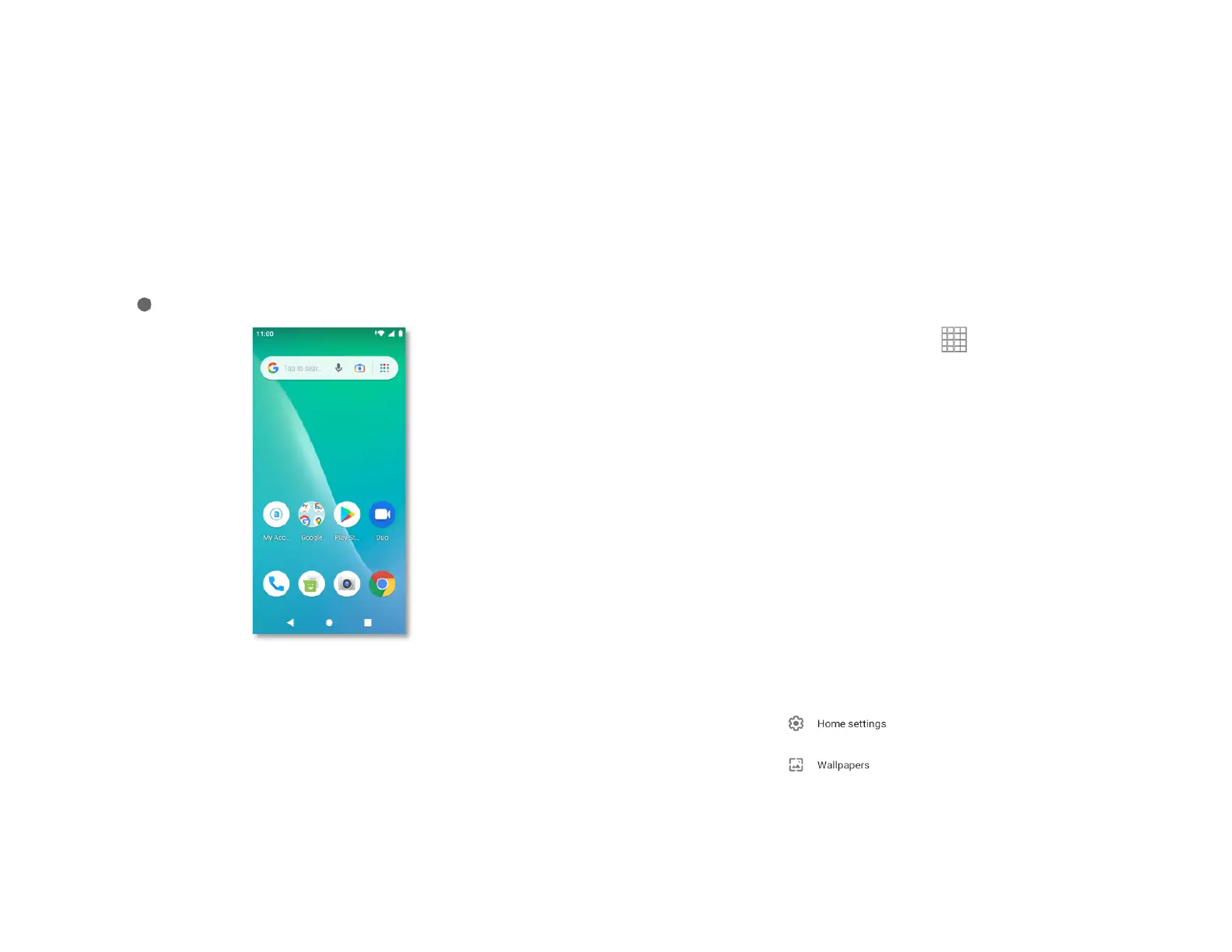
Getting to Know the Home
Screen
•
The Home screen is displayed when the device is in idle
mode. You can add your favorite apps, shortcuts, folders
and widgets to the Home screen so they’re only a tap
away.
•
Press Home to return to the center home screen.
1. Previewing the Home screens
1.
From any Home screen, tap and hold an application.
2.
When you choose a desired Home screen, the
application shifts to the selected Home screen.
Customizing the Home Screen
The Home screens and display wallpaper are customizable.
1.
Home screen customization options
Open the Home screen you want to customize.
2.
Moving an item on the Home screen
1.
From the Home screen, tap and hold the item you want
to move until it vibrates. Don’t lift your finger.
2.
Drag the item to a new location on the Home screen.
3.
Lift your finger at the location where you want the item.
To add a shortcut for any application to a Home screen,
Swipe up to reveal all your Apps > then find the
desired App, tap and hold the item, then drag it onto a
Home screen.
3.
Removing an item from the Home screen
1.
From the Home screen, tap and hold an item until it
vibrates. Don’t lift your finger. The × Remove icon will
appear at the top of the display.
2.
Drag the item to × Remove.
3.
When the item turns blue, lift your finger.
4.
Changing the Wallpaper of the Home screen
1.
From the Home screen, tap and hold any empty area
on a Home screen for a few seconds.
2.
Tap WALLPAPERS:
From the list of menus, Choose a photo from
your camera gallery or memory card storage.
3.
Tap Set wallpaper.



 To Next Page