Tools
Clock
1.
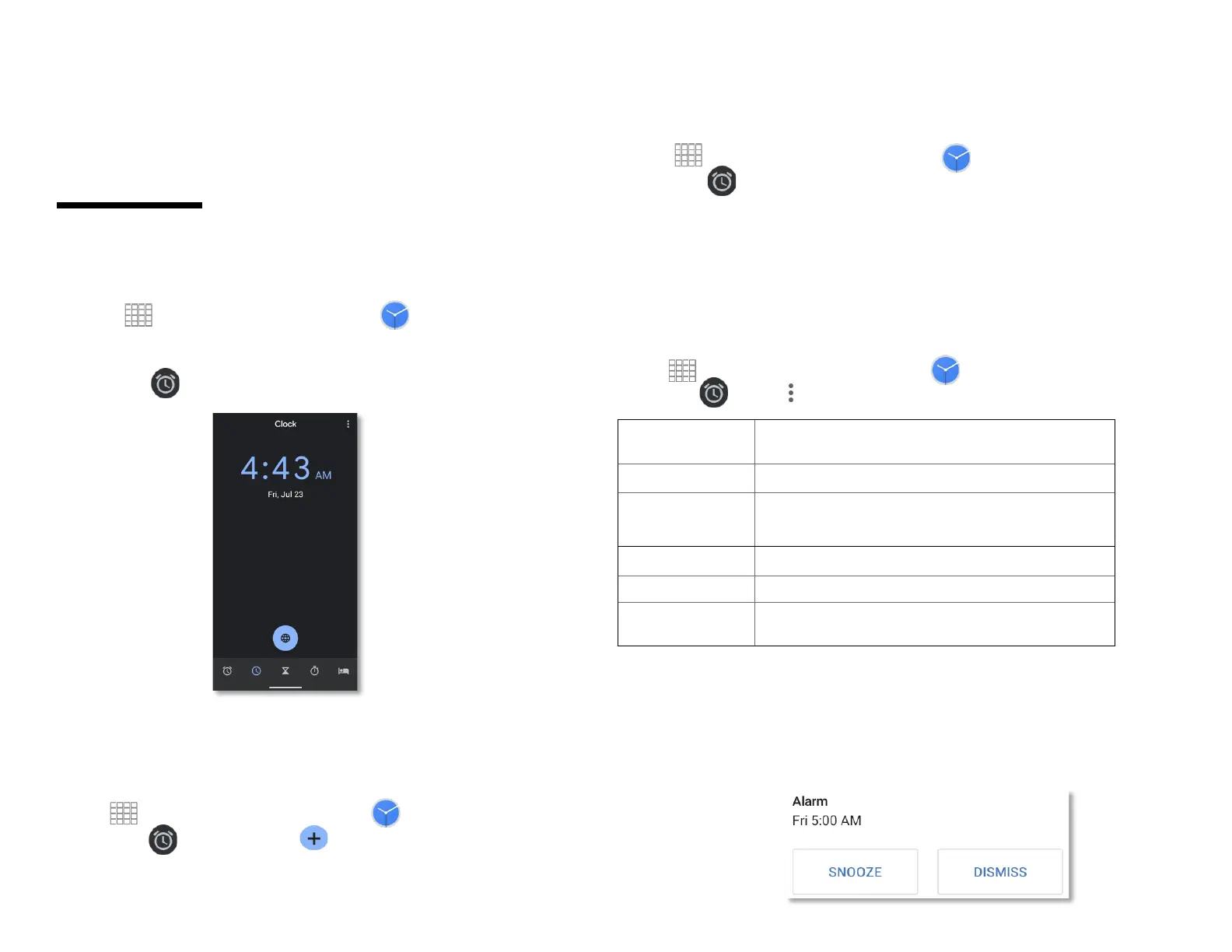
Opening the Clock
1.
From the Home screen, Swipe up to reveal all your ..
........ Apps > then find and tap on Clock.
• The Clock application opens and displays the date,
time and other useful information.
•Tap Set alarm to set alarm.
2.
Managing Alarms
1.
Adding a new alarm
1.
From the Home screen, Swipe up to reveal all your .. ........
........Apps > then find and tap on Clock.
2.
Tap
Set alarm > Add alarm.
3.
To change the alarm time, scroll up and down to type
the number. Then toggle AM/PM > Set.
4.
Check the checkbox, ‘Turn alarm on’.
5.
Edit Turn alarm on, Time, Repeat, Ringtone,
Vibrate and Label > Ok.
2.
Editing an alarm
1.
From the Home screen, Swipe up to reveal all your .. ........
........Apps > then find and tap on Clock.
2.
Tap
> Tap an existing alarm.
3.
Turn the alarm on or off by checking or un-checking the
checkbox, ‘Turn alarm on’. In the alarm list, set alarms
are underlined in green.
4.
Edit Time, Repeat, Ringtone, Vibrate and Label >
Done. Or tap Delete to remove the alarm > OK.
3.
Changing alarm settings
1.
From the Home screen, Swipe up to reveal all your .. ........
........Apps > then find and tap on Clock
2.
Tap
> tap Option > Settings.
Check to play alarms even when the phone is
in silent mode.
Set the volume of alarms.
Set how long Clock waits before playing an
alarm again.
Alarm will silence after 10 minutes
Set the side button behavior for alarms.
4.
Stopping an alarm
1.
When the alarm sounds, tap Dismiss to stop the
alarm.
2.
Tap Snooze to repeat the alarm after a specified
length of time.



 To Next Page