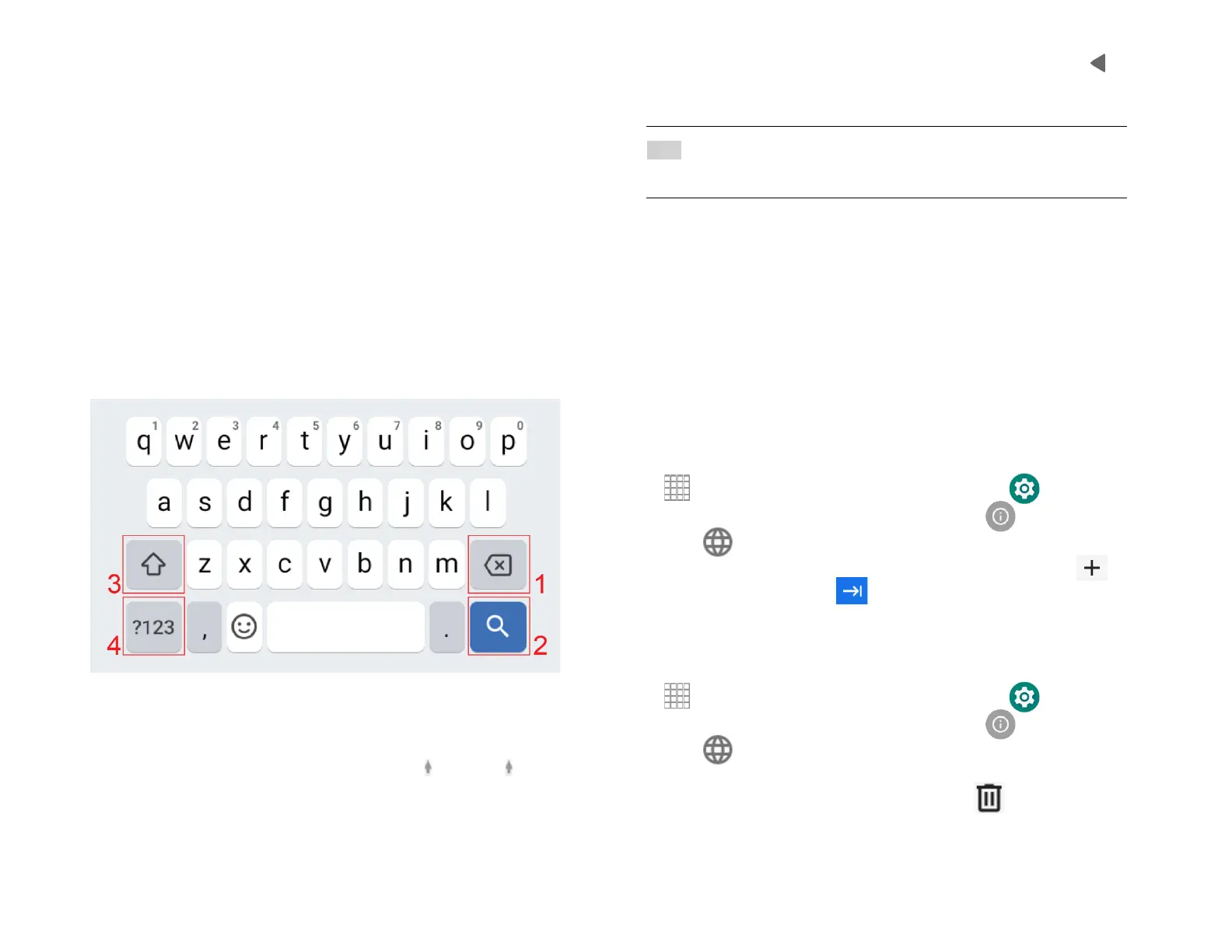
Using the Onscreen Keyboard
You can enter text using the onscreen keyboard. Some
applications open the keyboard automatically. In others,
tap anywhere in a text field to open the keyboard.
1.
Tap each letter on the on-screen keypad.
2.
Tap and hold a letter for additional key options (not all
keys have additional options). Additional key options
include numbers and letters with accent marks. If
options are available, you will see a box with all the
options shown. Slide your finger to select the character
you want.
3.
Continue until you have finished the word.
You can also use the following icons:
• Tap the key marked 3 above while you type. When you
release the key, the lowercase letters reappear.
• Turn caps lock on - double-tap or touch & hold
•Tap the key marked 3, so it changes to . Touch
shift key again to return to lowercase.
•Tap the key marked 1 in order to delete words, tap 4
so you can change to the number and sign
keyboard.
• To hide the Android keyboard, tap the Back icon .
• When you write a new message, you can tap 2 to skip
from the receiver frame to text frame.
NOTE When you type, the notification panel will have a “select input
method” so you can set the input methods.
Adding, Editing or Deleting Words in the User
Dictionary.
Sometimes you may need to add a word to the predictive
text dictionary, for example, a name or a specialized
technical word. If you want to add a word to your User
dictionary while entering text, double tap the word to
highlight it, then tap and hold the word and select
Add ** to dictionary.
Adding a word manually
1.
From the Home screen, Swipe up to reveal all your Apps
…. > then find and tap the Settings icon
2.
Scroll down and Tap the System icon
3.
Tap Language & input > Tap Advanced.
4.
Tap > Personal Dictionary and tap the plus sign
5.
Type the word > tap Enter on the keyboard.
Editing or deleting a word
1.
From the Home screen, Swipe up to reveal all your Apps
…. > then find and tap the Settings icon
2.
Scroll down and Tap the System icon
3.
Tap Language & input > Tap Advanced.
4.
Tap Personal Dictionary, tap the word to delete or edit.
5.
Tap the trash can to delete the word .



 To Next Page