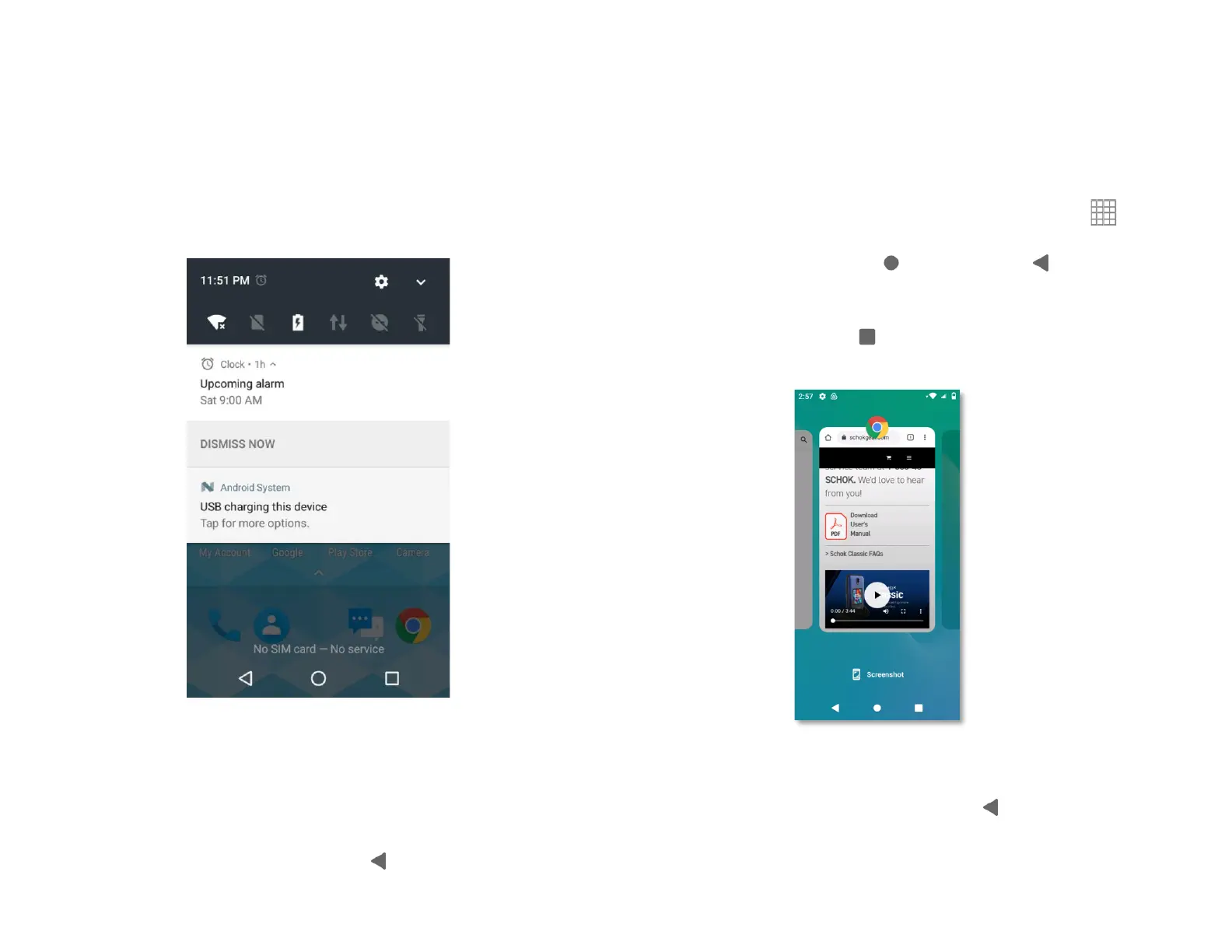
Notifications Panel
When you receive a new notification, an icon will be
displayed in your status bar at the top of your screen.
1.
Viewing and responding to Notifications
1.
Tap and hold Status bar, and then slide your finger
downward to open the Notifications panel.
2.
If you have multiple notifications, you may need to
scroll to see them all.
3.
Tap a notification to respond to it.
2.
Closing the Notifications panel
Drag the bottom bar of the
panel up. Or just press Back.
Opening & Switching Between
Applications
1.
Opening and closing the Applications List
1.
From the Home screen, Swipe up to reveal all your
Apps.
2.
To close, press Home or
Back.
2.
Switching to a recently used application
1.
From any screen, tap Recent apps. Swipe
from left to right to see all recently used application.
2.
Tap an Application to open or press Back
to return to your previous screen.



 To Next Page