Sending and Receiving
Information Using Bluetooth
You can use Bluetooth to transfer information between
your phone and another Bluetooth-enabled device such as
a phone or laptop computer. You can send the following
types of information, depending on the device you are
sending to:
• Images and videos
• Contacts
• Audio files
To send files, your phone must have a microSD card
installed.
NOTE The first time you transfer information between your phone
and another device, you need to enter or confirm a security
passcode. Your phone and the other device are then paired,
and you will not need to exchange passcodes to transfer
information in the future.
1. On your phone, open the application that contains
the item you want to send.
2. Choose the file that you want to send by long
pressing it.
3. Tap Share
4. A pop-up window will open. On “SHARE TO
APPS” Tap on More A new pop-up window will
open. If you are sharing to any Android OS Tap on
...............NEARBY. If you are sharing to iOS or
older versions of Android Tap on Bluetooth.
5. When NEARBY is Tapped, it will begin to search
for near devices. Tap the device that you want to
share the file to.
6. As soon as the other device presses Accept, the
transfer will initiate.
Receiving information from another device
Your device is capable of receiving a wide variety of file
types with Bluetooth, including photos, music tracks, and
documents such as PDFs
To receive files from another device, your phone must have
space in its local storage or a microSD card installed.
1.
From the Home screen, Swipe up to reveal all your …..
....... Apps > then find and tap on Settings.
2.
Tap Connected devices.
3.
Tap Connection preferences
4.
Under Connection preferences Tap Bluetooth
5.
If Bluetooth isn’t turned on, turn it on.
6.
Press the Back arrow at the top of the
display.
7.
On Connection preferences, tap Nearby Share
8.
Turn on Nearby Share.
9.
If a Bluetooth authorization request is displayed on
your phone, enter the same passcode on both your
phone and the other device, or confirm the auto-
generated passcode.
10.
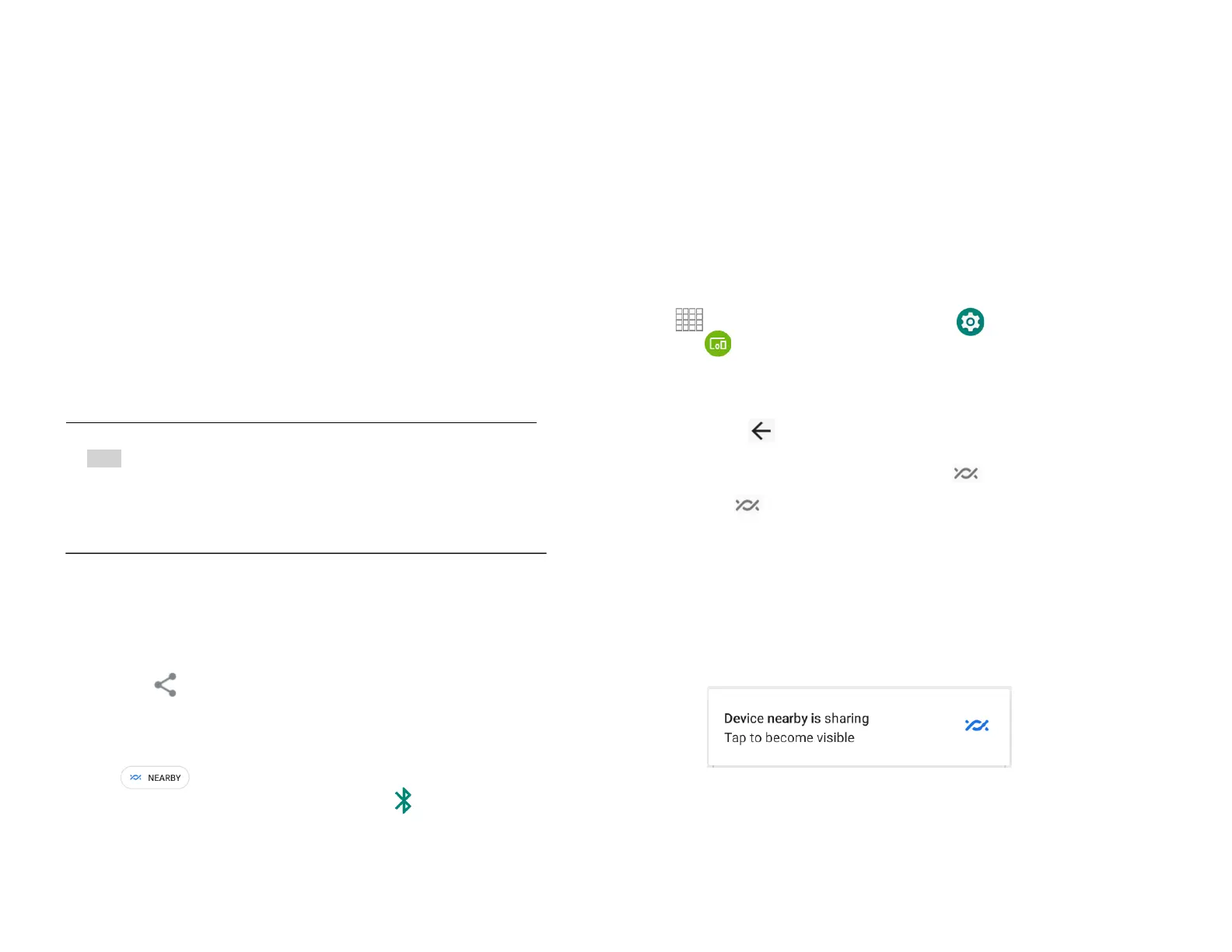
When your phone receives a nearby file transfer
request notification, a pop-up notification will be
displayed.
11.
Tap the pop-up notification to become visible.
12.
Another pop-up notification will inform that
another device with the name “XXXX” and the
PIN “1111” is sharing a file.
13.
Tap ACCEPT to initiate the transfer



 To Next Page