Screen timeout / Sleep Mode
Sleep mode saves battery power by turning off your display.
You will still receive messages and calls when the display is
turned off.
1.
Switching to Screen timeout mode
1.
Press Power/Lock to switch your phone to
Screen timeout mode.
2.
Your phone automatically turns off the display
after a period of inactivity. To customize the
screen timeout settings, from the Home screen,
Swipe up to reveal all your Apps > then find
and tap Settings icon > Display >
Screen timeout.
2.
Waking up from Screen timeout mode
1.
Your phone automatically wakes up when you have an
incoming call.
2.
To wake it up manually, press Power/Lock. You’ll
need to unlock the screen as described below.
3.
Unlocking the screen
On the lock screen, tap the unlock icon and slide
your finger in the direction of the arrows to unlock the
screen. The screen unlocks automatically when you
answer an incoming call.
4.
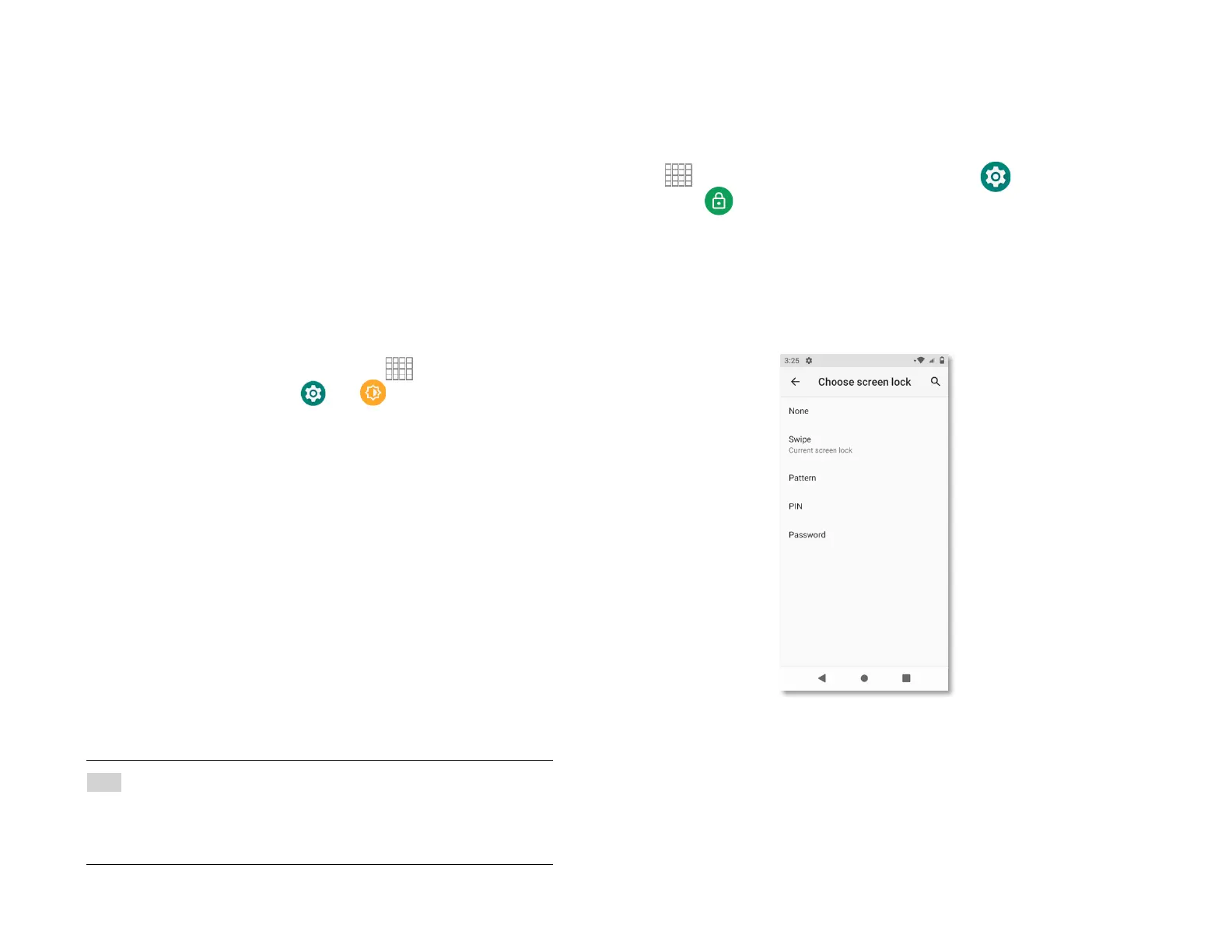
Activating Secure Screen Lock
1.
From the Home screen, Swipe up to reveal all your Apps
apps> then find and tap Settings icon
2.
Tap
Device Security > Screen lock.
• If you have already configured the screen lock, tap
Screen lock to change how to lock or unlock your
screen.
3.
Tap Pattern, PIN, Password, or Face Unlock. Then
enter a custom pattern, PIN or password as prompted.
• If you select ‘None’, screen unlock security is
cancelled
NOTE If you have set up a screen unlock pattern, pin, or
password, you will be asked to draw the pattern on the
screen or enter the PIN or password to access the phone
software.



 To Next Page