6 – PC SOFTWARE
MODEL 5000 SERIES MANUAL Version 1.23 6-9
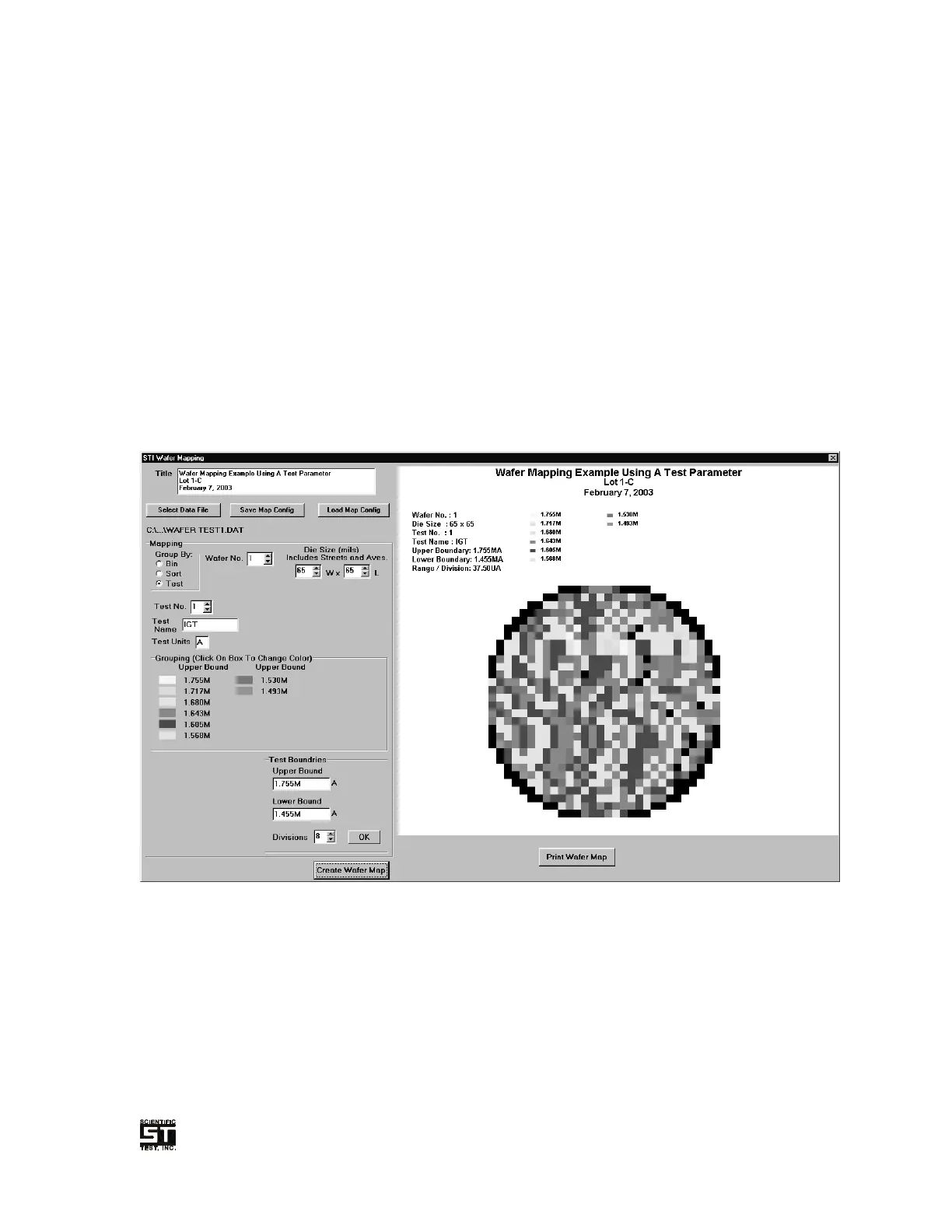
The color of each mapping group is displayed along with the group name in the
“Grouping” box, mouse click on the colored box to open a color selection window.
The color selected will then be displayed and used when the wafer map is created.
NOTE: a color selection box is opened displaying a relatively few distinct colors, but
do represent red, yellow, green, blue and purple within the full color spectrum. Click
the “Define Custom Color” button to define any of the 16 million possible colors.
These “custom colors” will remain available for use for as long as the wafer map
window is open. It is important to select colors that are distinct so that and suitable
for the Monitor and/or the printer being used.
Click the “Create Wafer Map” button to view the map (see Figure 6-2 for an
example). The size of the actual wafer map is scaled to fit the wafer map window.
Click the “Print Wafer Map” button to obtain a printed copy of the wafer map. The
wafer map will be recreated and scaled to fit the printer selected.
Figure 6-2 Example Wafer Map (Test Parameter)
6.3.1.7.7 Curve Trace Option
The Curve Trace Option requires STI 5000 Series Tester firmware with the Curve
Trace Option Enabled.
Creating a curve trace requires, first, generating or loading a test program that
contains a test step with the test to be used in the curve trace. Using the mouse or
keyboard, highlight the desired test step (note: the actual entries, unless otherwise
noted, are not important) and then press the “F11” key to open the Curve Trace


 To Next Page