6 – PC SOFTWARE
6-8 Version 1.23 MODEL 5000 SERIES MANUAL
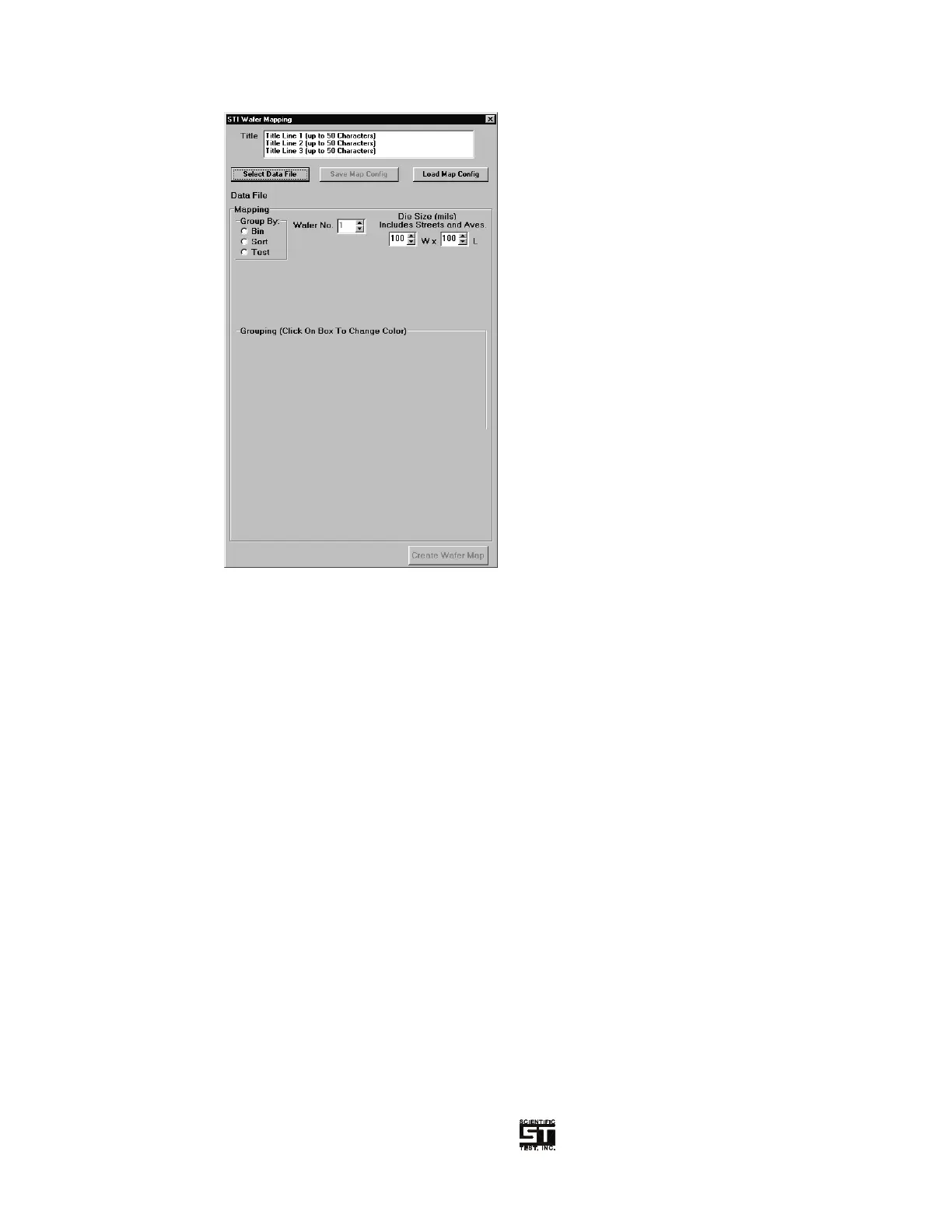
Figure 6-1 Wafer Map Initial Screen
After the Wafer Map window is opened, either select a data file to be used, or load a
previously saved wafer map configuration (Note: all other selections are disabled until
a valid STI data file has been selected). If a previously saved configuration is loaded,
a new data file can be selected without losing any of the other selections. The data
file being used is shown just below the file selection button.
The next selection is how the mapping is to be performed; by logical bin (1-8 and
Fail), by Sort (1-16 and Fail) or by test parameter. If mapping is to be by a test
parameter, then the test number, as defined in the STI test program must be entered.
The test name and test units are optional. Wafer die size is optional. Optional
information is provided to make the generated map more readable and complete.
NOTE:
If the wafer map is by logical bin, the test program allows for up to 16 logical
bins, however, the prober card only allows for up to 8 logical bins. If a bin is
resolved in the datalog data file that is not defined in the wafer map
configuration, then that die will be represented with the color black.
If the wafer map is by sort, the test program allows for up to 96 sorts but only
16 may be defined in the wafer map configuration. If a sort is resolved in the
datalog file that is not defined in the wafer map configuration, then that die
will be represented with the color black.
If the wafer map is by test and the test result in the datalog file is outside the
configured upper and lower boundaries, then that die will be represented with
the color black.
In every case, the color black does not represent a failed die, but rather a die
that does fall within the wafer map configuration settings.


 To Next Page