Update Firmware and reset to factory defaults
Download the latest SP LINK (version 14.0 or higher) from the Selectronic web site. This will contain
the latest SP PRO firmware 14.00 or higher and the Communications Card firmware 4.00 or higher.
Apply DC power to all the SP PROs in the Powerchain system and wait until they start.
Connect the SP LINK PC to the USB port on the SP PRO that will be assigned as the System Manager
(the Manager on L1 phase).
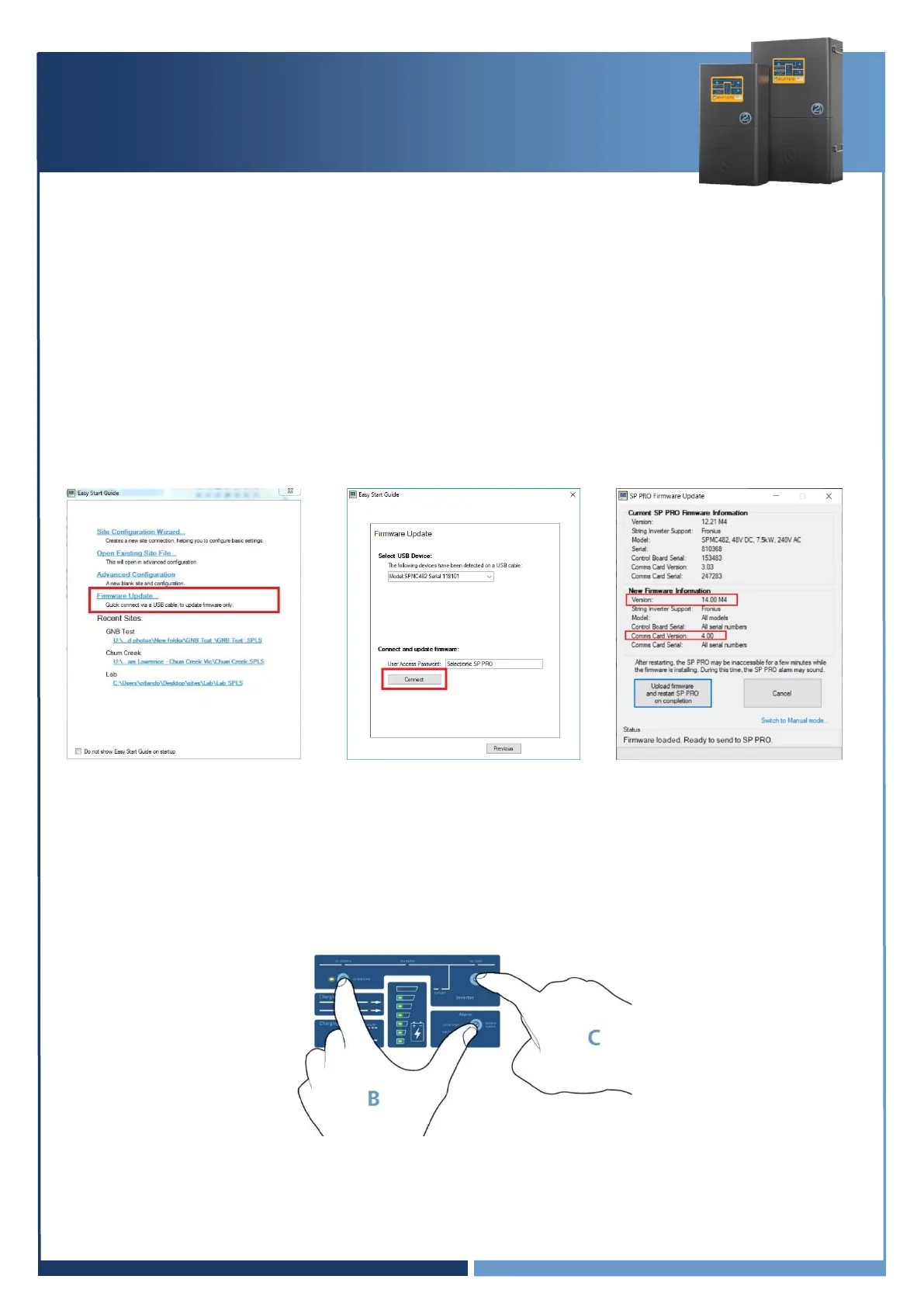
Select Firmware Update from the Easy Start Guide and update all of the SP PROs in the Powerchain
system to latest version of firmware (Version 14.00 or higher and Comm Card version 4.00 or higher, if
not already updated). All SP PROs in the Powerchain system will be updated via the System Manager.
Each SP PRO is shipped with a factory default configuration. If any of the SP PROs in the Powerchain
have been configured then they must be set back to factory defaults before proceeding. If in doubt, it is
best to revert each unit to factory defaults.
To set an SP PRO to factory defaults: Apply battery power to the SP PRO and leave in Idle. Press and
Hold the Alarm and Generator buttons (B) then press the ON button (C) until all LEDs go green. Release
all buttons.
For more detailed instructions on how to update firmware and reset an SP PRO to factory defaults,
please refer to Appendix I on page 14.


 To Next Page