conventional fader direction.
11. Cue Mix: Turn to mix between the cue channel and program mix in the headphone outputs. When all the way to
the left, only the cue channel will be heard. When all the way to the right, only the program mix will be heard.
12. Cue Split: When this switch is in the On position, the headphone audio will be “split” such that the cue channel
are summed to mono and sent to the left headphone channel while the program mix is summed to mono and
sent to the right channel. When the switch is in the Off position, the cue channel and program mix will be
“blended” together. In both cases, use the Cue Mix knob to control the blend of the two signals.
13. Cue Level: Turn this knob to adjust the volume level of the cue channel.
14. Headphone Outputs (1/4”, 1/8” / 6.35 mm, 3.5 mm, TRS): Connect your 1/4” or 1/8” (6.35 mm or 3.5 mm)
headphones to this output for cueing and mix monitoring.
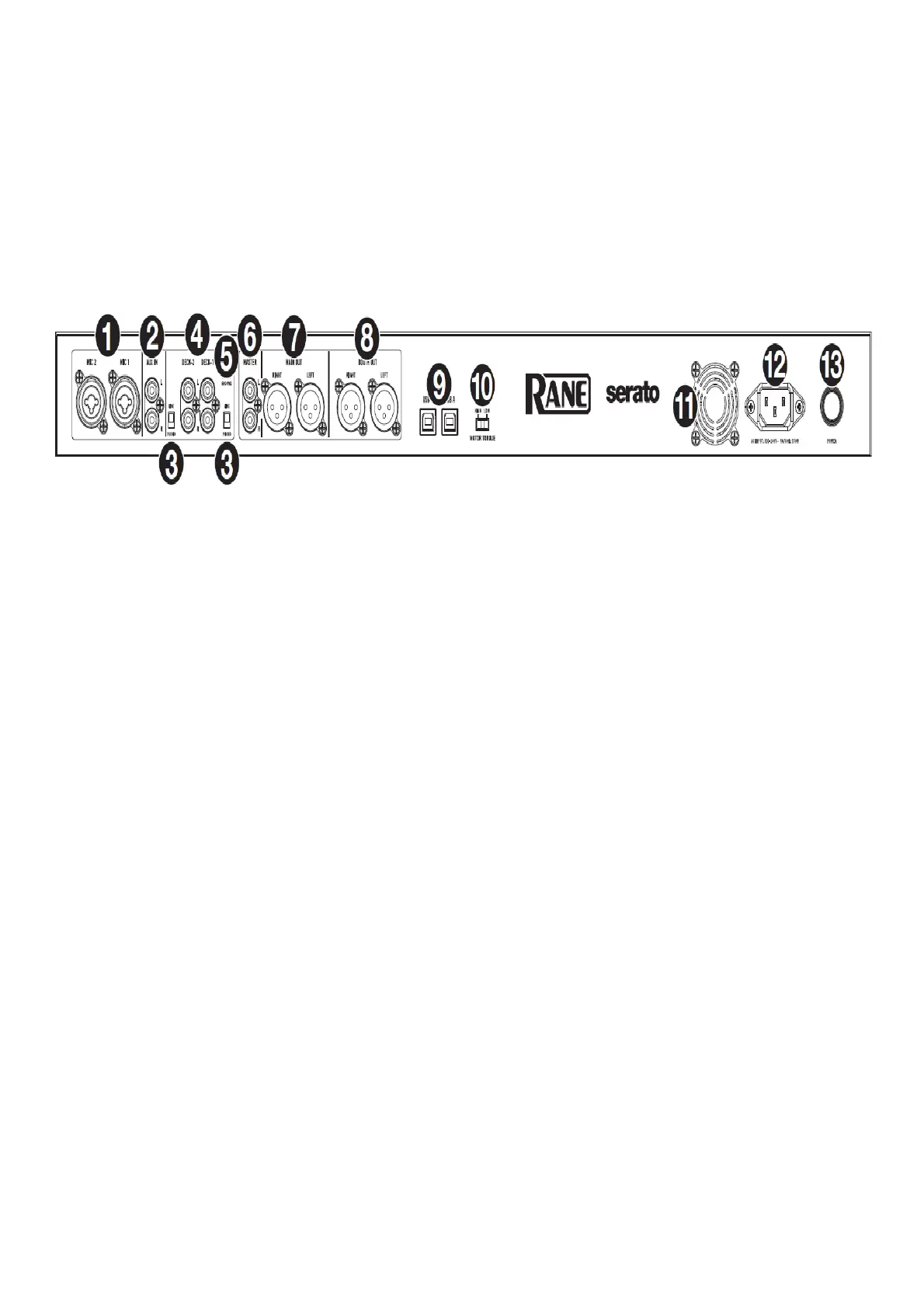
Rear Panel
1. Mic Inputs 1–2 (XLR / 1/4”/6.35 mm, TRS): Connect microphones or line-level devices to these mono inputs.
Their mono audio signals are split and routed directly to the stereo program mix and cue channel. If you prefer a
stereo line input, the Aux In may be used.
2. Aux In (RCA): Connect these inputs to an external line-level audio source. Remember to set the Mic 2/AUX
switch to Aux to play its audio signal.
3. Line/Phono Selectors: Set this switch to the appropriate position, depending on the device connected to the
Phono/Line Ins of the corresponding deck. If you are using phono-level turntables, set this switch to Phono to
provide the additional amplification needed for phono-level signals. If you are using a line-level device, such as
a line-level turntable, CD player or sampler, set this switch to Line.
4. Deck Phono/Line In (RCA): Connect these inputs to an external audio source or to a turntable, CD player, or
other line-level device. Remember to set the corresponding Phono/Line selector to the appropriate position and
to set the deck source knob for that deck to Phono/Line to play its audio signal on that deck.
5. Phono Ground: If you are using phono-level turntables with a grounding wire, connect the grounding wire to this
terminal. If you experience a low “hum” or “buzz”, this could mean that your turntables are not grounded.
Note: Some turntables have a grounding wire built into the RCA connection and, therefore, nothing needs to be
connected to the grounding terminal.
6. Master Out (RCA): Connect these outputs to another mixer, recording device, etc. The program mix will be sent
to these outputs.
7. Main Out (XLR): Connect these outputs to loudspeakers or an amplifier system. Use the Main knob on the top
panel to control the volume level.
8. Booth Out (XLR): Connect these outputs to booth monitors or a booth amplifier system. Use the Booth knob on
the top panel to control the volume level.
9. USB Ports (USB Type-B): Use USB cables to connect these USB ports to available USB ports on your
computer. These connections send and receive audio and MIDI control information to and from the computer.
Note: Make sure you have downloaded and installed the Rane Control Panel from rane.com.
10. Motor Torque: Flip this switch to adjust the torque of the platters. At the high setting, the platters will have the
heavier, stronger feel of “modern” turntables. At the lower setting, they are lighter and more graceful—the feel of
a “classic” turntable.
11. Cooling Fan: Keep the area in front of this vent clear from obstructions. The fan behind the vent cools the ONE,
preventing overheating.
12. Power Input: While ONE is powered off, connect the included power cable to this input and then to a power
outlet.
13. Power Button: Use this button to power ONE on or off. Power on ONE only after you have connected all of your
input devices and before you power on your amplifiers and loudspeakers. Power off your amplifiers and
loudspeakers before powering off ONE.




 To Next Page