Operation
Pad Modes
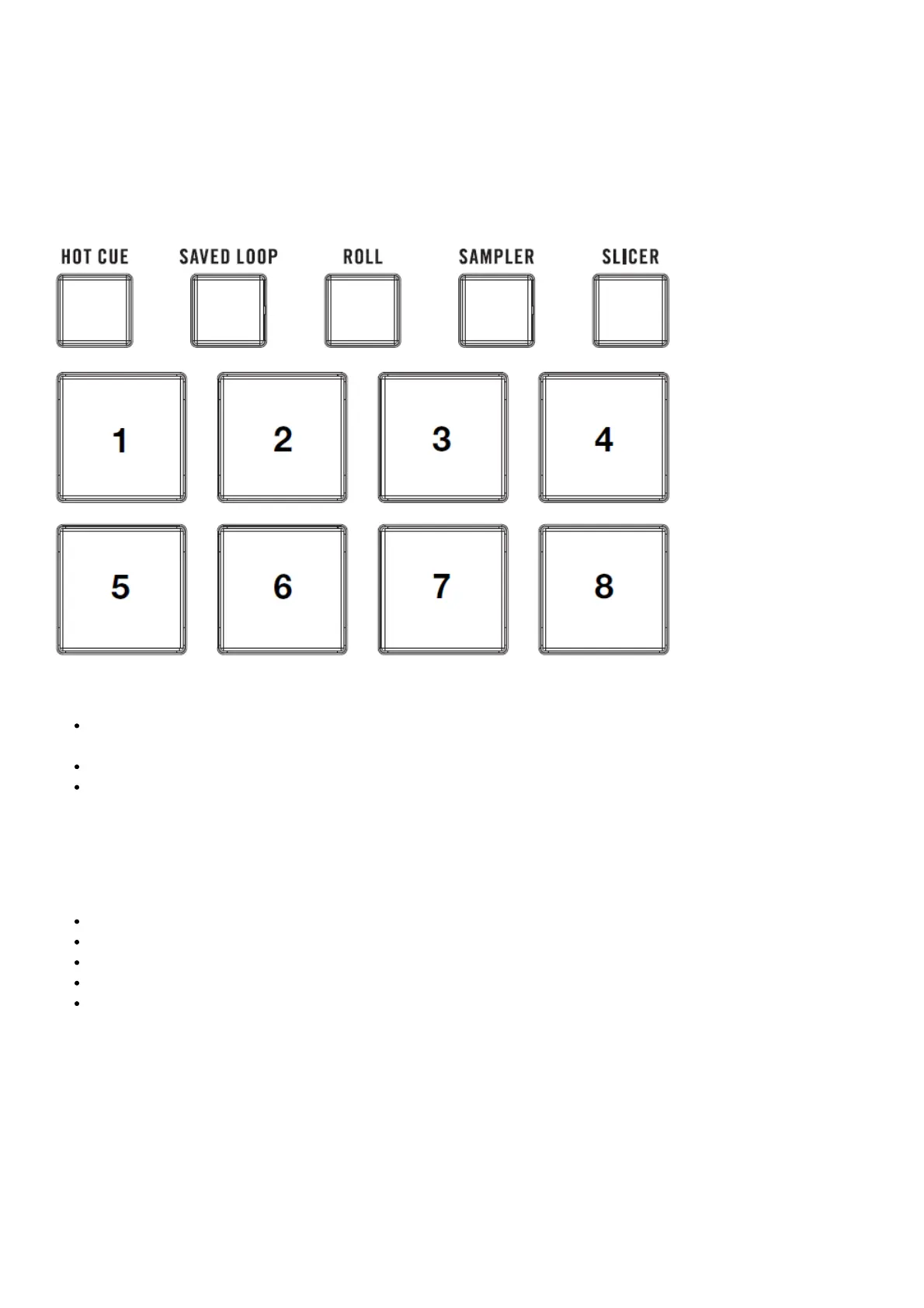
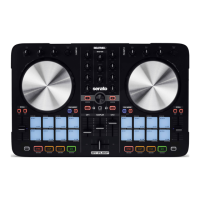
This chapter describes the different pad modes. Each deck has eight pads, which are always in one of these modes,
and each deck’s pads can be in a different mode. Press one of the Pad Mode buttons to enter the corresponding pad
mode on that deck.
Hot Cue
In Hot Cue Mode, each pad assigns a hot cue point or returns the track to that hot cue point.
To enter Hot Cue Mode, press Hot Cue.
To assign a hot cue point, press an unlit Pad at the desired point in your track. The pad will light up when it is
assigned (with the corresponding color, if available).
To jump to a hot cue point, press a lit Pad.
To delete an assigned hot cue point, press Shift and the corresponding pad.
Pitch Play
In Pitch Play Mode, each pad plays the track from a hot cue point at a different transposition (adjustable by
semitones). The Serato Pitch ‘n Time DJ Expansion Pack (sold separately) must be installed to use this mode. See
Hot Cue to learn how to assign hot cue points.
To enter Pitch Play Mode, press Hot Cue a second time.
To select which hot cue point to use, press Shift and a dimly lit Pad.
To select the range of transpositions the pads will use, use the Parameter buttons (see the diagrams here).
To adjust the key of the current track down or up, press Shift and the Parameter buttons, respectively.
To play the track from the hot cue point, press a lit Pad. Each pad corresponds to a specific transposition (by
semitones), depending on the current range of transposition (see the diagrams here). The pad with no
transposition (the original pitch) will be lit white.



 To Next Page