Switched PRO2 – User Guide
Using the Web Interface • 113
Access (Managing Users)
The Access section of the Web interface determines how a PRO2 user works with the network and system by
configuring the options related to a user: authentication, privilege levels, user access to the unit, and additional
functions for individual local users and user groups.
Note: The Access section only allows the administrator to determine how the PRO2 user uses the network
and system. To set up network protocol parameters, see the Network section.
Access > General
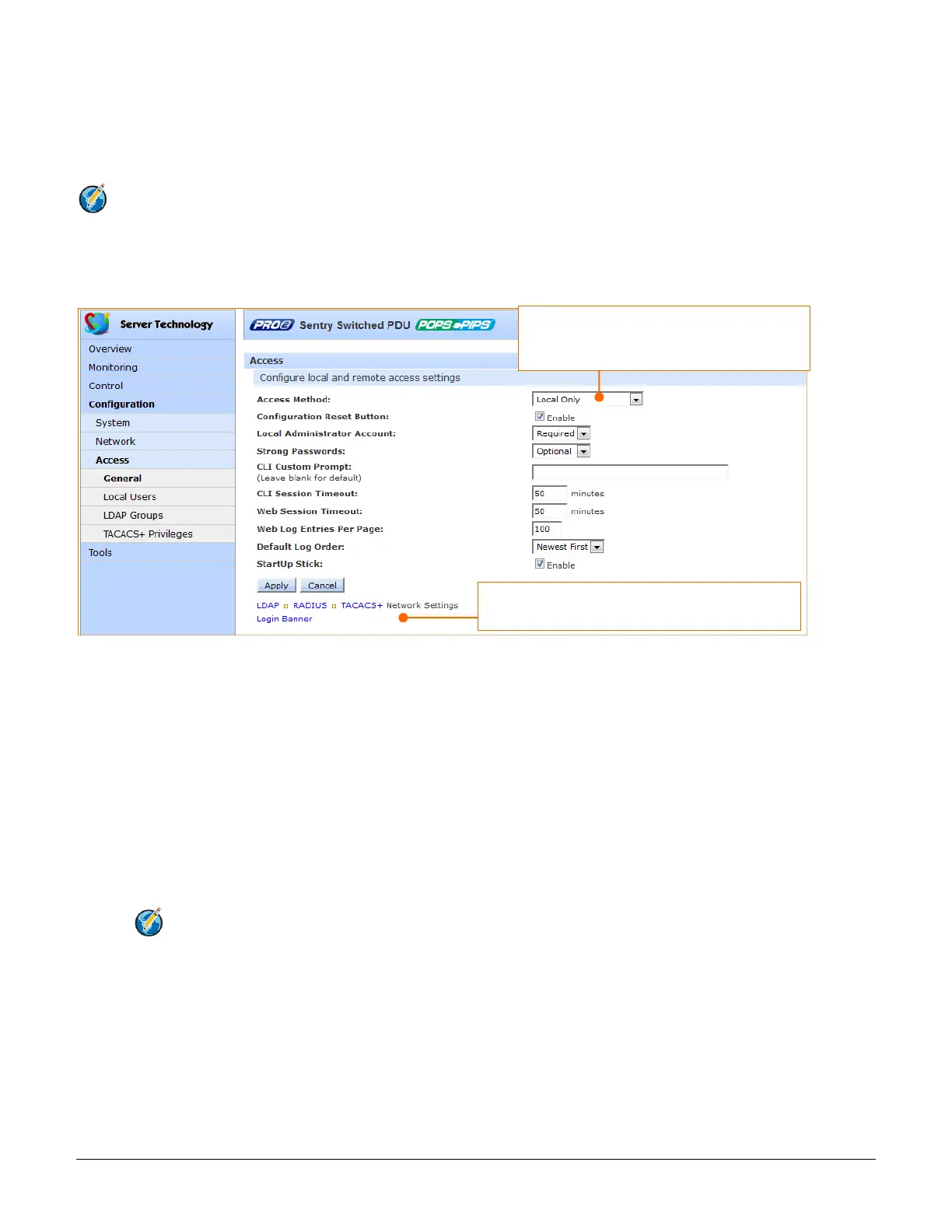
The General page allows configuration of local and remote access settings.
To configure general system access:
1. Access Method: From the drop-down menu, select an option to enable one of several authentication
methods to control user access to the PRO2. Only one method can be enabled at a time: Local Only
(default), LDAP Only, LDAP Then Local, RADIUS Only, RADIUS Then Local, TACACS+ Only, TACACS+
Then Local.
2. Button Configuration Reset: Check (or uncheck) the Enable checkbox to enable (or disable) physical
access to the Reset button on the PRO2 hardware.
The PRO2 is designed with a reset button on the hardware unit that can be used when a forgotten firmware
password prevents logging into the unit. The reset button sets all configuration values back to factory
default settings, allowing the administrator to retrieve the admn/admn default administrator login.
To access the button on the unit, you need a non-conductive metallic tool that fits inside the recess. If you
press and hold the Reset button on the unit for more than 15 seconds, the reset action will terminate.
Note: This method of physical access to the unit will not work if the reset button has already been
disabled by the administrator through the firmware GUI at Configuration > Access > General >
Button Configuration Reset (show in the screen example above) or through the firmware CLI with
the set access button [enabled/disabled] command. For security, the administrator can choose to
disable the button through firmware to inhiibit a user from causing a reset on the unit.


 To Next Page