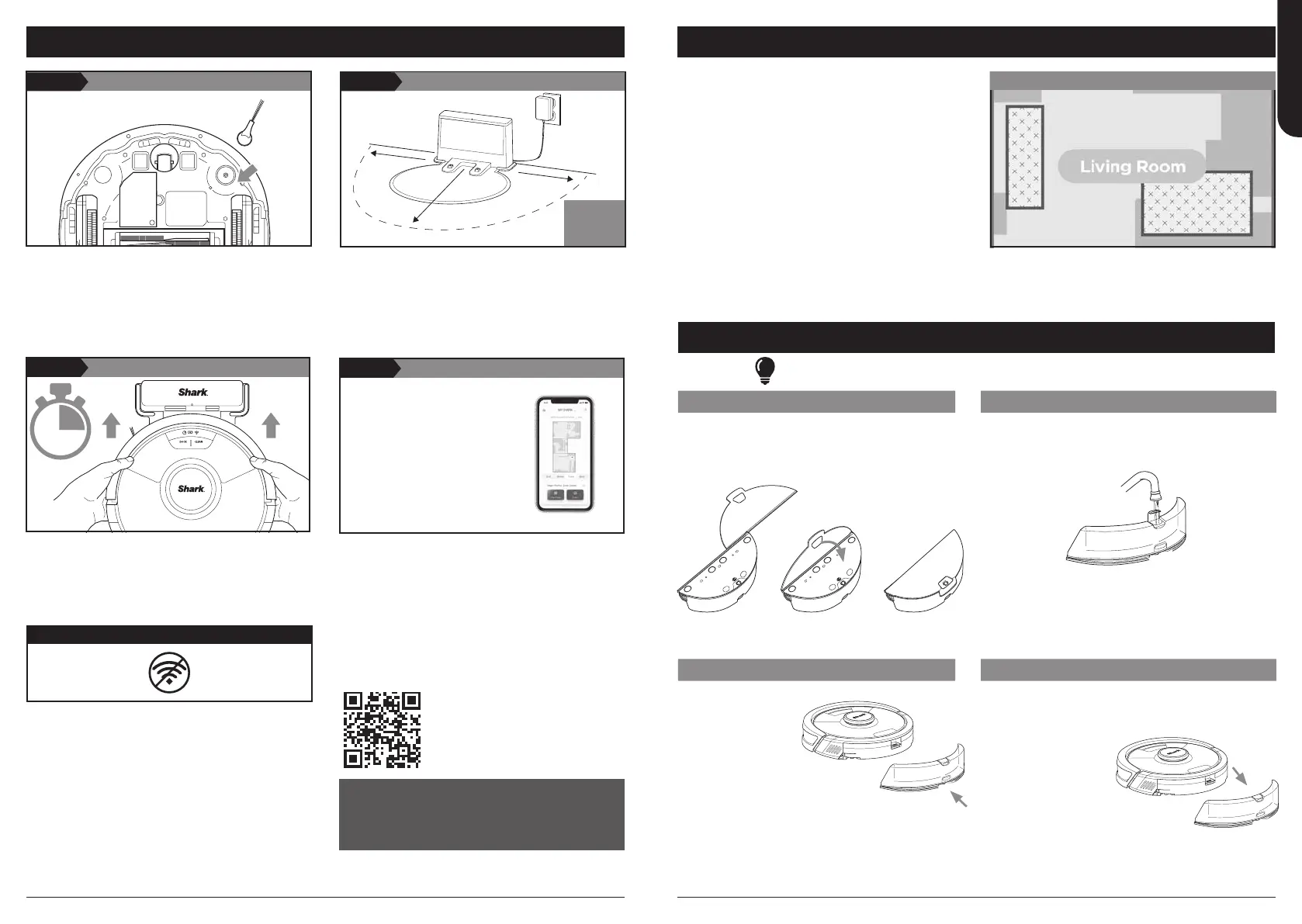
• Remove protective film from robot and dock.
• Attach side brush.
SETUP
• To turn on the robot, press the DOCK button for 5
to 7 seconds until the lights illuminate on the robot.
• To charge, place the robot on the dock’s charging
contacts. It may take up to 6 hours to charge
completely.
• Find a permanent location for the dock in a spot
with a strong Wi-Fi signal.
• Place the dock on bare floor, away from rugs or
carpets, with its back against the wall.
• Attach the landing mat to the bottom of the dock.
• Plug in the dock. The indicator light will illuminate
green when the dock has power.
BEFORE YOU CLEAN
Your robot will need to complete an Explore Run
without the mopping Module attached to create a
map of your home.
In the Explore Run, your robot will wander around
your home as it creates a map.
After this run, you can create Carpet Zones in the
areas of your home that you want to the robot to
avoid while mopping. If you do not want to set up
Carpet Zones, or do not have carpets or rugs in your
home, you can skip this step.
Now you’re ready to clean.
INTERACTIVE MAP WITH CARPET ZONES
HOW TO SET UP MOPPING MODE
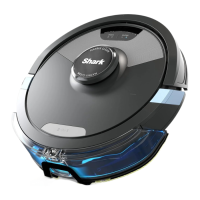
Attach the fluid mopping Module to your robot to enter Mopping Mode.
In this mode, your robot will vacuum and mop simultaneously.
ATTACH MOPPING PAD FILL MOPPING MODULE
• Insert the flat edge of the pad through the slot
in the mopping Module.
• Secure to the back of the mopping Module.
• Fill with water to the water line.
INSERT MOPPING MODULE INTO ROBOT REMOVE MOP ACCESSORIES AFTER USE
• Firmly push the
mopping Module
into the back of
the robot. (Do not
remove the dust
bin.)
• When properly
inserted, the
mopping Module
will click securely
into place.
• Your robot is
ready to
simultaneously
vacuum and mop
your hard floors.
• Press the release button at the fill port and slide out
the mopping Module.
• Pour out the water.
• Remove the pad and
follow the care
instructions on the
back of the pad.
Search “SharkClean” in the app store or scan the QR
code on the front cover to download the app.
• To use the app, your phone must be
connected to a 2.4 GHz network. The app
will not work on a 5 GHz network.
• DO NOT use a VPN or a proxy server.
• Make sure Wi-Fi isolation is turned o on the router.
CAN’T CONNECT TO WI-FI?
Restart your phone
• Turn o phone, wait a few minutes, then turn it back on
and connect to Wi-Fi.
Reboot your robot
• Take robot o dock and press and hold down the
CLEAN button on the robot for 12 seconds. Turn your
robot back on by placing it on the dock.
Reboot your router
• Unplug the router power cable for 30 seconds, then
plug it back in. Allow several minutes for your router to
reboot completely.
..........
TURN ON AND CHARGE ROBOT
First
Charge
6h
PLACE
DOCK
ON BARE
FLOOR
SET UP THE DOCK
1.5 m
1 m
1 m
PREP THE ROBOT
STEP 1 STEP 2
STEP 3
Side Brush
DOWNLOAD THE APP
SharkClean
App Features
✔ Precision Home Mapping
✔ Room Select
✔ Spot Cleaning
✔ No Go Zones
✔ Scheduling
✔ Carpet Zones
STEP 4
Questions? Steps if You're Stuck:
Having trouble connecting to your robot?
For how-to videos, FAQs, troubleshooting, and tips &
tricks visit: sharkclean.eu.
For full instruction booklet visit: qr.sharkclean.com/
https://qr.sharkclean.com/RV2620EU or
SCAN HERE USING YOUR SMARTPHONE CAMERA
sharkclean.eusharkclean.eu
ENGLISH



 To Next Page