EasyManua.ls Logo

Sharp AL-1642CS - User Manual

Sharp AL-1642CS
97 pages
Print Icon
To Next Page IconTo Next Page
Loading...
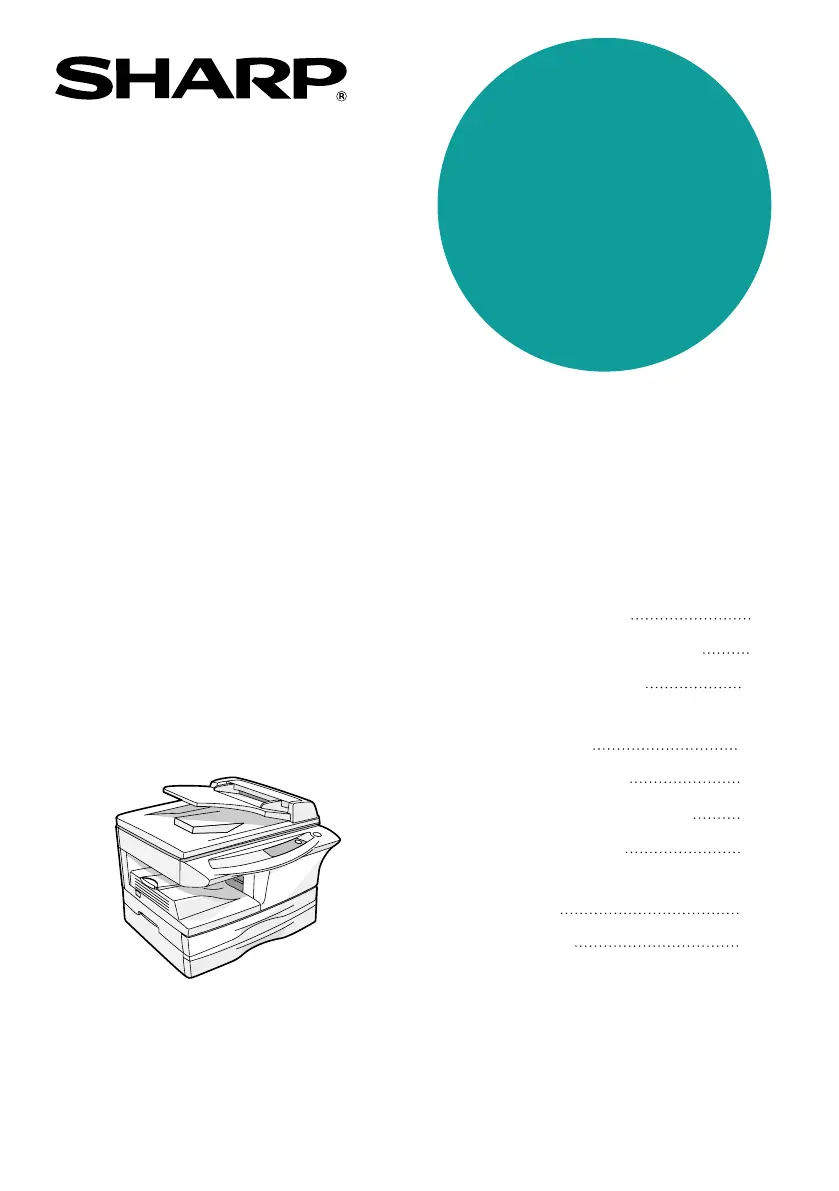
DIGITAL LASER COPIER
DIGITAL MULTIFUNCTIONAL
SYSTEM
OPERATION MANUAL
Page
INTRODUCTION
SETTING UP THE UNIT
LOADING PAPER
MAKING COPIES
SPECIAL FUNCTIONS
MAINTENANCE
TROUBLESHOOTING
THE UNIT
4
7
14
46
52
57
61
68
INSTALLING THE
SOFTWARE
19
APPENDIX
AL-1642CS
MODEL
AL-1642CS
ED IN CHINA
KS1
INSE1477QSZZ
005D
AL-1642CS_Manual.book 1 ページ 2005年3月3日 木曜日 午後5時34

Table of Contents

Other manuals for Sharp AL-1642CS

Questions and Answers

  • K
    Kathryn GutierrezJul 26, 2025
    Why does my Sharp Copier paper misfeed frequently?
    • J
      Jessica LucasJul 26, 2025
      Frequent paper misfeeds in your Sharp Copier can occur for several reasons: * Non-standard paper may be in use. Try using standard paper, or if you need to use special papers, feed them through the multi-bypass tray. * The paper might be curled or damp. Store paper flat in its wrapper in a dry location. * There may be pieces of paper inside the unit. Remove all pieces of misfed paper. * The paper guides in the paper tray may not be set properly. Ensure the guides are set correctly for the paper size you are using. * The paper tray might be overloaded. Remove excessive paper from the tray.
  • T
    Todd SmithAug 1, 2025
    Why won't my Sharp Copier turn on?
    • E
      elizabethmillerAug 1, 2025
      If your Sharp Copier isn't operating, check the following: * Is the unit plugged in? Plug the unit into a grounded outlet. * Is the power switch on? Turn the power switch on. * Is the side cover closed securely? Gently close the side cover. * Is the front cover closed? Gently close the front cover and then close the side cover.
  • A
    Anna CharlesAug 7, 2025
    Why do dust, dirt, or smudges appear on my Sharp Copier copies?
    • R
      Rodney BrooksAug 7, 2025
      Dust, dirt, or smudges appearing on your Sharp Copier copies can be due to a dirty document glass or SPF. Clean them regularly. Alternatively, the original document might be smudged or blotchy, so use a clean original.
  • M
    Miss Alisha Gallegos DDSAug 13, 2025
    How to fix images that rub off easily from Sharp AL-1642CS copies?
    • D
      Daniel FieldsAug 13, 2025
      If images rub off the copy easily when using your Sharp Copier, it could be due to the paper being too heavy. Use paper within the specified range. Alternatively, the paper may be damp. Replace it with dry paper, and if the unit is not used for a long time, remove the paper from the paper tray and store it in its wrapper in a dry location.
  • S
    Stephen LarsenAug 18, 2025
    Why are the copies from my Sharp AL-1642CS Copier too dark or too light?
    • G
      Gregory AdamsAug 19, 2025
      If the copies from your Sharp Copier are too dark or too light, it could be because the original image is too dark or too light; in this case, adjust the exposure manually. It could also be because the unit is in automatic exposure mode; adjust the automatic exposure level. Finally, if the unit is in photo exposure mode, cancel the photo exposure mode.

Summary

Setting Up the SHARP AL-1642 CS Unit

Step-by-Step Setup Procedure

Provides a sequential guide for the initial installation and setup of the unit.

Installing the TD Cartridge

Step-by-step instructions for correctly installing the TD cartridge into the unit.

Powering On the Unit

Instructions for connecting the power cord and turning the unit on.

Installing Software for SHARP AL-1642 CS

Software Installation Procedures

Guides for installing software for different Windows versions and connection types.

Maintenance for SHARP AL-1642 CS

TD Cartridge Replacement

Step-by-step guide for replacing the TD cartridge when toner is low.

Drum Cartridge Replacement

Instructions for replacing the drum cartridge when it reaches its end of life.

Troubleshooting the SHARP AL-1642 CS Unit

Troubleshooting Guide

A table listing common problems, their causes, solutions, and corresponding pages.

Misfeed Removal Procedures

Detailed steps for removing paper jams from different areas of the unit.

Sharp AL-1642CS Specifications

General IconGeneral
Max Paper SizeA3
Copy Resolution600 x 600 dpi
Max document enlargement200%
Max document reduction50%
Standard paper tray(s) capacity250 sheets
Paper input capacity (maximum)500 sheets
Output capacity100 sheets
TypeDigital
FunctionsCopier
Copying processLaser
Print Speed16 pages per minute
Warm-up Time45 seconds or less
First Copy Time B/W8.2 seconds
Standard interfacesUSB
Copy Magnification50 - 200%

Related product manuals