EasyManua.ls Logo

Sharp AJ-6000 - User Manual

Sharp AJ-6000
70 pages
Print Icon
To Next Page IconTo Next Page
Loading...
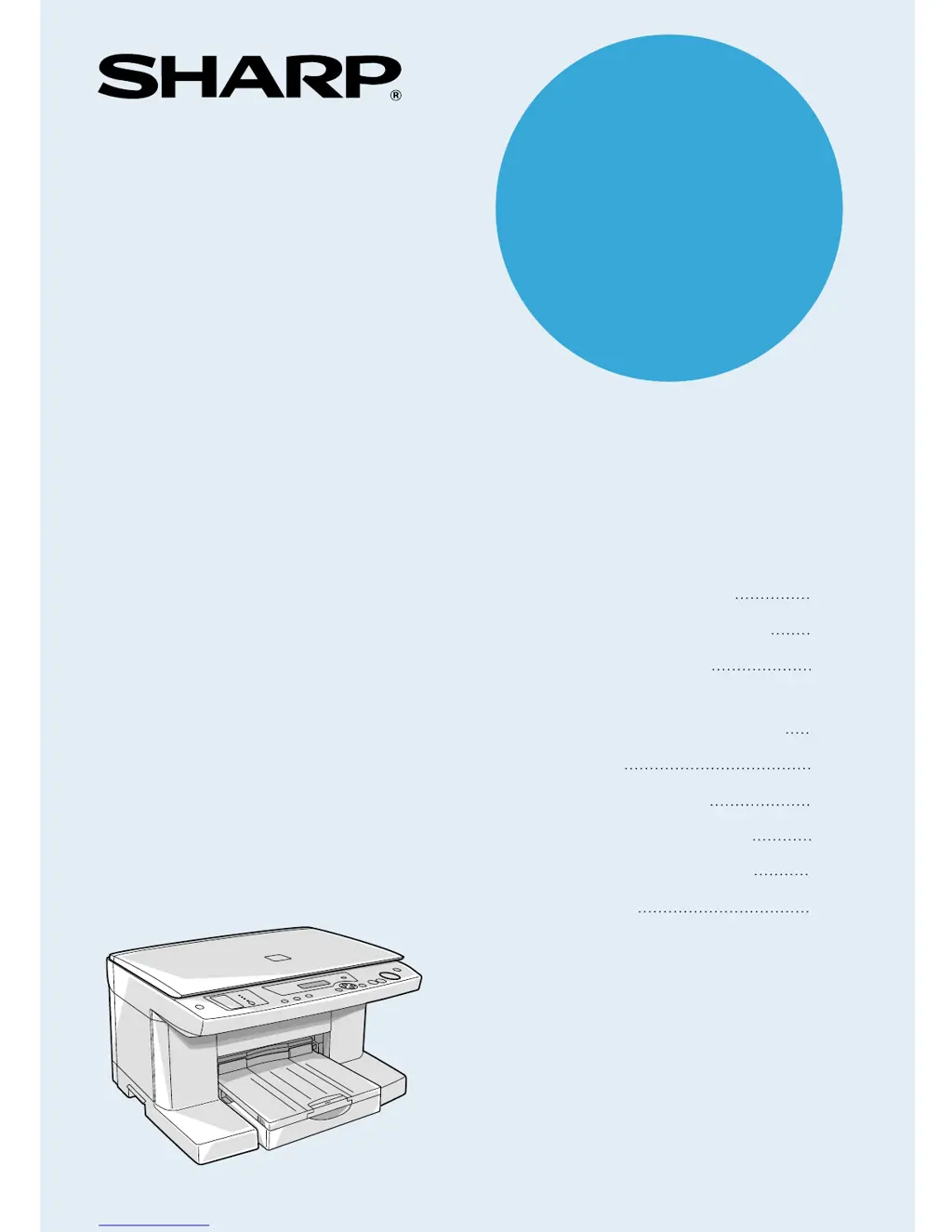
AJ-6000
MODEL
COLOUR INKJET COPIER
OPERATION MANUAL
Page
GETTING STARTED
SETTING UP THE UNIT
LOADING PAPER
OPERATION PANEL PART
NAMES AND FUNCTIONS
COPYING
USER PROGRAM
USER MAINTENANCE
TROUBLESHOOTING
APPENDIX
4
6
19
23
31
43
50
60
64

Questions and Answers

  • M
    Monique GarciaAug 14, 2025
    What to do if my Sharp AJ-6000 says 'Unable to Copy, Out of xxxxx Ink'?
    • C
      Carlos VangAug 14, 2025
      If your Sharp Copier displays 'Unable to Copy, Out of xxxxx Ink', it means the indicated ink tank is empty. Replace the empty ink tank with a new one. The ink color that needs replacing is indicated on the display.
  • D
    dawn32Aug 17, 2025
    What to do if my Sharp AJ-6000 displays 'Pull out power plug. Remove paper jam.'?
    • J
      Jacob RichardsAug 17, 2025
      When your Sharp Copier shows the message 'Pull out power plug. Remove paper jam.', unplug the power cord from the outlet. Then, remove all the jammed paper. After that, plug the power cord back in.
  • H
    hhodgesAug 20, 2025
    How to clear paper jam on Sharp Copier?
    • J
      jennifer59Aug 20, 2025
      If you see a 'Clear paper jam' message on your Sharp Copier, it indicates that a paper jam has occurred. To fix this, carefully remove the jammed paper from the unit.
  • A
    Alexis SavageAug 25, 2025
    What to do if my Sharp Copier says 'Unable to Copy, Incompatible ink'?
    • E
      Emma RichardsAug 25, 2025
      If your Sharp Copier displays 'Unable to Copy, Incompatible ink', it means the inserted ink tank is not compatible with the unit. To resolve this, only use SHARP ink tanks.
  • J
    jonesseanAug 27, 2025
    What does 'Unable to Copy, Missing xxxxx ink' mean on my Sharp AJ-6000?
    • J
      Jessica GloverAug 27, 2025
      If your Sharp Copier shows 'Unable to Copy, Missing xxxxx ink', the displayed ink tank is not correctly attached. Attach the ink tank correctly. The ink color that is not correctly attached is indicated on the display.
  • A
    Andre MilesAug 31, 2025
    What to do if my Sharp AJ-6000 Copier displays 'System error xxxx Refer to user guide'?
    • A
      Angela SmithAug 31, 2025
      Unplug the power cord from the outlet and plug it in again after a few seconds. If the message persists, stop using the unit.
  • M
    Matthew HernandezSep 3, 2025
    How to fix 'Unable to Copy, Missing print head' error on Sharp AJ-6000?
    • P
      penny27Sep 3, 2025
      If your Sharp Copier displays 'Unable to Copy, Missing print head', it means the print head is not set correctly. Reset the print head to resolve this issue.
  • A
    Andrea MorganSep 6, 2025
    What does 'Shipping Lock is on; Unlock to operate' mean on my Sharp Copier?
    • A
      Angela ReedSep 6, 2025
      If your Sharp Copier displays 'Shipping Lock is on; Unlock to operate', it indicates that the lock of the scan head is not released. Unlock it to operate the copier.
  • N
    Nicole MooreSep 9, 2025
    Why does my Sharp AJ-6000 say 'Reset paper knob Start to resume Adjust paper knob for thicker paper Reset paper knob for normal paper'?
    • M
      Megan TaylorSep 9, 2025
      This message on your Sharp Copier indicates that the paper knob is not set correctly. If you are using cardstock paper, set the knob to the appropriate setting. For all other types of paper, set it to the other appropriate setting.

Summary

Setting Up the Unit

Connecting the Power Cord

Steps to connect the unit to a power source and information on auto shut-off.

Installing Print Heads and Ink Tanks

Detailed procedure for installing the print heads and ink tanks.

Aligning the Print Heads

Process for adjusting print heads to ensure optimal print quality.

Loading Paper

Loading Paper into the Main Tray

Step-by-step instructions for loading paper into the main paper tray.

Loading Paper into the Bypass Tray

Instructions for loading single sheets of paper using the bypass tray.

Operation Panel and Display

Copying Operations

Performing Normal Copying

Step-by-step guide to perform a standard copy operation.

User Program Settings

Resetting All Options to Factory Defaults

Restores all unit settings to their original factory default values.

User Maintenance

Changing the Ink Tank

Step-by-step guide to replace an empty or low ink tank.

Cleaning the Print Head

Procedure to clean the print head for better copy quality.

Changing the Print Head

Instructions for replacing a damaged or faulty print head.

Troubleshooting

Troubleshooting Error Messages

Lists common error messages and their solutions with page references.

Identifying Unit Operation and Paper Issues

Guides to diagnose and resolve problems with unit operation and paper handling.

Identifying Copying and Paper Jam Issues

Guides to diagnose and resolve issues with copying performance and paper jams.

Sharp AJ-6000 Specifications

General IconGeneral
Copy Resolution600 x 600 dpi
Copy Size (Max)A3
Copy Speed60 copies per minute
Original SizeA3
Copy SizeA3
Power Consumption1.5 kW
Power Consumption (Approx)1.5 kW
Paper Capacity500 sheets
Paper Capacity (A4)500 sheets

Related product manuals