EasyManua.ls Logo

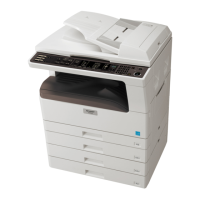
Sharp AR-235 - User Manual

Sharp AR-235
158 pages
Print Icon
To Next Page IconTo Next Page
Loading...
GETTING STARTED
MAKING COPIES
SPECIAL FUNCTIONS
COPIER TROUBLE?
GENERAL INFORMATION
OPTIONAL EQUIPMENT
KEY OPERATOR'S
GUIDE
5
23
41
65
77
91
117
DIGITAL LASER
COPIER/PRINTER
OPERATION MANUAL
Page
MODEL
AR-235
AR-275
CHINA
KS
541QSZZ
00EX.book1ページ2001年5月25日 金曜日 午前10時49分

Table of Contents

Other manuals for Sharp AR-235

Questions and Answers

  • J
    Julian SheaAug 17, 2025
    Why do black or white stripes appear on Sharp AR-235 Copier copies?
    • A
      Alan EllisAug 17, 2025
      If black or white stripes appear on copies from your Sharp Copier, the scanning window of an optional SPF or RSPF might be dirty. Clean the scanning window.
  • V
    Vickie GonzalezAug 19, 2025
    How to fix a Sharp AR-235 that does not operate?
    • E
      Erik RoseAug 19, 2025
      If your Sharp Copier isn't operating, ensure it's plugged into a grounded outlet as specified. Also, verify that the power switch is turned ON.
  • J
    Julie GuzmanAug 22, 2025
    Why are copies from my Sharp AR-235 Copier smudged or dirty?
    • K
      kelly67Aug 22, 2025
      If copies from your Sharp Copier are smudged or dirty, the platen glass or platen cover may need cleaning. Clean them regularly. Also, ensure you are using a clean original document.
  • D
    Dennis EdwardsAug 26, 2025
    Why does my Sharp AR-235 Copier paper misfeed frequently?
    • J
      James SandersAug 26, 2025
      If your Sharp Copier paper misfeeds frequently, ensure you are using standard paper. If you're using special paper, feed it through the bypass tray. Also, make sure the paper is properly installed, and remove any pieces of misfed paper inside the copier. Store copy paper flat in the wrapper in a dry location.
  • R
    Rebecca LeonAug 27, 2025
    What to do if Sharp Copier copies smear when rubbed?
    • K
      katherinewoodsAug 27, 2025
      If your Sharp Copier produces copies that smear when rubbed, the paper might be too heavy. Use copy paper within the specified range. Alternatively, the paper could be damp; replace it with dry copy paper and store it in a dry location.
  • W
    warnerkathrynAug 30, 2025
    Why is the original size not selected automatically on my Sharp Copier?
    • P
      patrick21Aug 30, 2025
      If the original size is not being automatically selected on your Sharp Copier, completely open the platen cover when placing the original on the platen glass, then close it. If the original includes large black solid areas, the size may not be detected; press the SPECIAL FUNCTION key and select "ORIG. SIZE ENTER" to specify the original size.
  • K
    Kristy HarrisSep 2, 2025
    How to fix Sharp AR-235 Copier that makes blank copies?
    • W
      Wayne CarpenterSep 2, 2025
      If you're getting blank copies from your Sharp Copier, make sure to place the original face down on the platen glass.
  • K
    Kim WrightSep 5, 2025
    How to adjust darkness on Sharp Copier?
    • G
      Grace DaughertySep 5, 2025
      If your Sharp Copier copies are too dark or too light, adjust the exposure settings.
  • C
    Catherine HollandSep 7, 2025
    What to do if Sharp AR-235 power is on but copying is not possible?
    • H
      Hunter OlsonSep 7, 2025
      If your Sharp Copier has power but copying is not possible, and only the mode indicators are on, the copier is in auto power shut-off mode. Press the COPY key or another mode key that is lit. If the COPY indicator is off, press the COPY key to select the COPY mode. If two-sided printing is in progress, wait until the printing job finishes.
  • D
    Donald AdamsSep 12, 2025
    Why can't I set paper size for a paper tray on my Sharp AR-235?
    • M
      Mrs. Sarah Glover DVMSep 12, 2025
      If you cannot set the paper size for a paper tray on your Sharp Copier, ensure the COPY indicator is on by pressing the COPY key to select the COPY mode. Also, you can set the paper size after copying, printing or facsimile printing is complete.

Summary

GETTING STARTED

CAUTIONS

Details essential safety warnings and precautions for operation.

COPIER INSTALLATION

Instructions for setting up the copier correctly in its environment.

MAKING COPIES

NORMAL COPYING

Step-by-step guide for standard copying operations.

TWO-SIDED COPYING

Instructions for creating copies on both sides of paper.

EXPOSURE ADJUSTMENT

How to control copy density and select exposure modes.

REDUCTION;ENLARGEMENT;ZOOM

Methods for resizing originals for copying.

SPECIAL FUNCTIONS

COPIER TROUBLE?

STATUS MESSAGES

Information on interpreting and responding to copier error messages.

MISFEED REMOVAL

Detailed guide for clearing paper jams in various locations.

TROUBLESHOOTING

Solutions for common operational issues not indicated by messages.

GENERAL INFORMATION

TONER CARTRIDGE REPLACEMENT

Procedure for installing a new toner cartridge.

OPTIONAL EQUIPMENT

SINGLE PASS FEEDER (AR-SP4);REVERSING SINGLE PASS FEEDER (AR-RP3)

Details on document feeder units and their use.

FINISHER (AR-FN5)

Information on the finisher's functions, stapling, and maintenance.

KEY OPERATOR’S GUIDE

REGISTERING THE KEY OPERATOR CODE NUMBER

Procedure to set the access code for operator functions.

Sharp AR-235 Specifications

General IconGeneral
TypeDigital
FunctionsCopier
Resolution600 x 600 dpi
Original sizeA3
Max Paper SizeA3
Warm-up Time30 seconds
Paper capacity250 sheets
Copying processLaser
Copy Speed23 ppm
Zoom range25% - 400%
Power consumption1.2 kW
Monthly Duty Cycle15, 000 pages

Related product manuals