125
Handset Settings
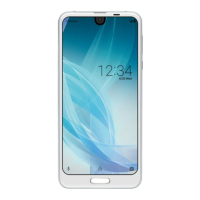
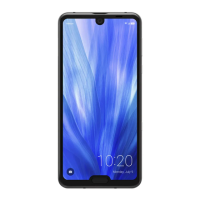
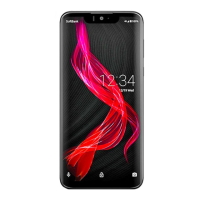
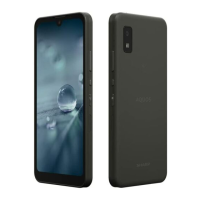
AQUOS CRYSTAL 2
Setting Shortcuts on Welcome Sheet (Lock
Screen)
In Wallpaper & display menu, Welcome Sheet
Shortcut Tap shortcut to change Tap shortcut
type ( Application , etc.) Tap/set function to
activate with shortcut
Setting Information for Info Area in Welcome
Sheet (Lock Screen)
In Wallpaper & display menu, Welcome Sheet Info
area エモパー (emopa)/ 天気設定 (weather)/ 株
価設定 (stocks) Follow onscreen prompts
Setting Area where Clock is Shown when emopa
is Enabled
In Wallpaper & display menu, Welcome Sheet Clock
display Center of screen / Info Area
・Available when emopa is enabled.
Setting Welcome Sheet (Lock Screen) Lighting
Time
In Wallpaper & display menu, Welcome Sheet
Welcome lighting time Tap number of seconds
Enabling/Disabling Effect that Appears on
Display Edges when Display Turns On
In Wallpaper & display menu, Screen edge effect
Off / On
・
Tap Off to enable ( On ), On to disable ( Off ).
・Toggle Off to save battery power.
Setting Display Edge Effect Pattern
In Wallpaper & display menu, Screen edge effect
When display turns on Flow / Ambient /
Diffusion OK
・Available when Screen edge effect is enabled.
Setting Whether to Show Display Edge Effect
when Calls Arrive or Charging Starts
In Wallpaper & display menu, Screen edge effect
For incoming call / When start charging ( )
・Available when Screen edge effect is enabled.
・
Tap For incoming call / When start charging to toggle
on ( )/off ( ).
Setting Display Brightness
In Wallpaper & display menu, Brightness level
Automatic brightness / Brighten while charging
OK
・
Tap Automatic brightness / Brighten while charging
to toggle on ( )/off ( ).
・Drag slider to adjust brightness.
Setting a Period of Inactivity after which
Display Turns Off
In Wallpaper & display menu, Screen timeout Tap
time
・Set a shorter time to save battery power.
Setting Image Quality
In Wallpaper & display menu, Quality mode Tap mode
Enabling/Disabling Automatic Screen Rotation
In Wallpaper & display menu, When device is rotated
Rotate the contents of the screen / Stay in portrait
view
・Set to "Stay in portrait view" to save battery power.
・May not work properly depending on application in use.
Setting Whether to Lock Screen during Calls
In Wallpaper & display menu, Screen lock during call
・
Tap Screen lock during call to toggle on ( )/off
( ).
Setting Text Size for Menus, Etc.
In Wallpaper & display menu, Font Settings Font
size General Tap size
Setting Text Size for S! Mail/SMS
In Wallpaper & display menu, Font Settings Font
size Mail Tap size OK
Setting Text Font
In Wallpaper & display menu, Font Settings Text
font Tap font OK
・
Tap SEARCH DOWNLOAD FONT to search for fonts on
Google Play.
・Depending on the application, changing the font may
prevent text from being shown correctly. Reset to the
preset font.


 To Next Page