28
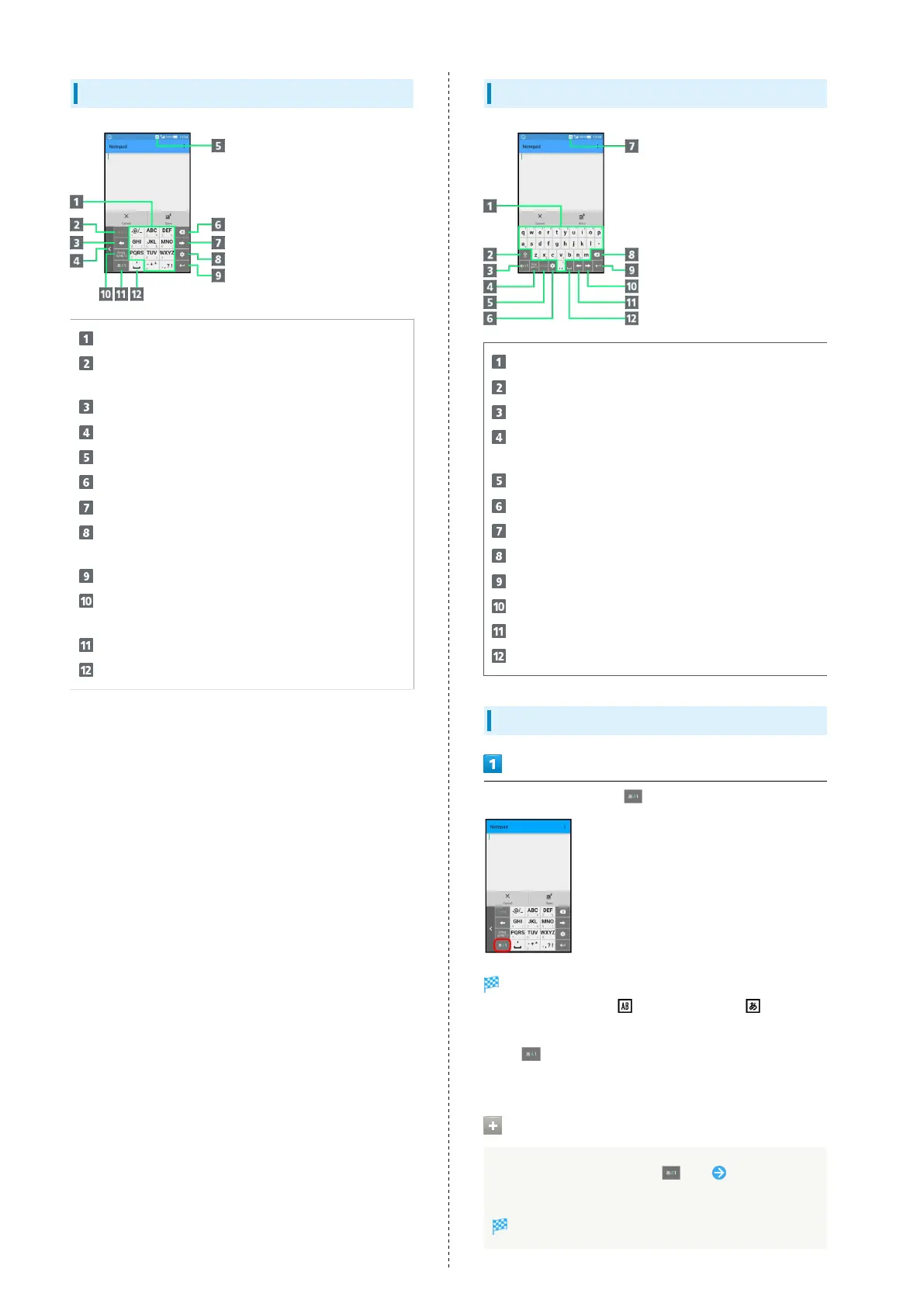
12-Key Keyboard Layout
Enter characters.
Undo conversion; reverse-toggle character options
before confirming entry.
Backspace cursor.
Move keyboard in the arrow direction.
Current entry mode
Delete characters.
Advance cursor; add space at text end.
Show text entry options. (During text entry, convert
hiragana.)
Insert line break; confirm current characters.
Enter pictograms, symbols, or emoticons; switch
conversion options.
Toggle entry modes.
Enter space; toggle case; add ゛ or ゜ for hiragana.
QWERTY Keyboard Layout
Enter characters.
Toggle case.
Toggle entry modes.
Enter pictograms, symbols, or emoticons; switch
conversion options.
Undo conversion.
Open text entry options.
Current entry mode
Delete characters.
Insert line break; confirm current characters.
Advance cursor; add space at text end.
Backspace cursor.
Enter space. (During text entry, convert hiragana.)
Switching Entry Modes
In a text entry window,
Keyboard interface changes accordingly. Current entry
mode indicator, such as (Half Alphabet) or (Hiragana/
Kanji), appears.
・
Tap to toggle Half Numeric, Hiragana/Kanji, and Half
Alphabet modes. Flick right to toggle these in reverse order.
Using Other Entry Modes
In a text entry window, Flick up Tap entry
mode
Keyboard interface changes accordingly.


 To Next Page