EasyManua.ls Logo

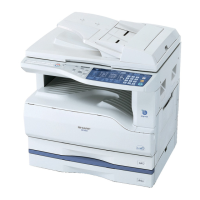
Sharp AR-M150 - User Manual

Sharp AR-M150
116 pages
Print Icon
To Next Page IconTo Next Page
Loading...
DIGITAL MULTIFUNCTIONAL
SYSTEM
OPERATION MANUAL
AR-M150
AR-M155
MODEL

Table of Contents

Other manuals for Sharp AR-M150

Questions and Answers

  • M
    Marissa BlanchardSep 12, 2025
    What to do if Sharp AR-M150 displays 'LOAD XXXX PAPER'?
    • R
      Raymond PottsSep 12, 2025
      If the Sharp All in One Printer displays 'LOAD XXXX PAPER INTO TRAY,' it means there is no paper for printing. Press the [MODE SELECT] key to switch to printer mode and follow the instructions in the display.
  • J
    John HardySep 12, 2025
    Why Sharp All in One Printer makes blank copies?
    • C
      Christian HenrySep 12, 2025
      If your Sharp All in One Printer is producing blank copies, ensure that the original document is placed correctly, either face up in the SPF/RSPF or face down on the document glass.
  • A
    Amy Johnson MDSep 9, 2025
    How to adjust the exposure on Sharp All in One Printer for better copy quality?
    • J
      Justin HendrixSep 9, 2025
      If your Sharp All in One Printer produces copies that are too dark or too light, ensure you select the correct original type using the exposure settings. You can select AUTO with the [EXPOSURE] key, or manually adjust the exposure using the [] or [] keys. You may also adjust the automatic exposure level.
  • J
    Justin BestSep 8, 2025
    Why Sharp AR-M150 shows tray location indicator?
    • C
      christopher02Sep 8, 2025
      If the tray location indicator is on, it means the indicated paper tray is either not attached, attached incorrectly, or has run out of paper. Add paper or ensure the tray is correctly attached.
  • J
    Jonathan FrenchAug 23, 2025
    What to do if Sharp Copier does not print after driver installation?
    • B
      Brittany WangAug 23, 2025
      If your Sharp Copier isn't printing even after installing the driver, first ensure the driver is properly installed. Check this by going to 'Start' > 'Control Panel' > 'Printers and Other Hardware' > 'Printers and Faxes'. If the 'SHARP AR-XXXX' printer driver icon is present but printing still fails, the driver may not be installed correctly. Delete 'SHARP AR-M150/168 Series MFP Driver' and reinstall it. Also, if a copy job is in progress, wait until it is finished before attempting to print. Ensure that the size of the paper loaded in the tray matches the paper size setting in the machine. If the 'FORCED OUTPUT' setting is set to 'OFF', load paper in the bypass tray as instructed by the message in the display and press the [START] key to begin printing.
  • S
    Shelley BentleySep 6, 2025
    Why Sharp AR-M150 copies are smudged?
    • A
      Amber BrewerSep 6, 2025
      If your Sharp All in One Printer copies are smudged or dirty, it could be due to a dirty document glass or the underside of the SPF/RSPF, so clean them regularly. Alternatively, the original document might be smudged or blotchy, so try using a clean original.
  • A
    Anne ColeSep 5, 2025
    Why my Sharp All in One Printer does not operate?
    • C
      Christina MartinezSep 5, 2025
      If the Sharp All in One Printer is not operating, ensure it is plugged into a grounded outlet and the power switch is turned on. If the power save indicator is blinking, the machine is warming up. Also, check that the front or side cover is completely closed. If the machine is in auto power shut-off mode, press the start key to resume normal operation. Finally, ensure that the scan head locking switch is unlocked.
  • M
    Misty DominguezSep 4, 2025
    Why is the scanner transfer speed slow on my Sharp Copier?
    • D
      Daniel WintersSep 4, 2025
      If the scanner transfer speed on your Sharp Copier is slow, it may be because your computer does not meet the system requirements for the USB 2.0 interface (Hi-Speed mode). See 'System requirements for USB 2.0 (Hi-Speed mode)' in the Operation Manual to configure your system as required for USB 2.0, and then set 'USB2.0 MODE SWITCH' in the user programs to 'HI-SPEED'.
  • M
    Marc MillerSep 3, 2025
    Why is the print image light and uneven on my Sharp Copier?
    • A
      anthonyfigueroaSep 3, 2025
      A light and uneven printed image on your Sharp Copier can be due to the paper being loaded incorrectly. Some paper types have a designated front and back side. If the paper is loaded with the back side facing up for printing, the toner may not adhere properly, resulting in a poor image.
  • C
    Carol KennedySep 1, 2025
    Why is printing so slow on my Sharp Copier?
    • T
      Tracy RogersSep 2, 2025
      Slow printing on your Sharp Copier can occur if you are simultaneously running multiple applications. Try quitting all unused application software programs before starting your print job.

Summary

CAUTIONS

Cautions on using the machine

Lists warnings and cautions for operating the machine.

Important points when selecting an installation site

Guidelines for choosing a suitable location for the machine.

INTRODUCTION

Using the manual

Guidance on how to use the operation manual effectively.

MAIN FEATURES

High-speed laser copying

Details on copying speed and first-copy time.

High-quality digital image

Information on copying resolution and image modes.

Enhanced copying features

Scan once;Print many

Describes the feature to scan once and print multiple copies.

Laser printer function

How to use the machine as a printer.

Colour scanner function

How to use the machine as a scanner.

PREPARATIONS

PART NAMES

Identifies the various parts of the machine with labels.

POWER ON AND OFF

Instructions on how to turn the machine on and off.

Operation panel

Explains the function of each key and display on the operation panel.

LOADING PAPER

PAPER

Details on recommended paper types, sizes, and weights.

LOADING THE PAPER TRAY

Step-by-step guide to loading paper into the tray.

BYPASS FEED (including special paper)

Instructions for using the bypass tray for various paper types.

CHANGING A TRAYS PAPER SIZE SETTING

How to adjust the paper size setting for trays.

MAKING COPIES

NORMAL COPYING

Basic steps for making copies using the document glass.

Using the SPF;RSPF

Instructions for using the document feeder (SPF/RSPF).

Setting the number of copies

How to set the desired number of copies.

SELECTING THE TRAY

How to select the paper tray for copying.

CONVENIENT COPY FUNCTIONS

AUTOMATIC TWO-SIDED COPYING

How to make two-sided copies from one or two-sided originals.

SORT COPY

Steps for sorting multiple copies into sets.

CREATING MARGINS WHEN COPYING (Margin shift)

How to shift the image to create margins.

SET UP THE SOFTWARE

SOFTWARE

Lists software on CD-ROM for printer/scanner functions.

BEFORE INSTALLATION

Lists necessary hardware and software for installation.

STANDARD INSTALLATION (USB only)

Step-by-step guide for standard USB installation.

CUSTOM INSTALLATION

Steps for custom installation of software.

Windows XP (USB;Parallel)

Steps for custom installation on Windows XP (USB/Parallel).

Windows 98;Me;2000 (USB)

Steps for custom installation on Windows 98/Me/2000 via USB.

Windows 95;98;Me;NT 4.0;2000 (Parallel)

Steps for custom installation on Windows 95/98/Me/NT 4.0/2000 via Parallel.

SETTING UP BUTTON MANAGER

Configuration steps for Button Manager.

PRINTER;SCANNER FUNCTIONS

System requirements for USB 2.0 (Hi-Speed mode)

Requirements for using Hi-Speed USB 2.0 connection.

USING THE PRINTER MODE

How to use the machine's printer function.

BASIC PROCEDURE FOR PRINTING

Step-by-step guide for performing print jobs.

USING THE SCANNER MODE

How to use the machine's scanner function.

USER SETTINGS

USER PROGRAMS

Overview of user-configurable settings.

SELECTING A SETTING FOR A USER PROGRAM

Steps to change settings in user programs.

TROUBLESHOOTING AND MAINTENANCE

DISPLAY MESSAGES

Explains indicators and error codes displayed on the panel.

TROUBLESHOOTING THE MACHINE

Lists common problems and their solutions.

PROBLEMS DURING SETUP OF THE SOFTWARE

Troubleshooting steps for software installation issues.

MISFEED REMOVAL

Instructions for removing paper misfeeds.

OPTIONAL EQUIPMENT

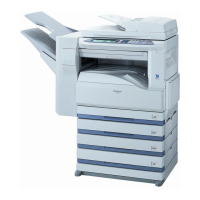
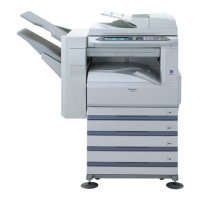
SYSTEM CONFIGURATION

Overview of available system configurations and options.

FACSIMILE EXPANSION KIT (AR-FX9)

Details of the optional facsimile expansion kit.

NETWORK EXPANSION KIT (AR-NB2 N)

Details of the optional network expansion kit.

APPENDIX

SPECIFICATIONS

Technical specifications for AR-M150 and AR-M155 models.

Printer Function

Details on the machine's printer capabilities.

Scanner Function

Details on the machine's scanner capabilities.

SOFTWARE LICENSE

License

Terms and conditions for using the software.

Restrictions

Limitations on software usage and modification.

Limited Warranty on Media

Warranty terms for the software media (disks).

Disclaimer of Warranty on Software

Disclaimer regarding software warranties and usage.

Sharp AR-M150 Specifications

General IconGeneral
FunctionsPrint, Copy, Scan, Fax
Print Speed15 ppm
Print Resolution600 x 600 dpi
Copy Speed15 cpm
Copy Resolution600 x 600 dpi
Scan Resolution600 x 600 dpi
Fax Modem Speed33.6 kbps
Max Paper SizeA3
Paper Capacity250 sheets
ConnectivityUSB 2.0
Warm-up Time30 seconds
Original SizeA3
Supported Operating SystemsWindows, Mac

Related product manuals