EasyManua.ls Logo

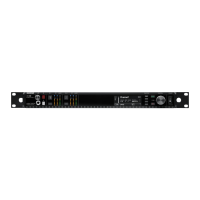
Shure GLXD4R - User Manual

Shure GLXD4R
37 pages
Print Icon
To Next Page IconTo Next Page
Loading...
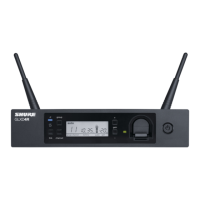
GLXD4R
Half-Rack Wireless Receiver
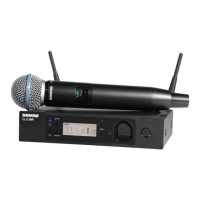
Complete user guide for the GLXD4R wireless system. Includes installation instructions, best practices, specifications, and troubleshooting.
Version: 4.1 (2020-K)

Other manuals for Shure GLXD4R

Questions and Answers

  • M
    Mark FloresSep 7, 2025
    Why is there no sound coming from my Shure GLXD4R, or why is it faint?
    • R
      Ronald StewartSep 7, 2025
      If you experience no sound or faint sound from your Shure Receiver, there are several potential causes and solutions: * **Receiver RF:** Check all sound system connections and adjust the gain as needed. Ensure the receiver is properly connected to the mixer or amplifier. * **Receiver RF LED off:** Turn on the transmitter, ensure the batteries are correctly installed, link the transmitter and receiver, and charge or change the transmitter battery. * **Receiver LCD screen off:** Make sure the AC adapter is securely plugged into the electrical outlet and that the receiver is powered on.
  • S
    Stephanie AndersonAug 22, 2025
    What to do if I experience RF interference while connected to a frequency manager with my Shure GLXD4R Receiver?
    • H
      Heather JonesAug 22, 2025
      If you are experiencing RF interference while connected to a frequency manager, move the system away from other 2.4 GHz sources such as Wi-Fi access points or computers. If using directional antennas, place interference sources behind the antennas to minimize interference. Place receivers or directional antennas closer to transmitters.
  • C
    cburkeSep 4, 2025
    Why is it that the second frequency manager does not send RF signal to receivers on my Shure GLXD4R?
    • E
      elizabethtateSep 5, 2025
      To solve the problem when the second frequency manager does not send an RF signal to receivers, verify that antenna A and antenna B ports on the second frequency manager are connected to cascade A and cascade B ports on the first frequency manager.
  • T
    Tracey DavisSep 3, 2025
    What to do if my Shure Receiver and transmitter link is unsuccessful?
    • M
      Megan JimenezSep 3, 2025
      To resolve an unsuccessful link between your Shure transmitter and receiver, update both components to firmware version 2.0 or greater by downloading the Shure Update Utility application and following the instructions.
  • B
    Brandon RodriguezSep 2, 2025
    What to do if there are sound level variations when switching to different sources on my Shure GLXD4R Receiver?
    • E
      erica20Sep 2, 2025
      If you notice sound level variations when switching to different sources on your Shure Receiver, adjust the transmitter gain as necessary.
  • E
    Elizabeth ButlerAug 31, 2025
    How to fix distortion on Shure Receiver?
    • J
      Jonathan BakerAug 31, 2025
      If you're experiencing distortion with your Shure Receiver, try reducing the transmitter gain.
  • E
    Eric MillsAug 30, 2025
    What to do if my Shure GLXD4R Receiver transmitter powers off after one hour?
    • X
      xpachecoAug 30, 2025
      GLX-D transmitters automatically turn off after one hour to conserve battery life if the signal from a linked receiver is not detected. Ensure that the linked receiver is turned on.
  • E
    Erin RamirezAug 29, 2025
    What to do if I hear audio artifacts or dropouts on my Shure Receiver?
    • R
      robertewingAug 29, 2025
      If you are experiencing audio artifacts or dropouts with your Shure Receiver, try the following: * Change the receiver and transmitter to a different group or channel. * Identify and eliminate nearby sources of interference such as cell phones, Wi-Fi access points, or signal processors. * Charge or change the transmitter battery. * Make sure the receiver and transmitter are positioned within the recommended system parameters, maintaining the recommended range and keeping the receiver away from metallic surfaces. * Ensure the transmitter is used within line of sight of the receiver for optimal sound.
  • P
    portermichelleAug 27, 2025
    Why does my Shure Receiver have no sound or faint sound?
    • J
      Jennifer DominguezAug 27, 2025
      If you're experiencing no sound or faint sound with your Shure Receiver, try these steps: * Verify all sound system connections and adjust the gain as needed. * Ensure the receiver is correctly connected to the mixer/amplifier. * Turn on the transmitter, make sure the batteries are correctly installed, and link the transmitter and receiver. * Charge or change the transmitter battery. * Ensure the AC adapter is securely plugged into the electrical outlet and that the receiver is powered on. * Disconnect the transmitter from the charger.
  • J
    John MedinaAug 27, 2025
    Why is there RF interference while connected to the frequency manager of my Shure GLXD4R Receiver?
    • C
      Chelsea RyanAug 27, 2025
      If you experience RF interference and the receiver screen flashes while connected to the frequency manager with your Shure device, move the system away from other 2.4 GHz sources such as Wi-Fi access points or computers. If using directional antennas, place interference sources behind the antennas to minimize interference. Additionally, place receivers or directional antennas closer to transmitters.

Summary

Important Safety Instructions

Safety Symbols and Warnings

Explains symbols and provides critical safety warnings for operation.

Quick Start Guide

Receiver Controls and Connectors

Receiver RF Status and Link Indicators

Explains the RF Status LED and Link Button functions.

Receiver Group and Channel Controls

Describes the Group and Channel buttons for system setup.

Receiver LCD Screen and Gain Controls

Details the receiver's LCD screen and how to use the gain adjustment buttons.

Transmitter Overview and Components

Transmitter Controls and Microphone Options

Transmitter Status LED

Transmitter Usage Instructions

Microphone Placement Best Practices

Batteries and Charging

Transmitter Battery Installation Specifics

Charging and Runtime Information

Wireless System Performance and Interference

Performance Improvement Tips

Offers practical advice for optimizing wireless signal reception and placement.

System Setup and Configuration

Transmitter and Receiver Pairing

Step-by-step process for setting up and linking receivers and transmitters.

Operation and Control Functions

Manual Linking and Combo Systems

Procedures for manually linking transmitters and setting up combo systems.

Gain Adjustment

How to adjust the audio gain for optimal signal levels.

Control Locking and Remote ID

Locking and Unlocking Controls

How to lock/unlock receiver and transmitter controls to prevent accidental changes.

Frequency and Channel Management

Manual Group and Channel Selection

Procedures for manually assigning groups and channels instead of auto-scan.

Rack Mounting and Connectivity

Rack-Mounting Instructions

Guides users on installing the receiver in a standard 19-inch equipment rack.

Troubleshooting Common Issues

No Sound or Faint Sound Issues

Diagnoses and resolves problems related to audio signal absence or low level.

Audio Artifacts, Distortion, and Link Failures

Solutions for audio dropouts, distortion, and unsuccessful transmitter/receiver links.

System Reset and Maintenance

Resetting Receiver and Transmitter

Step-by-step guides to reset the receiver or transmitter to factory settings.

Shure GLXD4R Specifications

General IconGeneral
Impedance50 Ω
Antenna typeRemovable
Display typeLCD
Mounting typeRack mount
Product colorBlack
Scan featuresChannel scan, Group scan
LED indicatorsYes
Housing materialMetal
Antennas quantity2
Channels quantity11 channels
High density modeNo
Antenna connector typeSMA
Operating frequency typeUltra High Frequency (UHF)
Radio Frequency (RF) range2404 - 2478 MHz
Operating temperature (T-T)-18 - 57 °C
Microphone frequency response20 - 20000 Hz
Total Harmonic Distortion (THD)0.2 %
Input voltage14 - 18 V
Power supply typeAC
Battery life (max)16 h
Current consumption550 mA
XLR out1
Weight and Dimensions IconWeight and Dimensions
Depth163 mm
Width197 mm
Height42 mm
Weight907 g

Related product manuals