Shure Incorporated
6/14
•
•
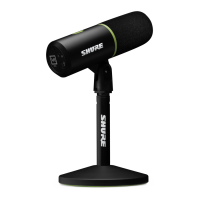
MV6 Outputs
3.5 mm monitor output: Connect to headphones and earphones for latency-free monitoring
USB-C: Use the included USB-C cable to connect to your computer, phone, or tablet
The MOTIV Mix Desktop App
MOTIV MixisarobustMacandWindowsapplicationthatallowsyoutoconfigureamicrophone,recordsounds,andsaveau
dio recordings from any microphone connected to your computer. For a full description of the features and capabilities of
MOTIV Mix, see the MOTIV Mix user guide.
Use the MOTIV Mix desktop app to quickly adjust settings on the MV6. To adjust MV6 settings in MOTIV Mix, select the gear
icon next to the microphone name or in the input panel on the mixer. The device stores the most recently used settings for
quick setup.
Mic Setup in MOTIV Mix
MOTIV Mix enables you to change the settings on your MV6 to match your application perfectly. Auto Level mode automatically
adjusts gain in the moment for clear, quality output. Auto Level mode is the default setting on MV6. For a more detailed control
of settings, Manual mode allows you to customize settings to fit your specific application.


 To Next Page