Shure Incorporated
8/14
•
•
•
•
•
•
Monitor Mix MovethesliderstoadjustthelevelsofmicandPCsoundsourcesintheheadphonesconnectedtothede
vice.
Tone Adjust the tone of the MV6 between Dark, Natural, and Bright by moving the slider.
Real-time Denoiser Enable or disable the Real-time Denoiser DSP to help reduce unwanted noise.
Digital Popper Stopper
™
Enable or disable the Popper Stopper DSP to detect and reduce plosives.
High Pass Filter Reduce unwanted low-frequency rumbling noise with a high pass filter at 75 Hz or 150 Hz.
Reset to Defaults Select Reset to Defaults to reset your device to factory settings. This will remove all changes you have
made to the device.
Auto Level Mode, Real-time Denoiser, and the Digital Popper Stopper are optimized for speech. When using the MV6 for other
applications, like singing or playing a musical instrument, disable Auto Level Mode, Real-time Denoiser, and the Digital Popper
Stopper for the best recording.
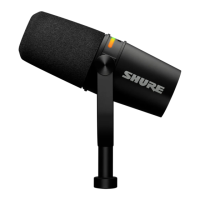
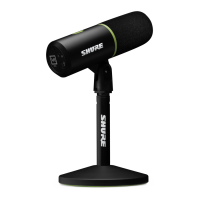
LED Mute Button
Touch the mute button to mute or unmute the microphone. When the device is muted, the LED microphone icon will be solid
red.
When Mute Lock is engaged in MOTIV Mix, the mute button will flash red three times when touched.
LED Behavior
Pulses amber: Powering on. The MV6 is connecting to the computer, phone, or tablet.
Turns green USB-C connection success. On successful connection to the computer, phone, or tablet, the mute button will turn
green.
Continues pulsing amber: USB-C connection failure. If the microphone is unable to connect to the computer, phone, or
tablet, the mute button will continue to pulse amber. Unplug the microphone and plug back in.
Turns red: MV6 is muted. When the device is muted, the mute button will turn red.
Flashes red 3 times when touched: MV6 is mute locked and can only be unmuted in MOTIV Mix. When mute lock is enabled
in MOTIV Mix, the mute button flashes red 3 times when touched.
Flashes amber quickly: Firmware update. While the microphone firmware is updating, the LED panel quickly flashes amber.
Keep the microphone connected until the firmware update is complete.
Flashes amber and green: Identify. When the device is identified from MOTIV Mix, the mute button will flash amber and
green.
Flashes red continuously: Error. The mute button will flash red when an error occurs.
Firmware Update
Take advantage of additional features and design enhancements by updating the firmware in MOTIV Mix, MOTIV for iOS and
Android, or MOTIV Video for iOS and Android when prompted.
In MOTIV Mix, when a firmware update is available, the Firmware Update Available button will appear in the settings panel of
your MV6. Select the button to update your firmware.
Leave the MV6 plugged in until the firmware update is complete.
Contact Shure Service and Repair if you experience any issues.


 To Next Page