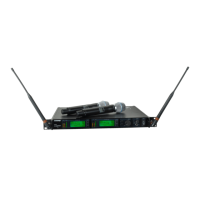
10
Non-networked Receivers
1. Turn on all receivers.
2. Conduct a group scan on the first receiver to find the best group of frequen-
cies in your RF environment:
SCAN > GROUP SCAN
3. Select a group that contains enough open frequencies to accommodate the
entire setup.
4. Turn on the transmitter and sync to the first receiver.
Repeat the following steps for each additional system:
5. Go to SCAN > CHANNEL SCAN on the receiver to select the group assigned
in step 2
6. Press the SCAN button to find the next best open frequency.
7. Press ENTER to assign the channel to the receiver.
8. Sync the transmitter to the receiver.
Multiple System Setup
A setup using networked receivers is the fastest and easiest way to distribute
the best open channel to each system. See Networking Receivers for network-
ing details.
Networked Receivers
1. Turn on all receivers.
2. Conduct a group scan on the first receiver to find the best group of frequen-
cies in your RF environment: SCAN > GROUP SCAN.
3. Press ENTER to accept the group number and automatically assign the next
best channel to each receiver on the network.
4. Turn on a transmitter and sync to the receiver. Repeat this step for each
additional system.
Use this procedure to tune a receiver and transmitter to the best open channel.
Important! Before you begin:
Scan and Sync
Turn off all transmitters for the systems you are setting up. (This prevents
them from interfering with the frequency scan.)
Turn on potential sources of interference such as other wireless systems or
devices, computers, CD players, large LED panels, effects processors, and
digital rack equipment so they are operating as they would be during the pre-
sentation or performance (so the scan will detect and avoid any interference
they generate).
1. Perform a channel scan on the receiver: SCAN > CHANNEL SCAN.
2. Select a group and press the SCAN button. SCANNING displays on the LCD
while it searches for an open frequency.
3. After the scan completes, the receiver displays the group, channel and
frequency of the best available channel. Press the flashing ENTER button to
save the value to the receiver.
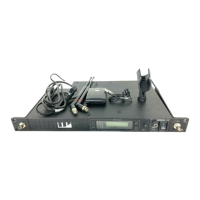
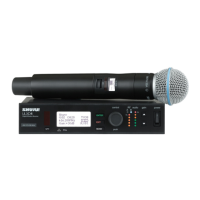
4. Power on the ULXD transmitter.
5. Press the sync button on the receiver.
6. Align the IR windows until the receiver IR port illuminates red.
7. When complete, SYNC SUCCESS! appears. The transmitter and receiver are
now tuned to the same frequency.
2
3 4
5
1
6
RF Power
Reference the following table for setting RF Power:
RF Power
Setting
Range Application
1 mW
≤100ft.
For increased channel reuse at close
distances
10 mW
≤300ft. Typical setups
20 mW
≤420ft.
For hostile RF environments or long-
distance applications
Note: Using the 20 mW setting decreases the transmitter battery runtime
and reduces the number of compatible systems. See the specifications
section for details.
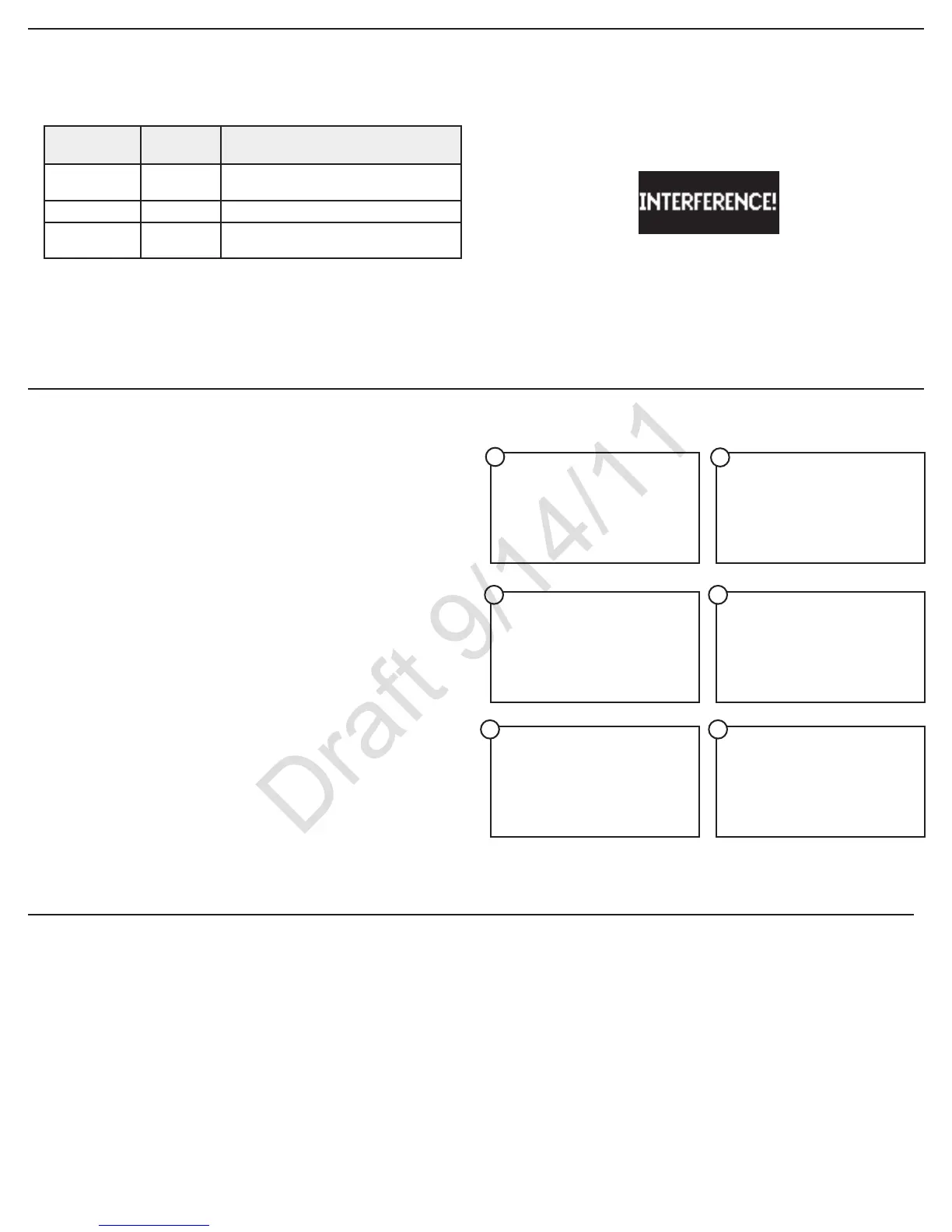
Interference Detection
Interference Detection analyzes the quality of the RF signal and detects
interference conditions that have caused an audio signal dropout. When in-
terference is identified, the RF LEDS illuminate red and the following warning
displays on the receiver LCD panel.
Perform a Scan and Sync during a performance break if the warning display
persists or the audio drops out repeatedly.
RF


 To Next Page