11
Manual Frequency Selection
To manually adjust group, channel or frequency, use the RADIO > SET FREQ
menu.
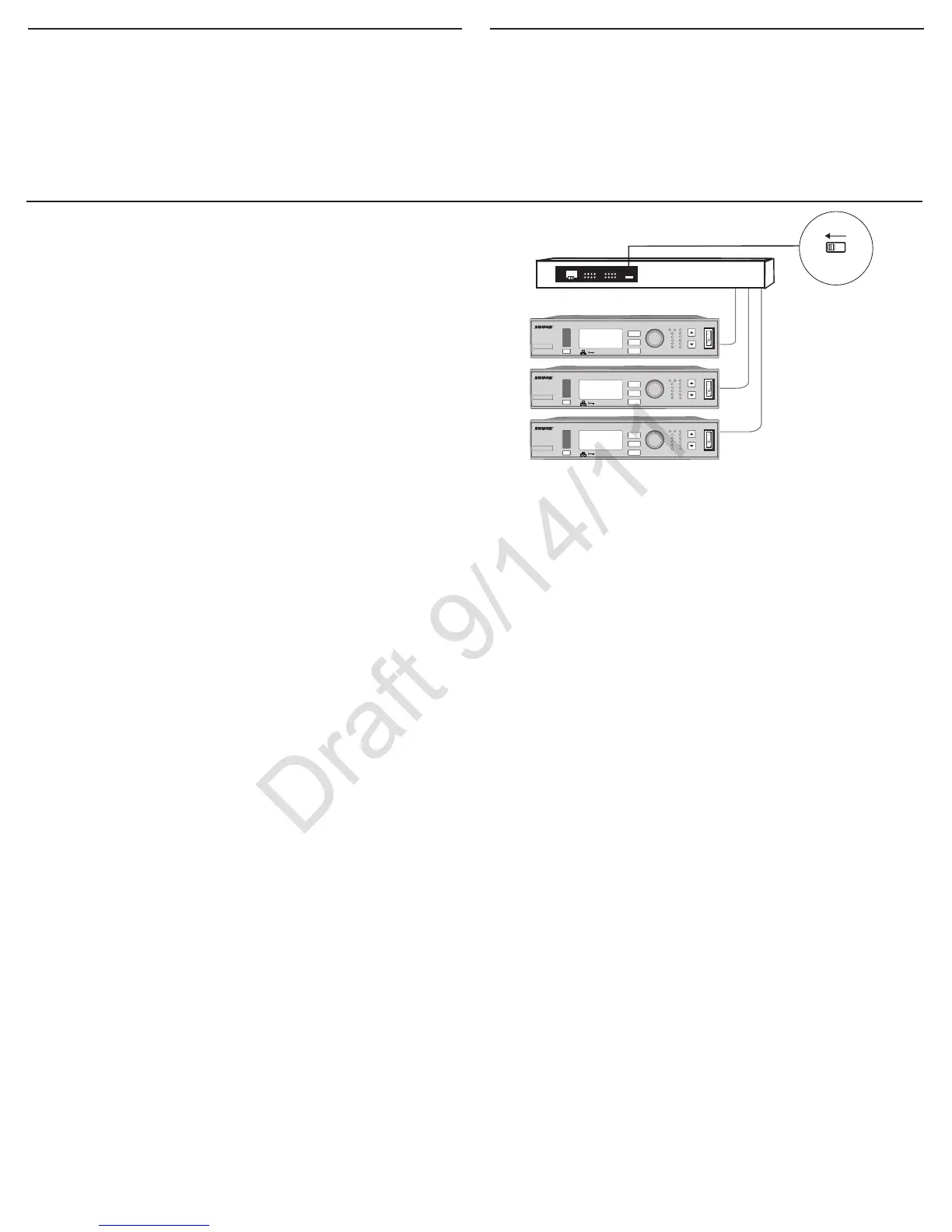
The receiver uses an Ethernet connection to network with other components.
For automatic network configuration, use a DHCP enabled Ethernet switch
such as the Shure AXT620. Use multiple Ethernet switches to extend the net-
work for larger installations.
Note: Note use only one DHCP server per network.
Automatic IP Addressing
1. If using a Shure AXT620 Ethernet switch, set the DHCP switch to ON.
2. Set the IP Mode to Automatic for all receivers: UTILITIES > NETWORKING >
CTRL NETWORK
ON
OFF
DH CP
ULXD4
Digital Wireless Receiver
sync
push
control
ENTER
EXIT
SCAN
RF
A B
OL
OL
gain poweraudio
ULXD4
Digital Wireless Receiver
sync
push
control
ENTER
EXIT
SCAN
RF
A B
OL
OL
gain poweraudio
ULXD4
Digital Wireless Receiver
sync
push
control
ENTER
EXIT
SCAN
RF
A B
OL
OL
gain poweraudio
Device ID
Name the receiver’s Device ID to easily identify it through the network or in
Wireless Workbench:
UTILITIES > NETWORKING > Dev. ID
Networking Receivers
Automatic IP
Addressing with Shure
AXT620
Manual IP Addressing
1. Connect the receivers to an Ethernet switch.
2. Set the IP Mode to Manual for all devices (UTILITIES > NETWORKING >
MODE)
3. Set compatible IP addresses for all devices.
4. Set the subnet mask to the same value for all devices.
Troubleshooting
• Use only one DHCP server per network
• All devices must share the same subnet mask
• All receivers must have the same level of firmware revision installed
• Look for the illuminated network icon on the front panel of each device:
If the icon is not illuminated, check the cable connection and the LEDs on
the network jack.
If the LEDs are not on and the cable is plugged in, replace the cable and
recheck the LEDs and network icon.
To check connectivity of WWB6 to the network:
1. Start WWB6 software and use Inventory view to see devices connected to
the network.
2. If not, find the IP address from one of the devices on the network (such as
an ULXD receiver) and see if you can ping it from the computer running
WWB6.
3. From a WINDOWS/MAC command prompt, type ‘ping IPADDRESS’ of the
device (e.g. “ping 192.168.1.100”).
4. If the ping returns success (no packet loss), then the computer can see the
device on the network. If the ping returns failure (100% packet loss), then
check the IP address of the computer to ensure it’s on the same subnet as
the Axient device.
5. If the pings are successful and the devices still do not show up in the WWB6
inventory, check to ensure all firewalls are either disabled or allow the WWB
network traffic to pass to the application. Check that firewall settings are not
blocking network access.


 To Next Page