Watcher Basics (Windows)
Document 2130972. Rev 1.0 Apr.08 33
Window controls
• TheMinimizebuttonclosestheWatcherwindowbutleaves
theapplicationrunning.WhenWatcherisminimized,you
canusetheWatchericoninthesystemtraytodetermine
themodemstatus.(See“Minimizedicons”onpage 36.)
ThisiconreplacesataskbarbuttonforWatcher.
Onceminimized,youcanredisplaytheWatcherwindow
by
doingoneofthefollowing:
· ClickingtheWatchericoninthesystemtray.
· Double‐clickingtheWatcherdesktopshortcut
· LaunchingWatcherfromtheStartmenu.
• The
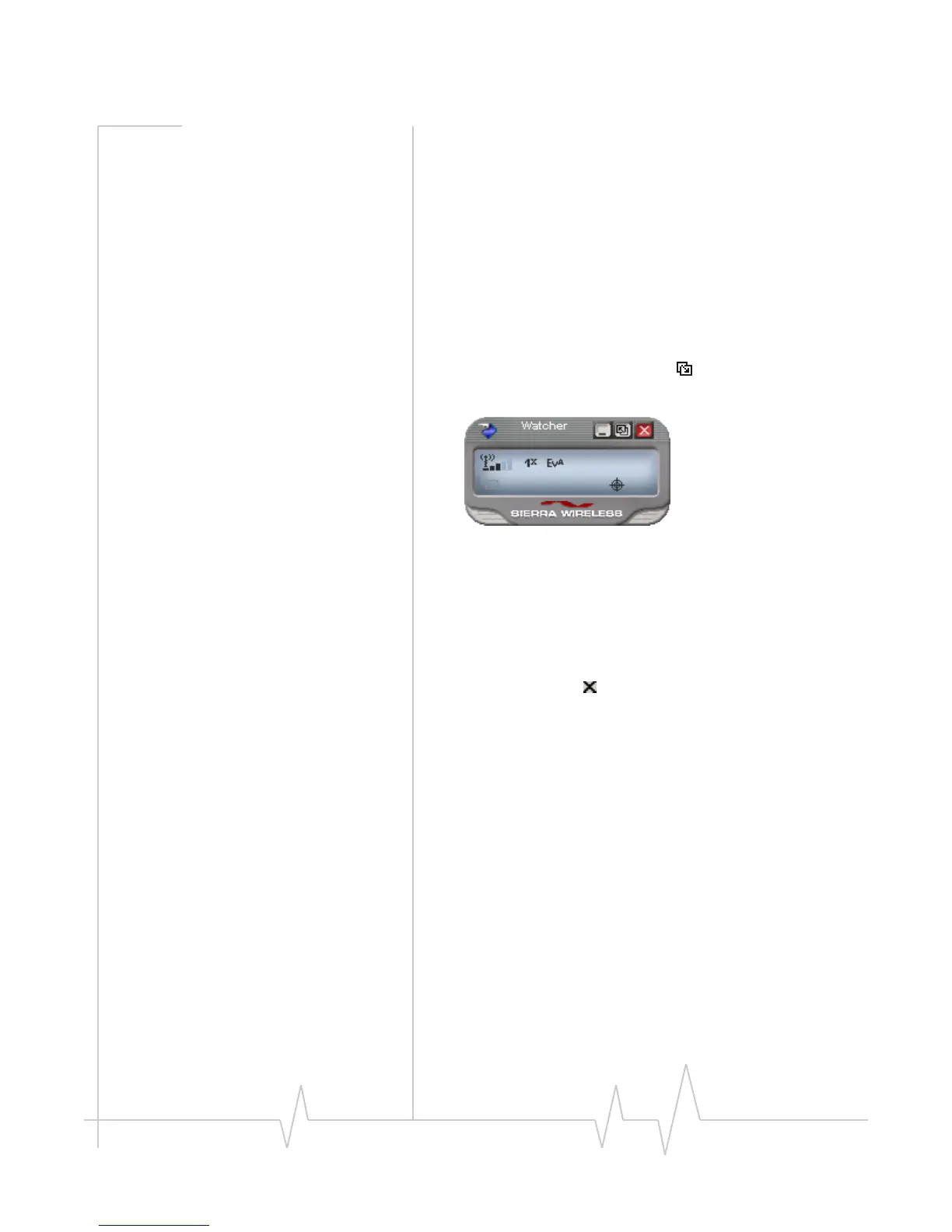
Toggle Full/Compactbuttonisusedtoswitch
betweenthefullWatcherwindowand thecompactview:
Thecompactviewallowsyoutoseeconnectionstatusand
indicatorswhileusinglessspaceonthedesktop.Ifyou
right‐clickthecompactview,amenuisdisplayed.From
thismenuyoucanopensomeof
theotherWatcherwin‐
dowsorestablish/endadataconnection.
Toreturntofullview,clicktheviewtogglebuttoninthe
topright.
• The
Closebuttonisusedtoexit Watcher.
Docking
YoucansettheWatcherwindowto“jump”totheedgeofyour
screenwhenyoumovethewindowclosetoanedge.Thislets
youeasilypositionWatcherinacornerofthescreen.
• Select
View > Docking
Always On Top
YoucansetWatchertoalwaysdisplayinfrontofother
windows.Thisallowsyoutomonitorconnectionstatuswhile
usinganothermaximizedapplication,suchasyourweb
browser.
• Select
View > Always On Top








 To Next Page