30
IQ POWER CONTROL STATION
WITH SENSOR TECHNOLOGY
5201263 Rev D
E. The Home Page contains a date / time display in the upper area of the display.
The incrementing of seconds in this display indicates the software is active and
running.
Setting Time & Date: if it becomes necessary to reset the time or date,
the system clock will have to be accessed. The use of a stylus or USB
mouse is recommended for this procedure. From the Home Page
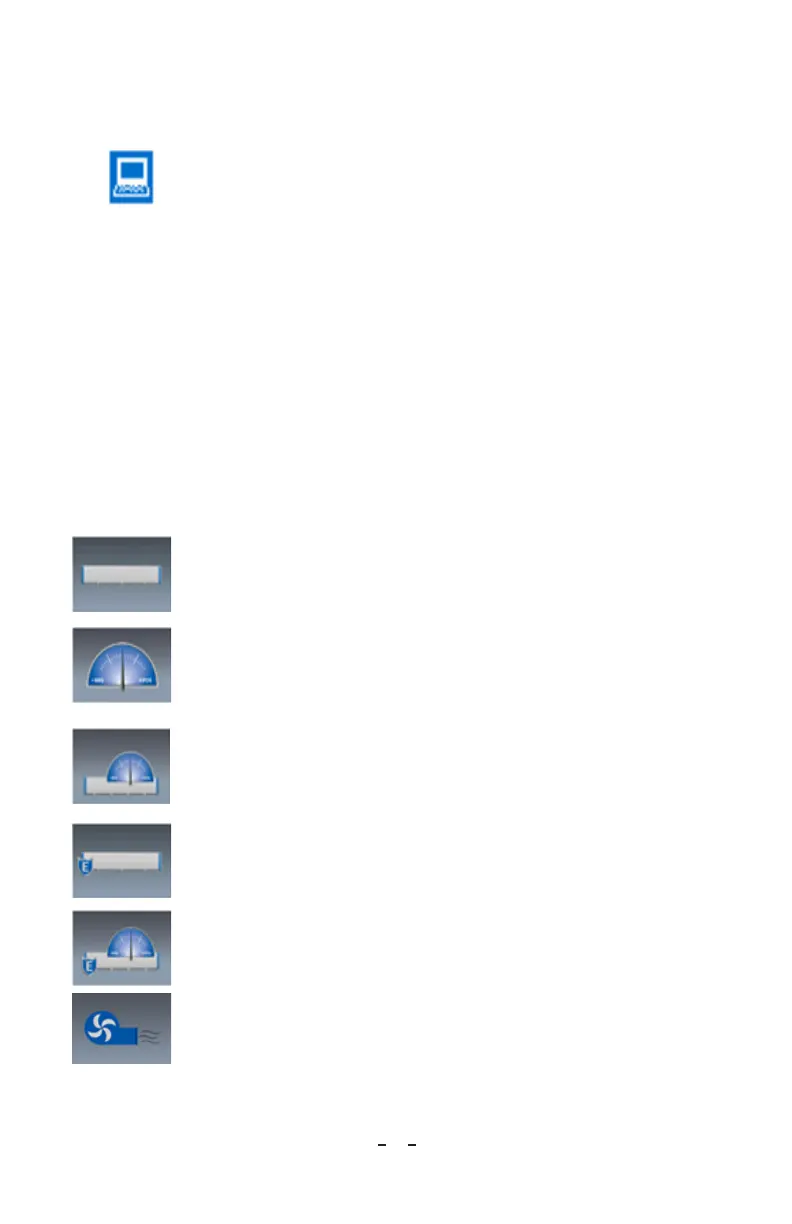
tap on the small computer icon at the bottom left of the display, then tap on
“yes” to “Close Control Station Software”. This will take you to the display
system environment.
1. Double tap the clock in the system task bar.
2. Check and set the date, tap “Apply”.
3. Check and set the time zone, tap “Apply”.
4. Check and set the time, tap “Apply”.
5. Tap on “OK”.
6. Turn the Control Station power off, then back on to restart the IQ Power
system.
F. The Home Page contains an icon for each device connected to it. There can be
up to 10 of these icons displayed. Tapping on the icon opens a Device Page for
the specific device.
Icon typically used for an IQ Power BPS, MPS, HL or HLC power
supply.
Icon typically used for an IQ Easy Sensor Bar or IQ Power HL
Sensor Interface.
Icon typically used for IQ Power BPS, HL or HLC paired with a
static sensor.
Ex: IQ Power BPS paired with an IQ Easy Sensor Bar.
Ex: IQ Power HL paired with an IQ Power HL Sensor Interface.
Icon typically used for an IQ Easy Static Neutralizing Bar.
Icon typically used for an IQ Easy Static Neutralizing Bar paired with
an IQ Easy Sensor Bar.
Icon typically used for IQ Power Fantom wide blower.



 To Next Page