106
ENG
5.7 Creation of scenarios
A scenario is a set of channels or groups with settings fixed for each of them, which may be of different values.
In this way, different settings can be combined for the different channels or groups.
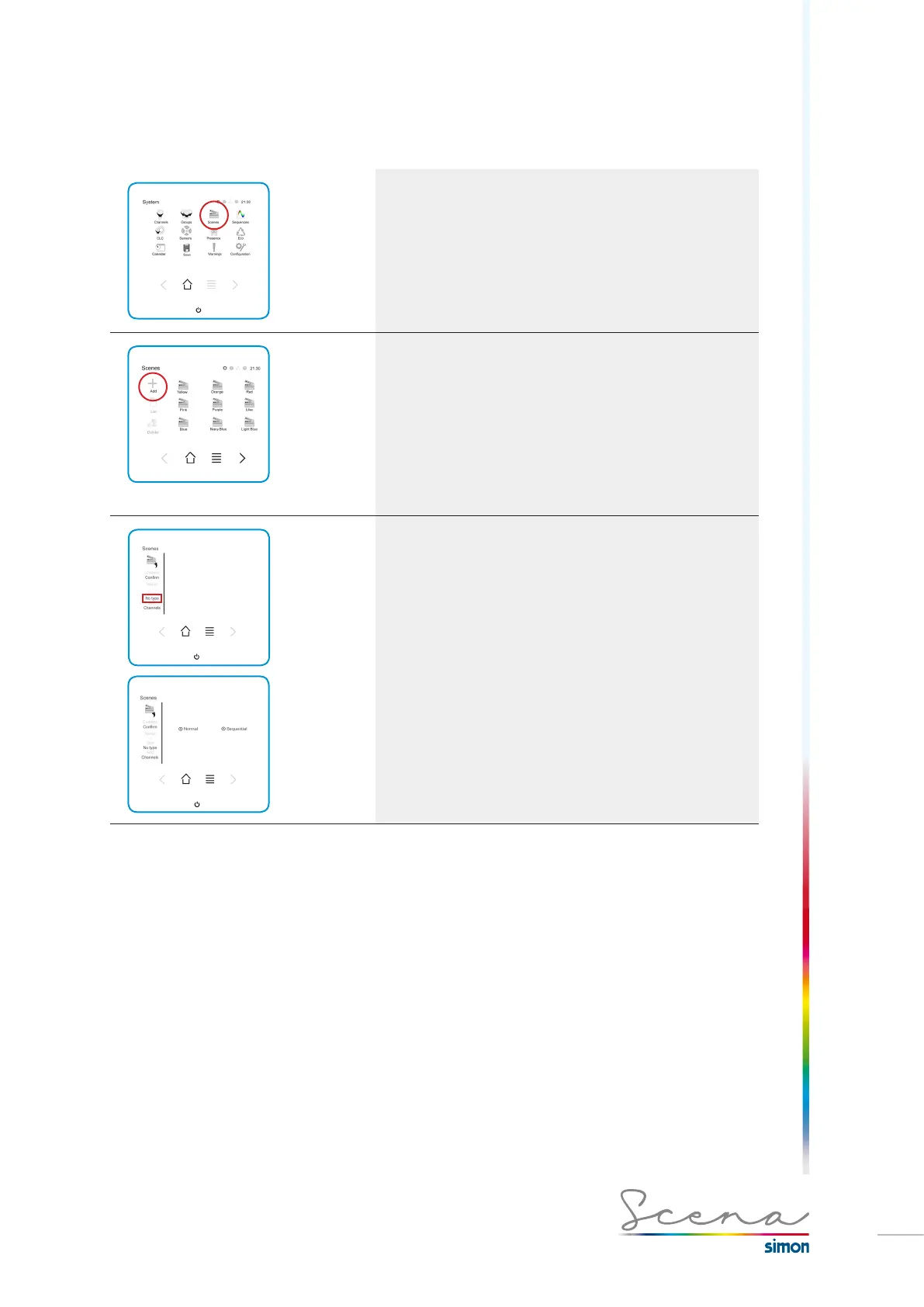
To access scenarios, in the “System” screen, we will press
the “Scenario” icon.
On accessing the scenarios menu, a list will appear of
predefined scenarios in the colours: Yellow, Orange, Red, Pink,
Purple, Lilac, Blue, Navy blue, Light blue, Turquoise green,
Green, Light green. For the scenario to activate we need to
have a channel or RGB group created and this must be
associated with the scenario
(See creation of channels page 95).
If we want to add a personalized scenario, we press “Add”.
Within a scenario, we can modify:
· Type of scenario
· Name of scenario
· Selection of channels that form it
· Types of scenario: Sequential, allows us to use it in
sequences, normal does not enable this.
Name of the scenario
Press Name to change or add a name.
To accept, press the OK icon.


 To Next Page