107
ENG
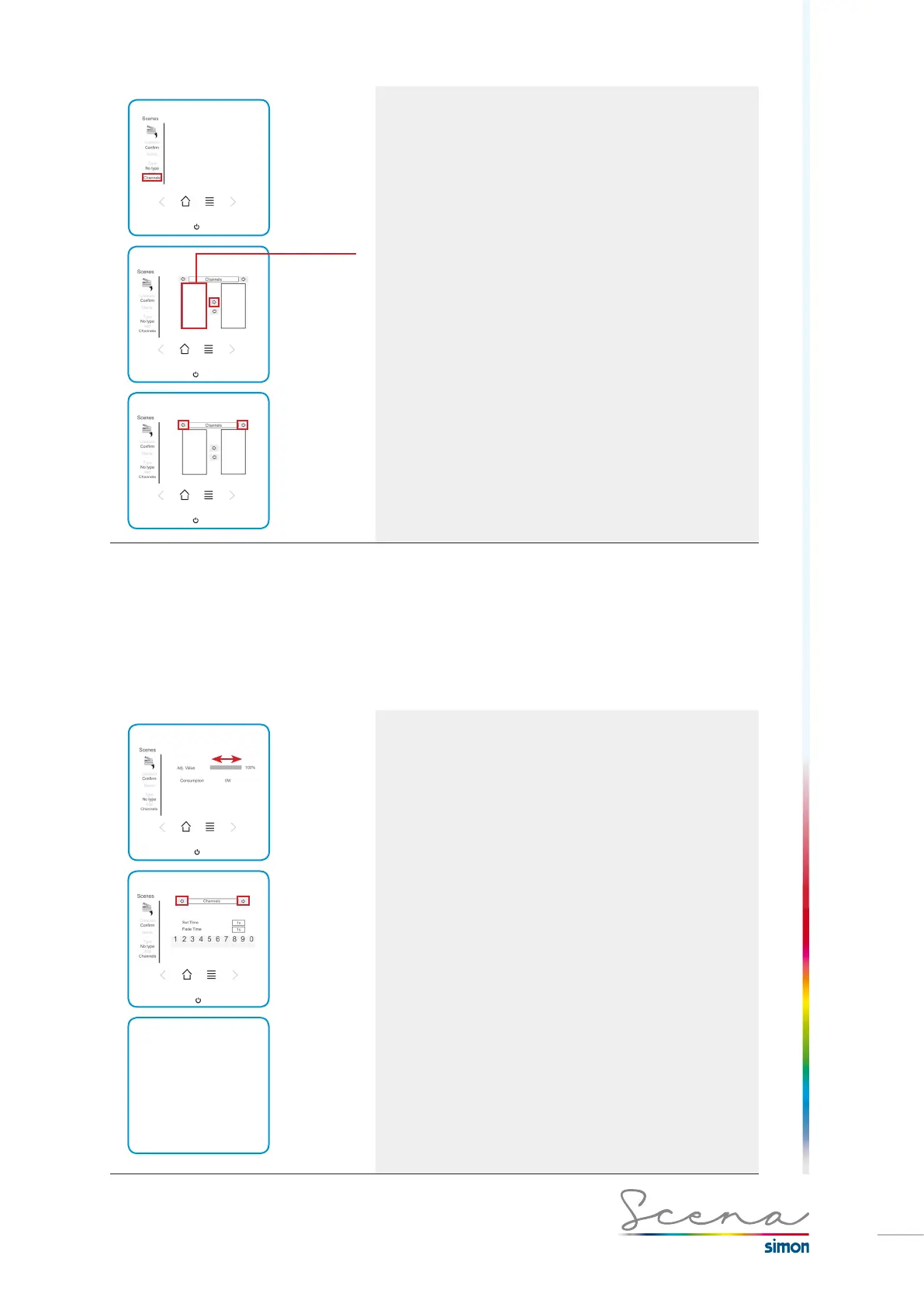
To
change from
channels to
groups,
select the
left/right
arrow.
Selection of channels or groups
A selection of previously created channels and groups will
appear. We must select the ones we want to add to the
scenario.
To change from channels to groups, select the left/right arrow.
Once created, to activate / deactivate the scenario, short
press.
A long press accesses this group’s general menu, see
“Configuring scenarios” for more info.
If we want to eliminate a group, we follow the same method
described above for deleting channels.
5.8 Configuring scenarios
Once the scenario has been created, just as with channels and groups, Scena enables us to configure the
scenario in a “general” and “advanced” mode.
If in the screen on which the list of scenarios appears, we access one of them by long pressing, we can confi-
gure both possibilities.
In the general screen, we can momentarily modify the setting
value for the entire set of channels that make up the scenario.
In the advanced screen, we can modify the individual
parameters of the channels or groups that make up the
scenario.
To go through all the channels/groups that form part of the
scenario, we press the right/left key and modify in each one
the setting value we want for this scenario.
*If we have entered an RGB in the scenario, we can configure
it just as if it were simply a channel on its advanced screen, as
demonstrated below.


 To Next Page