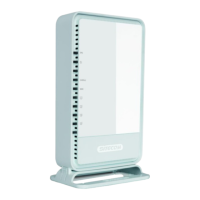
2.2 Procedure for Hardware Installation
2.2.1 Decide where to place your Wireless Broadband Router
Y
m
c
in
a
ou can place your Wireless Broadband Router on a desk or other flat surface, or you can
ount it on a wall. For optimal performance, place your Wireless Broadband Router in the
enter of your office (or your home) in a location that is away from any potential source of
terference, such as a metal wall or microwave oven. This location must be close to power
nd network connection.
2.2.2 Setup LAN connection
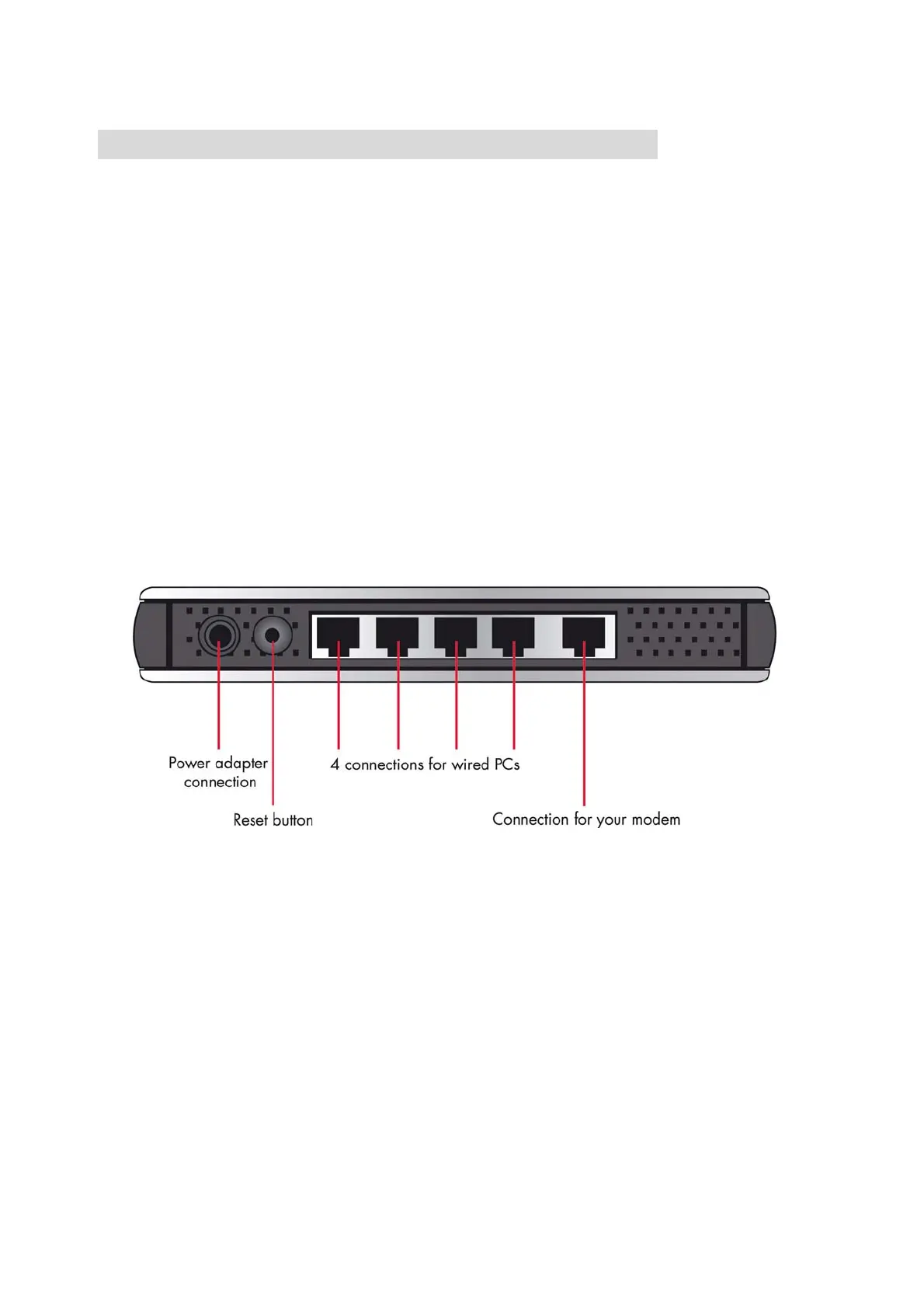
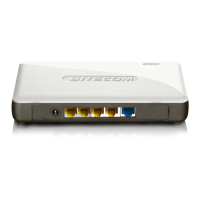
a. Wired LAN connection: connects an Ethernet cable from your computer’s Ethernet port
to one of the LAN ports of this product.
b. Wireless LAN connection: locate this product at a proper position to gain the best
transmit performance.
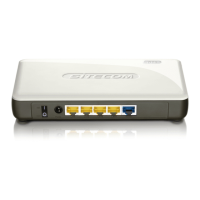
Figure 2-3 Setup of LAN and WAN connections for this product.
2.2.3 Setup WAN connection
P
b
C
a
n
s
p
repare an Ethernet cable for connecting this product to your cable/xDSL modem or Ethernet
ackbone. Figure 2-3 illustrates the WAN connection.
2.2.4 Power on
onnecting the power cord to power inlet and turning the power switch on, this product will
utomatically enter the self-test phase. When it is in the self-test phase, the Power LED will
ot be lighted for about 15 seconds, and then Power will flash 9 times to indicate that the
elf-test operation has finished. Finally, power will be lit continuously to indicate that this
roduct is in normal operation.
9


 To Next Page