17
Vertical-screen Aerial Photograph
Click the Vertical-screen Aerial Photograph icon in the "Shooting Function"
on the right side of the preview page of the APP and the mobile screen
will appear vertical screen.
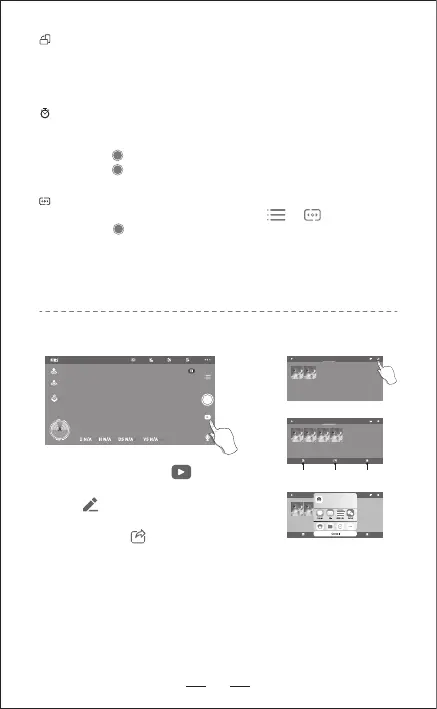
3. APP ONE KEY SHARE FUNCTION
Reminder: You can share 1 picture or 9 pictures at the same time.
But Only one video can be shared each time.
1. Open the APP and click ,enter into
media library (Pic.1).
2. Click , enter into the share interface
(Pic.2), choose one or all photos you like
to share, click , choose the social
media you like to share the photos (Pic.3).
Time-lapse Photography
1. Click the APP function page, Shooting Function--Time-lapse Photography
2. Slide to select the Delay Magnification and click OK.
3. Click the to start time-lapse photography.
4. Click the again to finish shooting.
Panoramic Shooting
1. Click the APP function page and select the — .
2. Click the .
3. The aircraft rotates about one circle (360°) to complete panoramic
shooting, automatically synthesize a panoramic picture, and save it in
the photo album. When successfully finish shooting, a prompt message
will pop up.
照片 视频
Check all Share Delete
照片 视频
AirDrop.
Tap to turn on WLAN and Bluetooth to
share with AirDrop.
照片 视频
2020年9月29日星期二
Pic.2
Pic.3
Pic.1


 To Next Page