SKILLER PRO
+
11
8.5 Save Game Profile
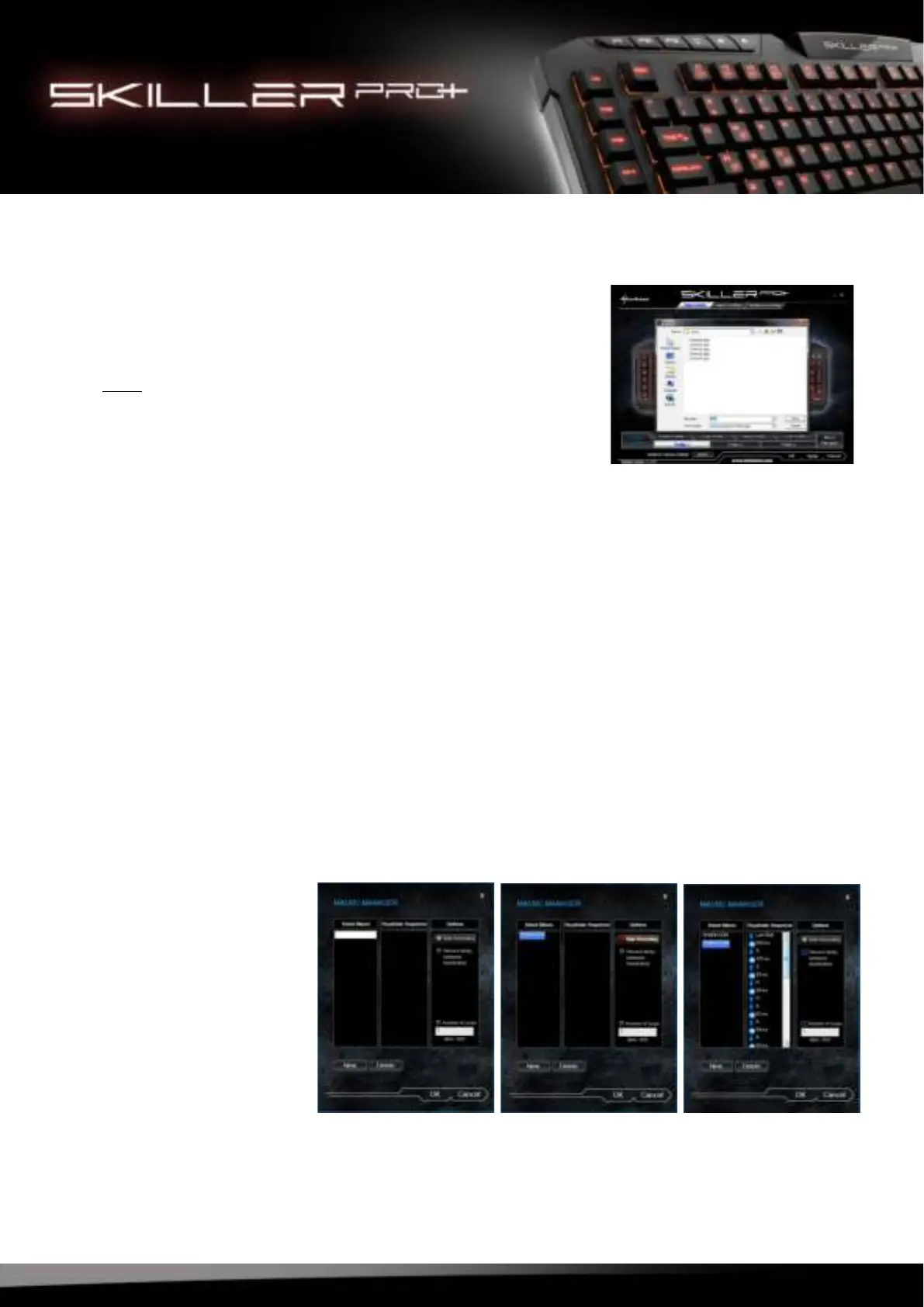
To save the Game Profile, click “Save Profile” within the Main
Control or Macro Settings.
Assign a file name and save the Game Profile in .gkp format.
Note:
As a default setting, all Game Profiles will be saved into the “con-
fig” folder within the Skiller PRO+ installation folder, however, you
can still select an alternative location to save your profiles.
8.6 Load Game Profile
To load or activate a previously saved Game Profile, click “Load Profile“ and select the desired Game
Profile from the list.
8.7 Edit Game Profile
To edit or update an activated Game Profile, click “Edit Profile”. After your changes, the Game Profile
needs to be saved again (see 8.5).
8.8 Macro Manager
Here you can record, edit and delete macros.
8.8.1 Record Macro
Through the Macro Manager you will reach the input screen. To create a new macro, select “New”. First,
assign your macro a name (max. 15 characters) and finish by pressing the Enter key.
Your macro will now ap-
pear highlighted in blue.
If needed, you can record
the delay time in-between
the keystrokes or select the
number of loops. These
selections are available in
the Macro Manager, under
“Options”.



 To Next Page