SKILLER PRO
+
6
6. Connecting to the PC
1. Connect the USB plug of the Skiller PRO+ to an available USB port on your PC.
2. The operating system will automatically recognize the Skiller PRO+ keyboard and install all ne-
cessary drivers.
3. If the Skiller PRO+ is not recognized, disconnect it and try a different USB port on your PC.
7. Installation of the Gaming Software
Before starting with the installation of the included Gaming Software, ensure that there is no other
keyboard software installed on your PC. If you have other software already installed, please unins-
tall before continuing.
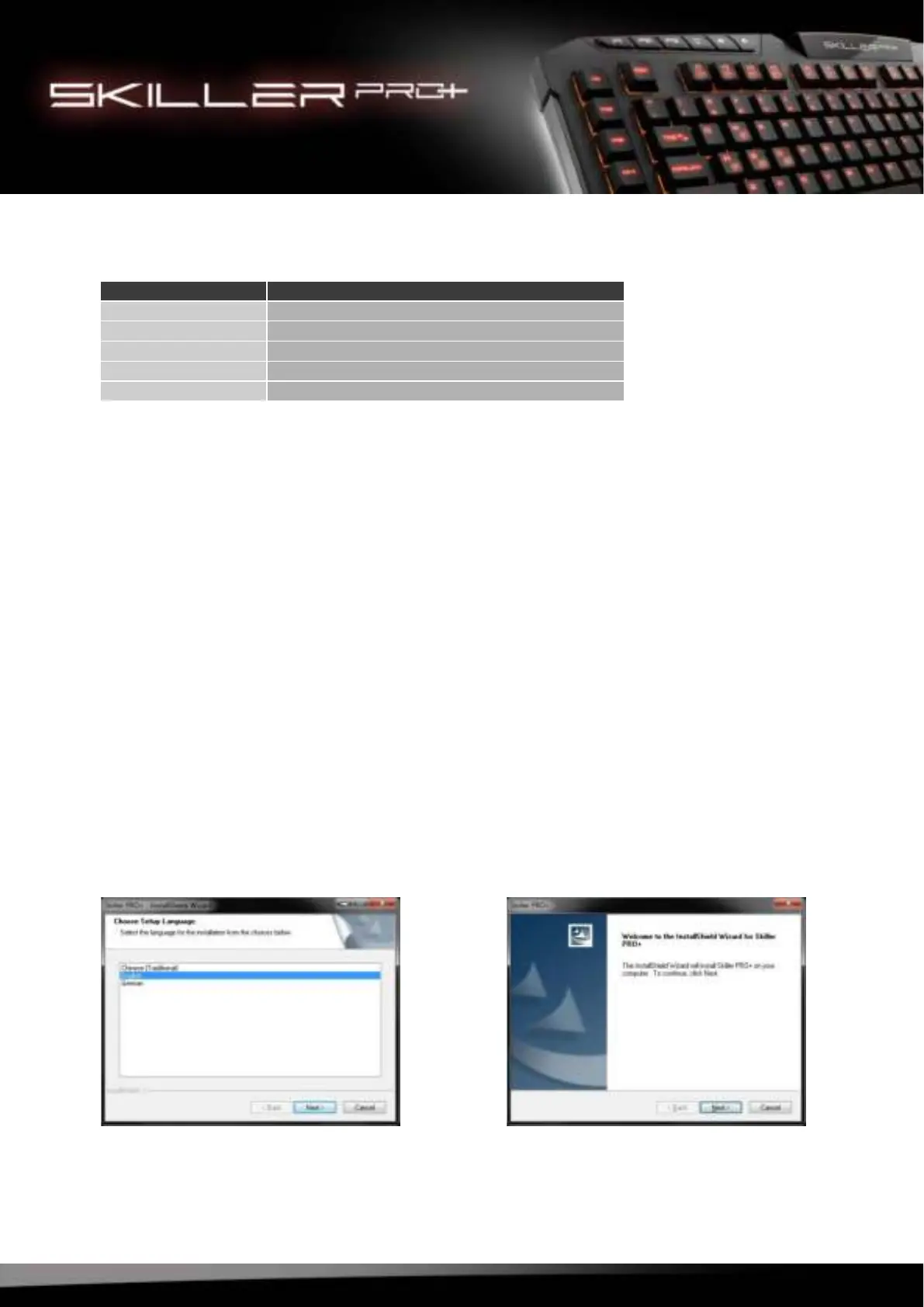
1. Insert the CD into your CD/DVD drive.
2. Open the drive that contains the CD (e. g. D:\).
3. Open the folder “Gaming Software”.
4.
Run the executable setup file “Skiller PRO+ Configuration Setup” and follow the onscreen
inst
ructions.
5.8 Other Shortcuts
Key Combination Function
FN + F1 Key Response Time Getting Slow
FN + F2 Key Response Time Getting Fast
FN + F3 Polling Rate Getting Slow
FN + F4 Polling Rate Getting Fast
FN + Windows Key Interchange of Function WASD - Arrow Keys



 To Next Page