SKILLER PRO
+
16
9.1.1 Assign Macro
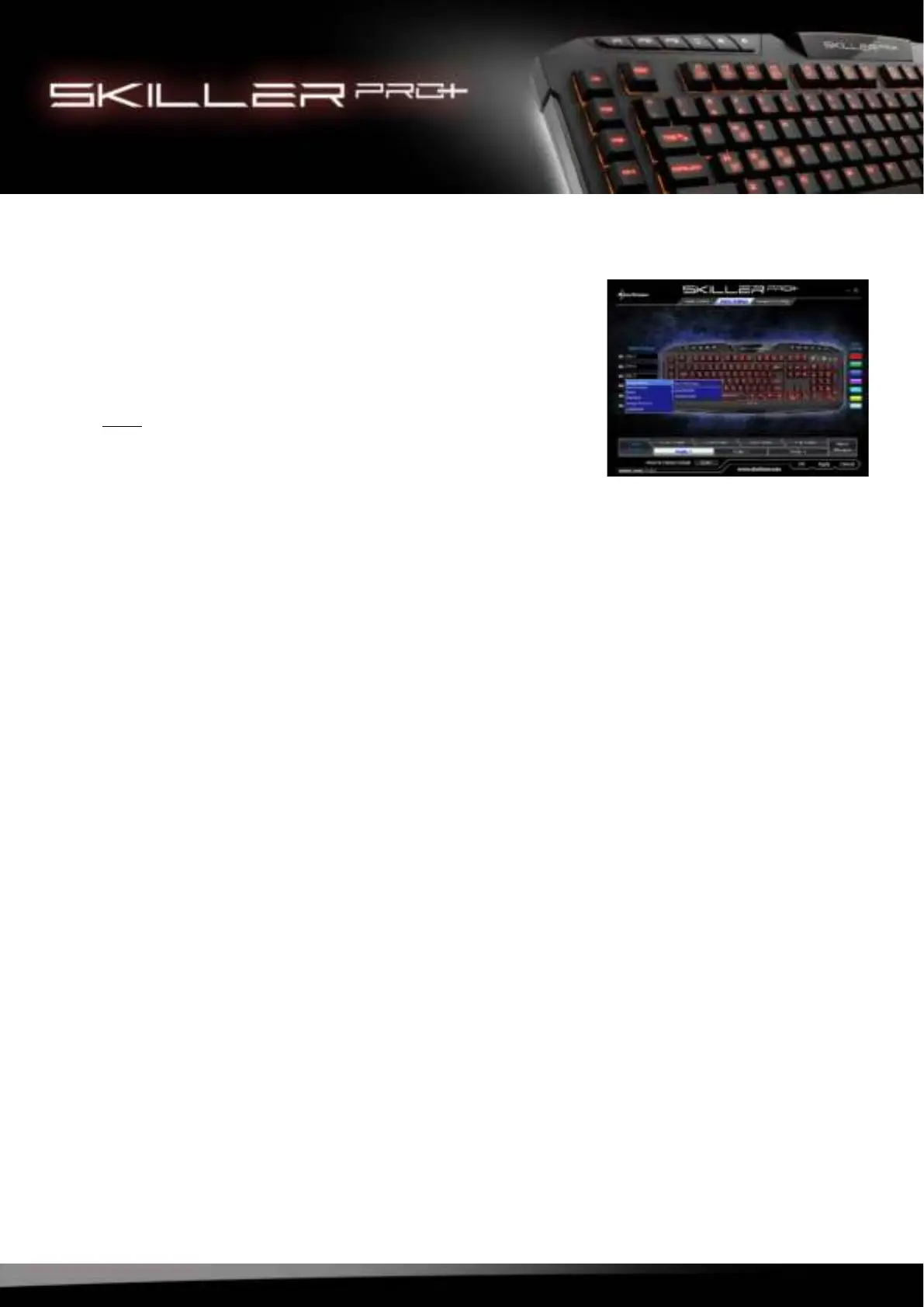
To assign a macro, select “Assign Macro“. You may also access
the Macro Manager to record your own macros (see 8.8).
If you have already recorded macros in the Macro Manager, you
can find and select them directly from the list. Confirm your selec-
tion by clicking “Apply“.
Note:
Active macros will be shown within the selection in blue.
9.1.5 Assign Shortcut
This function allows you can assign a shortcut to a single key. Combinations of multiple keys (e.g.
Ctrl + Alt + Del) is also possible. Confirm your selection by clicking “Apply“.
9.1.6 Deactivate
This function deactivates the key completely. Confirm your selection by clicking “Apply“.
9.1.2 Media Player
Select the functions of the Media Player and assign them to a key. Confirm your selection by clicking
“Apply“.
9.1.3 Basic
Select the functions of the Web Browser, Calculator, E-Mail and My Computer.
Please note that the functions are always applied to the default software of your system. If necessary,
change your system settings. Confirm your selection by clicking “Apply“.
9.1.4 Standard
Reset the key to its standard setting. Confirm your selection by clicking “Apply“.
9.2 Color Settings
The color for the illumination of the keyboard in each game profile can be changed in the option ”Color
Settings“, by clicking on the respective color it will be adjusted. Therefor are seven different colors to
choose from. To update the changes in the profile, click “Apply“.



 To Next Page