SKILLER PRO
+
12
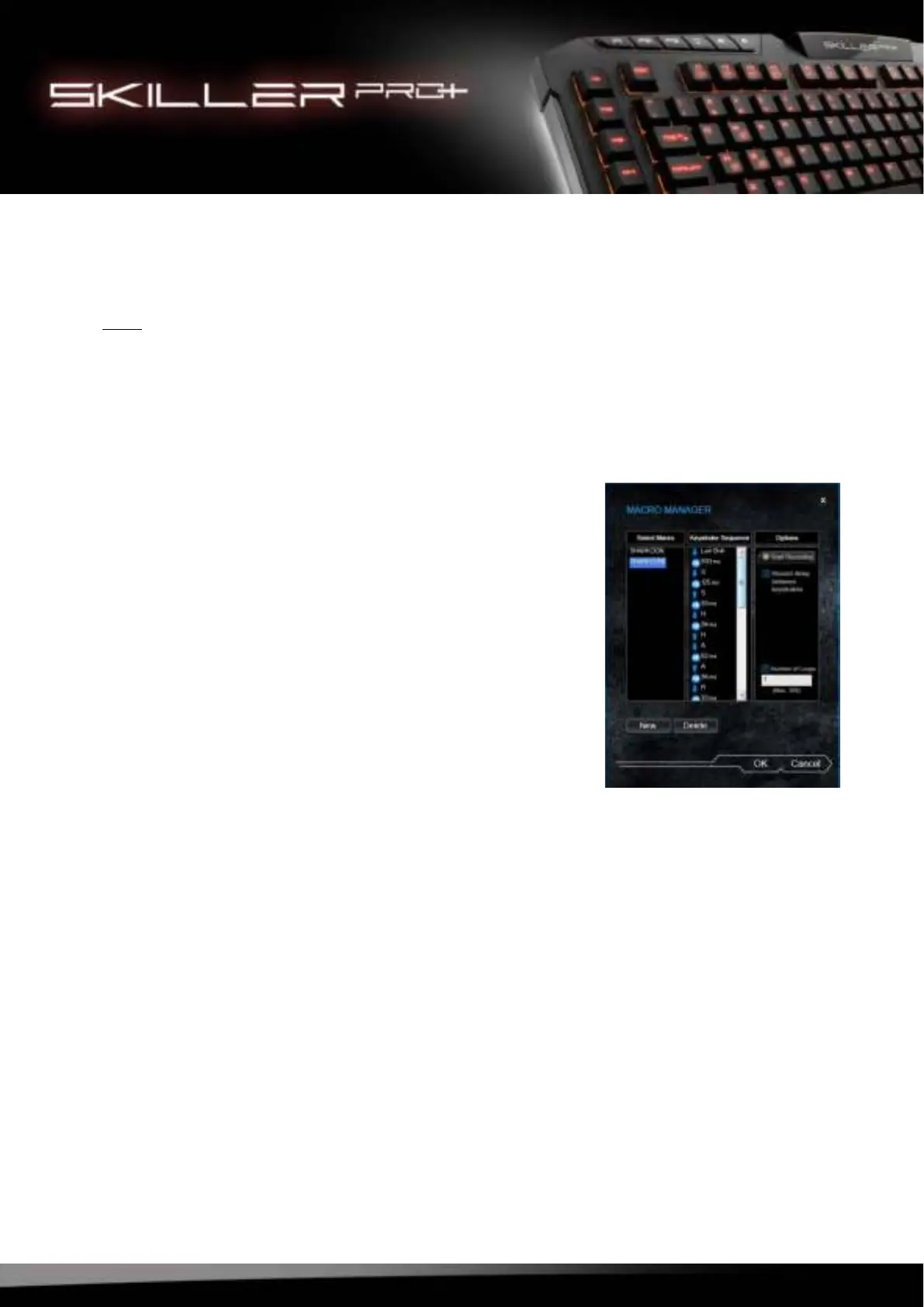
You may now start recording your macro. Select “Start Recording” and input your keystroke sequence. To
end the recording process, click “Stop Recording” on the right side under “Options”. Press “OK” to leave
the Macro Manager. Your macro has now been saved and can be used in any of the profiles (see 9.1.1).
Note:
Per macro, you may record a maximum of 25 keystroke sequences. Once the maximum number of
keystroke sequences has been reached, the recording will be stopped automatically. The maximum num-
ber of loops is 255.
8.8.2 Edit Macro
Each keystroke can be edited, adjusted or deleted in the Macro Ma-
nager.
To make changes, open the Macro Manager and select the macro
you wish to edit. The macro is now highlighted in blue and, in the
“Keystroke Sequence” column, all recorded keystrokes will be lis-
ted and delay time shown in milliseconds. All inputs are recorded
sequentially within the Macro Manager. Your first input is shown at
the top of the list.
Changes can be made by pressing the right mouse button within
the column “Keystroke Sequence”.
Make your selections (e.g. recording further keystrokes, insert or
edit delay time).



 To Next Page