17
Skydio Beacon/Beacon+ - Operator Manual © 2021 Skydio, Inc. All rights reserved.
How to upload Beacon logs
Troubleshooting
To assist our support team and better troubleshoot your questions, we may require you to send logs or other data
from your Beacon to our customer support team.
Do not reformat or factory reset your Skydio drone prior to contacting our support team.
See our warranty terms page for additional details.
We may need to review your videos and/or flight data to help us determine the root cause of any issues you
experienced. If you have any objection to this, please let the support team know. We will never review your
videos or data without your permission.
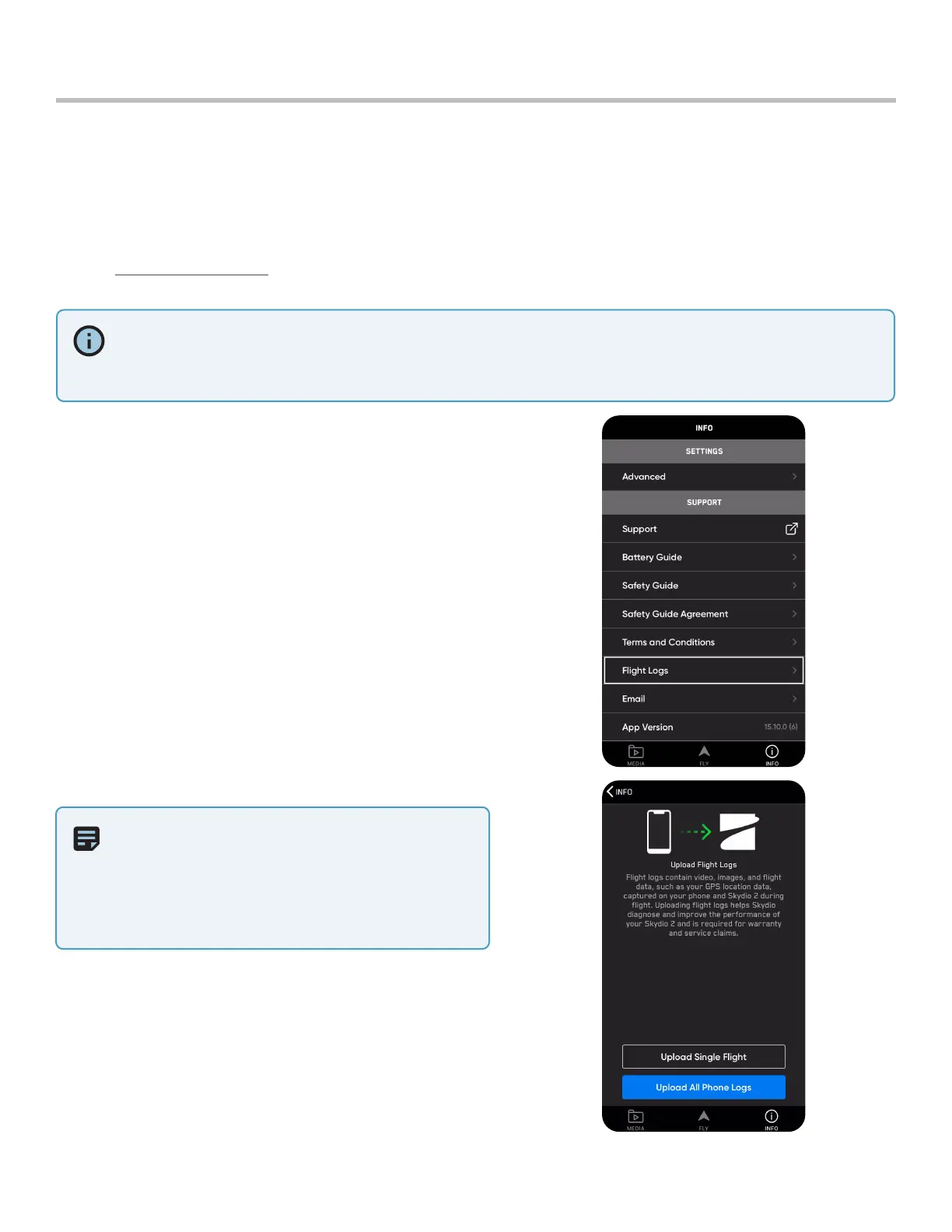
To upload your Beacon flight logs:
1. Power on Beacon.
2. Open the available Wifi network options on your
mobile device and connect to the Beacon Wifi
network
• This information is located on the back of the
Beacon.
• Manually enter the Wifi name and password or
scan the QR code.
3. Navigate to INFO > Support.
4. Select Flight Logs.
5. Select Upload Single Flight.
• This shows you available flight logs. Select
the flight in question and Beacon will begin
downloading the logs to the app.
NOTE: iOS users will have to leave the Skydio
app and connect to an available WiFi network
to complete the upload process for any flight
logs. Optionally, you can choose to upload
over your cellular network if no WiFi network is
available.


 To Next Page