The Skydio Enterprise Controller is a sophisticated device designed for operating Skydio 2, Skydio 2+, and Skydio X2 drones with advanced autonomy systems. It facilitates drone control with minimal cognitive effort and can be paired with one drone at a time.
Function Description:
The Enterprise Controller serves as the primary interface for piloting Skydio drones, enabling users to launch, land, and return the drone to home, as well as manage various flight parameters and camera functions. It features dual 2-axis joysticks for precise control over height, rotation, and lateral movement (Mode 2 default). Dedicated buttons allow for toggling Obstacle Avoidance (C1), lights (C2), and initiating Return to Home (RTH). The controller also includes a Power button, a Launch/Land button, and a Pause button for autonomous actions. Camera controls include R1 for shutter/record, L1 for temporary speed boost, a right wheel for zoom, and a left wheel for gimbal tilt. Additional buttons include R2 for toggling map view and L2 for toggling camera view. The device incorporates a user interface screen for displaying flight information and settings, and embedded antennas within its clamshell design for optimal signal. A reset button is available for troubleshooting unresponsive states.
Important Technical Specifications:
- Applications: Skydio Enterprise
- Wireless Links: -- (not specified, but implied for drone communication)
- Wired Links: USB 3.1 (via dongle) HDMI
- Operating Frequencies: 1.8 GHz / 5 GHz
- Max Range: Expected up to 10 km (1.8 GHz) / expected up to 6 km (5 GHz)
- Channel Bandwidth: 4 / 8 MHz (1.8GHz radio) and 5 / 20 MHz (5GHz radio)
- Video: 720p30
- Encryption: AES-256
- Dimensions: 10.75" x 5.25" x 3.0" (27.3 cm x 13.3 cm x 7.6 cm)
- Weight: 1130 g
- Input: Dual 2-axis joysticks, dual rockers & 10 buttons
- Sensors: GPS, Barometer, Compass, Gyro, ACC
- Memory: 256 GB disk
- Processor: Qualcomm Snapdragon 855
- Power Adapter: 65W USB-C (or off-the-shelf 18W or above)
Usage Features:
- Charging: The controller charges via a USB-C cable and a 65W power adapter (or an 18W+ adapter). Flashing lights indicate charging, and solid blue lights for one minute signify a full charge. The controller supports charging while in use.
- Charge Levels: LED lights on the front indicate charge status: 1 red (5% or less), 1 yellow (6%-15%), 1 blue (16%-37%), 2 blue (38%-62%), 3 blue (63%-87%), and 4 blue (88%-100%).
- Activation: Requires activation using an organizational email provisioned in Skydio Cloud (not applicable for Skydio X2D users). The process involves accepting terms, connecting to the internet, entering an email for verification, inputting an activation code, and optionally setting a password.
- Pairing: The controller pairs with a drone via a USB-C cable. Once paired, the drone's name appears under INFO > DEVICES. The controller can only be paired with one drone at a time.
- Unpairing: To unpair, power off the drone, navigate to INFO > DEVICES, select the drone's name, and choose "Forget."
- Controller Settings: Accessible via Device Settings (0) in the top left of the screen.
- Gimbal Speed: Adjusts the camera gimbal's pitch speed.
- Invert Wheels: Inverts controls for the Left Wheel (gimbal pitch) and Right Wheel (zoom).
- Flight Speed: Customizes maximum allowed speed for roll, pitch, yaw, and throttle. Defaults are 25% for roll/pitch, 33% for yaw, and 83% for throttle.
- Flight Mode: Allows switching between Mode 1, 2 (default), and 3 joystick configurations for drone maneuverability.
- On Screen Display: Toggles display of GPS coordinates, telemetry (speed, height, range, gimbal pitch), and thermal palette (Skydio X2 Color-Thermal only).
- Gesture: Sub-menu to toggle Pinch to Fly and Pinch to Zoom.
- Double Tap to Fly: Toggles the double-tap gesture to select a location for the drone to fly to.
- Touch Gestures:
- Drag vertically to adjust gimbal pitch.
- Drag horizontally to adjust yaw.
- Pinch and drag fingers away to digitally zoom in (up to 16x for Skydio X2, 3x for Skydio 2/2+).
- Pinch and drag fingers together to zoom out (to 1x, then to Superzoom).
- Double-tap on the fly screen to select a flight location.
- Signal Quality: Best maintained with a direct line of sight between the controller and Skydio X2. For close-range high-altitude flights, point the controller cover towards the drone. For max range, point the cover towards the drone while keeping the controller away from the body.
- HDMI Output: Supports displaying the controller screen to an external HD monitor via a third-party USB-C to HDMI cable.
Maintenance Features:
- Updates: The controller's software and firmware can be updated via the INFO > Settings > Controller Update menu. Users can check for updates and initiate the process, which involves downloading, updating software, and updating hardware.
- Hard Reset: In case of unresponsiveness, a hard reset can be performed by pressing the reset button on top of the controller and selecting "Power Off" or "Restart."
- Pre-Flight Checks: Users are advised to ensure camera lenses are clean, battery magnets/connections are free of damage/debris, propeller blades are free of nicks/cracks, and the chassis is free of damage/debris. The gimbal retaining clip should be removed from the front-facing camera.
- Environmental Precautions: The controller is not weatherproof and should not be operated in rain, snow, fog, or similar environments. Avoid resting it in sand, dirt, or similar terrain where particles can get trapped in the fan. Do not use batteries if magnets or connector pins are damaged.

 Need help?
 General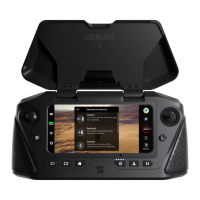

 To Next Page