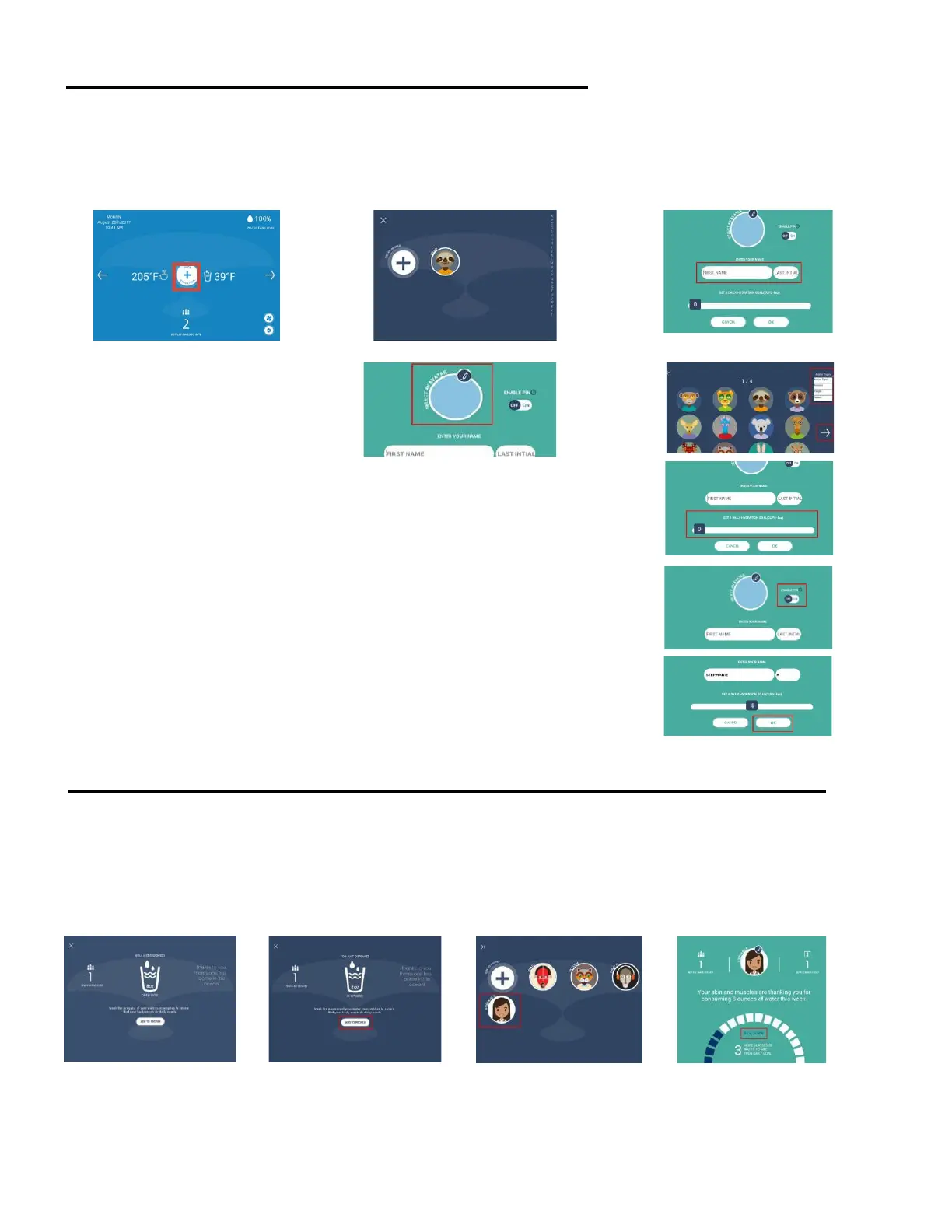
CREATE PERSONAL HYDRATION PROFILE
On the Dashboard page
of the Skywell App, tap
the middle circle.
On the Hydration Profile
page, tap the + button to
create your profile and
track hydration
Enter your first name
and last name initial in
the fields on the page
Optiona
l Profile Features:
º
Avatars
-
Select an avatar by tapping on the
pencil icon at the top of the page
-
Browse through Skywell’s avatar options
by tapping on the “Avatar Types” drop down menu on the top right of
the page and by using the right and left arrows
º
Daily Hydration Goals
-
Set daily hydration goal by swiping the bottom bar to the right.
º
PIN Code
- To have your Hydration Profile protected with a unique PIN number so it is only
accessible by you, tap the “ON” button under “ENABLE PIN”. Note: you will be
prompted to create a 4-digit PIN code once you have selected all of your other
desired profile features and tap the “OK” button on the bottom of the page.
ADDING WATER DISPENSED DATA TO HYDRATION PROFILE
After you’ve dispensed
your water, a page
displaying water
dispense data will
appear
Tap on the “Add to
Profile” button on the
bottom of the page
Select your profile
from the Hydration
Profiles page
The dispensed water
data is automatically
added to your
Hydration Profile


 To Next Page