LOAD LOGOS AND IMAGES
You must install the latest Skywell APP prior to installing new logos or images.
Skywell logos and images will appear if no logos or images are installed.
The screensaver and dashboard can be modified to include Dealer/Customer
logos or other images. The screensaver and dashboard files must be properly
named as follows:
• cobranding_logo_dashboard.png
• cobranding_logo_screensaver.png
You can create one image each for the screensaver and dashboard.
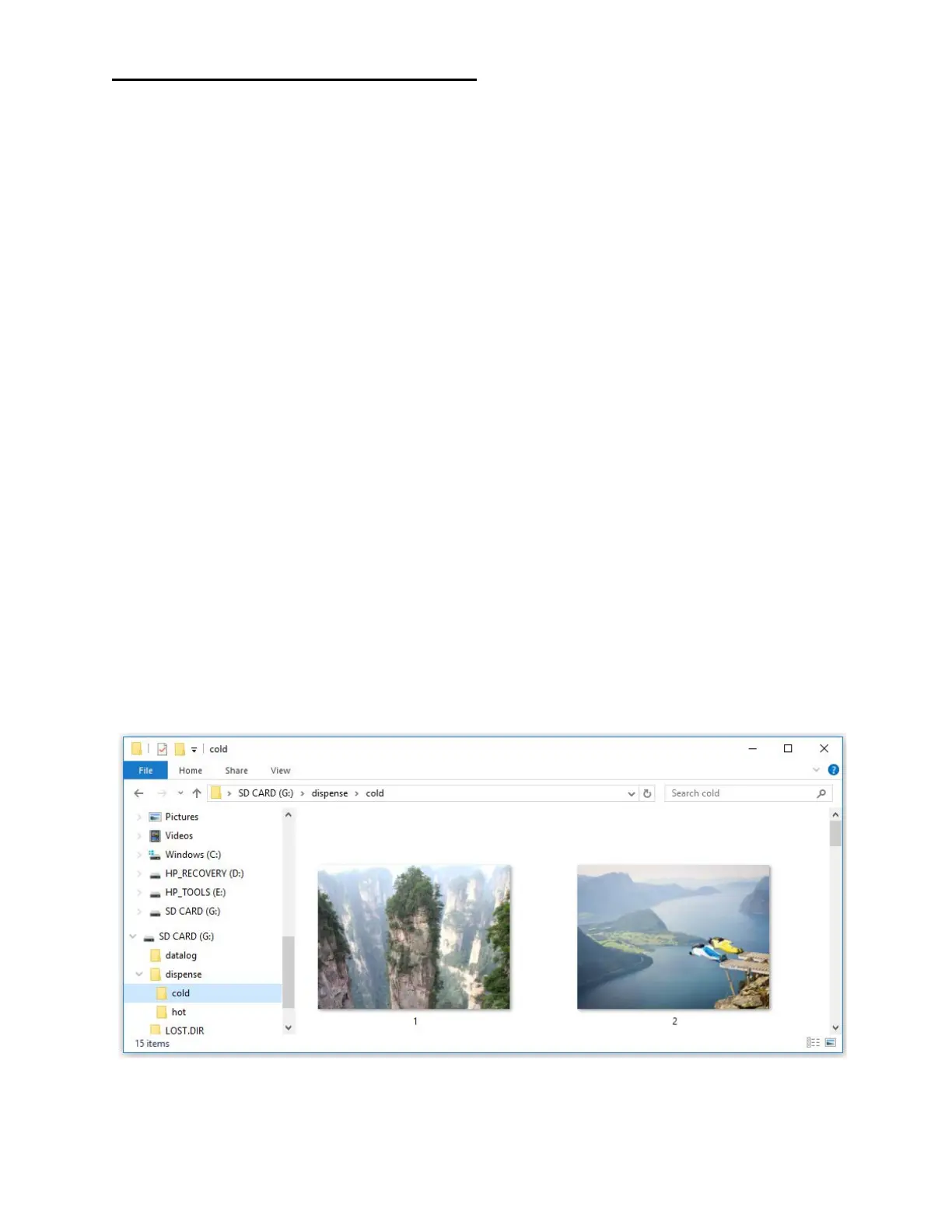
Multiple images for the 2 dispense pages (hot and cold) can be saved on the
SD card for the tablet to sequentially cycle through during subsequent
depressions of the hot and cold dispense buttons. These images must be saved
to the SD card inside a folder called “dispense”. There must be two folders
inside “dispense” called “hot” and “cold”. Place your images in either or both
the hot and cold folders. The dispense page images do not require any name
format but should be a .png file.
Use Photoshop to modify image files you want to insert on the tablet screens.
Here are some tips:
Screensaver: 800 x 600 pxls or smaller; depends on how the image meshes with
the screensaver "wave".
filename: cobranding_logo_screensaver.png
Dashboard: 500 x 220 pxls or smaller; placed on a transparent background.
filename: cobranding_logo_dashboard.png


 To Next Page