(B)
1. Do not delete the previous app. User profile information will be retained if
you simply add the new app to the SD card.
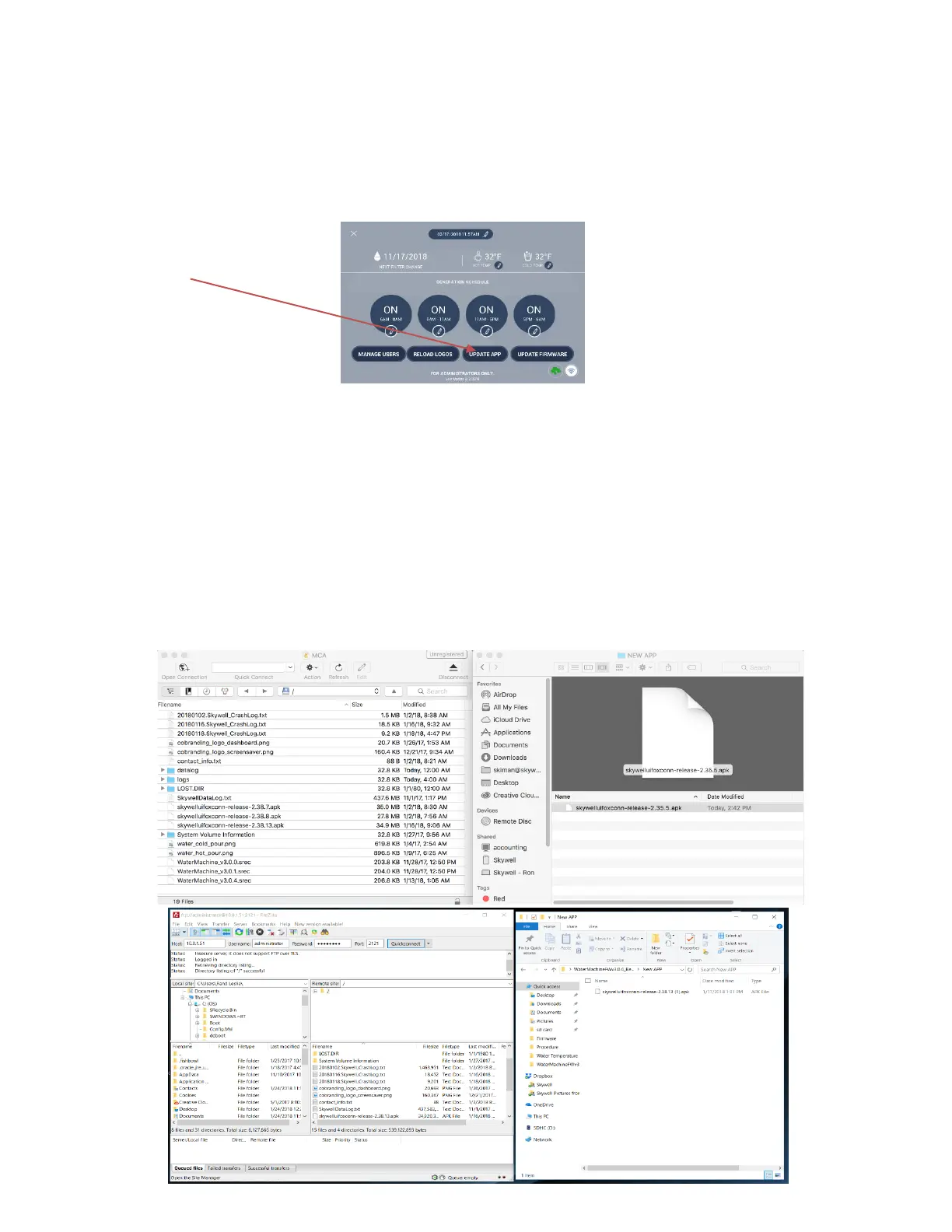
2. Tap the gear in the lower right-hand corner of the dashboard and then
enter the Administrator password of 1111 or 2856.
3. Tap Update App.
4. Tap the new skywell.apk that was added to the SD card 1 and tap
Update Now.
5. Tap Ok to Replace App? Tap Install.
6. Tap the upper right-hand corner icon and then tap the Skywell logo.
7. The MCU will connect to the tablet and the installation should be
complete. This will take about 15 seconds.
For both (A) and (B): Tap “About” in Service Settings to confirm the new app
installation. FYI: Pic below is of dragging the latest version of the App to the FTP
SD card.


 To Next Page