INSTALL THE SKYWELL APP
Note: you cannot install the latest version of the Skywell App on units with a serial
number of CSF16XXXXXXX. Those units should have a version not newer than 2.10
(this version is also available at Skywell.com).
The latest version of the Skywell App can be found at Skywell.com. (pw 2856) at
http://skywell.com/product/skywell-5t/latest-app/
and can be installed via Wi-Fi. We encourage you to always have the latest
App version in operation. The App version currently on the Skywell unit can be
found by accessing Service Settings (tap on the upper right corner on the
dashboard and enter 2856 as the password) and tapping About.
For units with an existing app version of earlier than 2.37.8, use the following
procedure (A) to update the Skywell App.
For units with an existing app version of 2.37.8 or later, use the following
procedure (B) to update the Skywell App.
Connect via Wi-Fi to the Skywell. Download then drag the latest version of the
Skywell App onto the SD card into the Apps folder from your computer. Do not
delete the previous App version from the SD card.
(A)
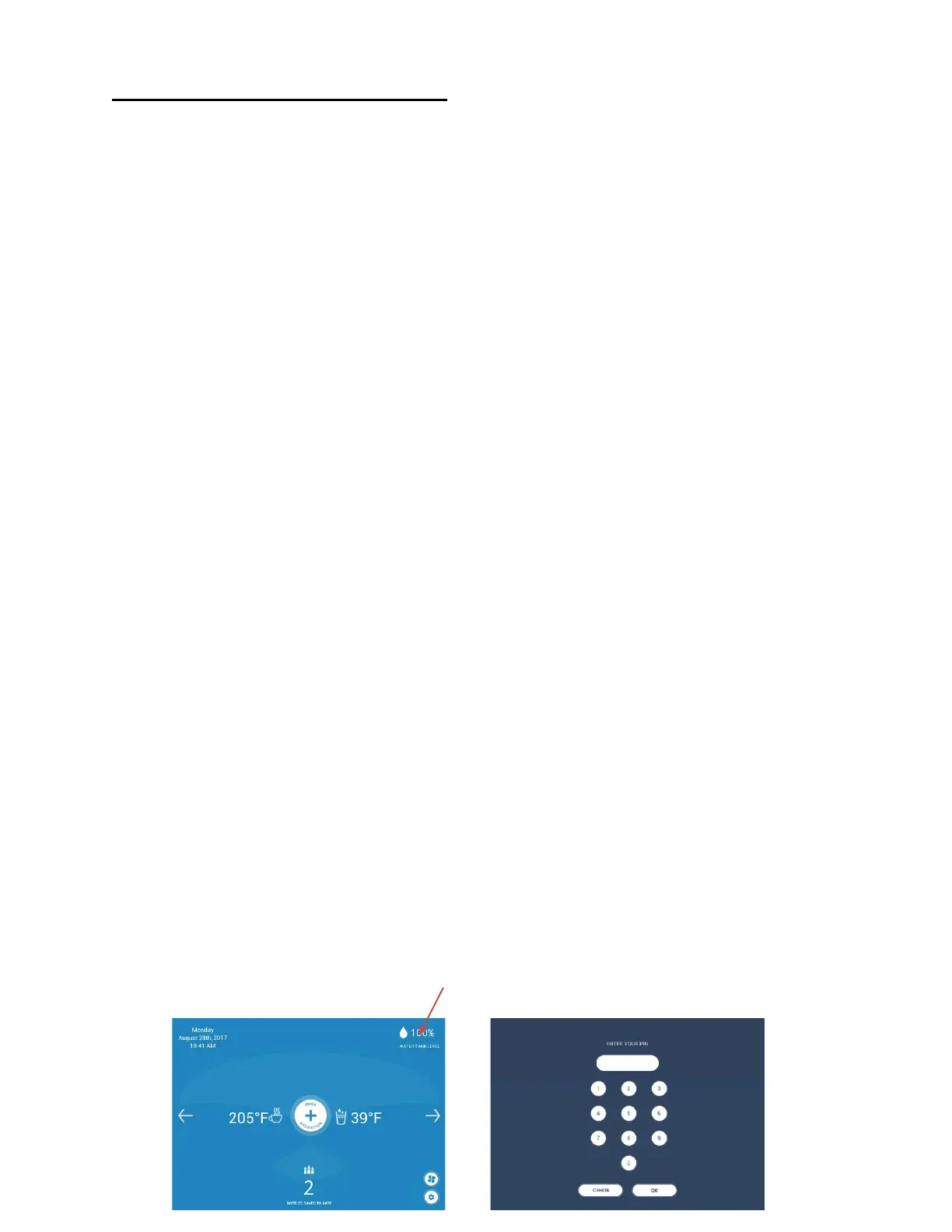
1. Go to Service Settings by tapping once on the top right corner of the
dashboard screen (Pic 1) and entering the password of 2856 (Pic 2).
2. In the Service Settings Menu, tap on Start Default Launcher (Pic 3).
3. Click on the icon File Manager (Pic 4).
4. Tap on the icon marked “sdcard1” (Pic 5).
5. Scroll down to find the new APP you dragged to the SD card (Pic 6).
Note: be sure to select the APP version hi-lighted with the Skywell logo.
6. Tap “OK” (Pic 7).
7. Tap “Install” (Pic 8).
8. Tap “Open” and the tablet will open up into the new Skywell App. (Pic 9)
1 2


 To Next Page