-19-
HOME CONTROL
Basic Operations
After connect to the USB mouse/keyboard, Smart system can operate. The basic operation
is similar to Android tablet computer windows. The Android desktop has a total of
five, the middle one as the default main desktop, both sides there are two. You can hold
down the mouse move for switching different desktop. Press the mouse and move to right
or left, Also you can press the mouse and move the apps.
Button
Change Wallpaper
Return , return to main desktop , historical records , Volume Up , Volume
Down
Wallpaper Mouse pressed about one second, will pop up with wallpaper changer option.
You can choose a picture as the desktop wallpaper. This operation can also be in the
settings menu operation.
Setting
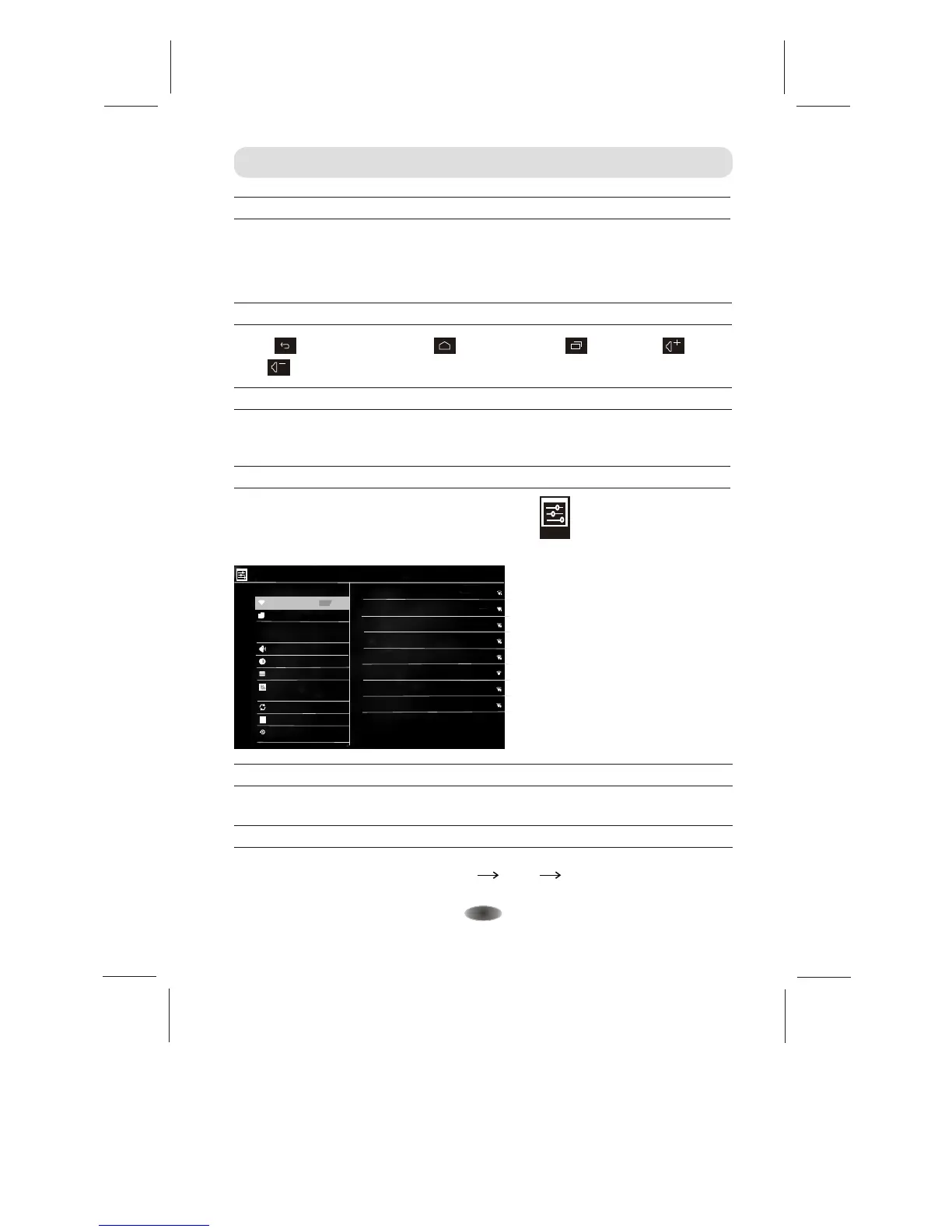
The user can enter settings from the desktop set icon. Also you can double-click
the bottom right corner of the clock, click settings to enter.
Settings
Wi-Fi Setting
Turn on Wi-Fi, automatically scans the network Choose a good network signal, according
to the router to network configuration, save settings.
Volumes
Set Volumes
Follow this path you can volumes: Settings Sound Volumes.
Settings
WIRELESS & NETWORKS
DEVICE
Sound
Display
Storage
Settings
SCAN
WIRELESS&NETWORKS
WAP500g
Wi-Fi
ON
Ethernet settings
More...
DEVICE
Sound
Display
Storage
Apps
PERSONAL
Accounts & sync
A
Language&input
Backup&reset
SYSTEM
Sky_5M67B
Connected
25C930
Secured with WPA(protected network available)
ChinaNet-cUTu
Secured with WPA
TP-LINK_67376A
Secured with WPA/WPA2(protected network available)
Jackal.Liu
Secured with WPA/WPA2
SRT
Secured with WPA
WEB
Secured with WPA/WPA2


 To Next Page