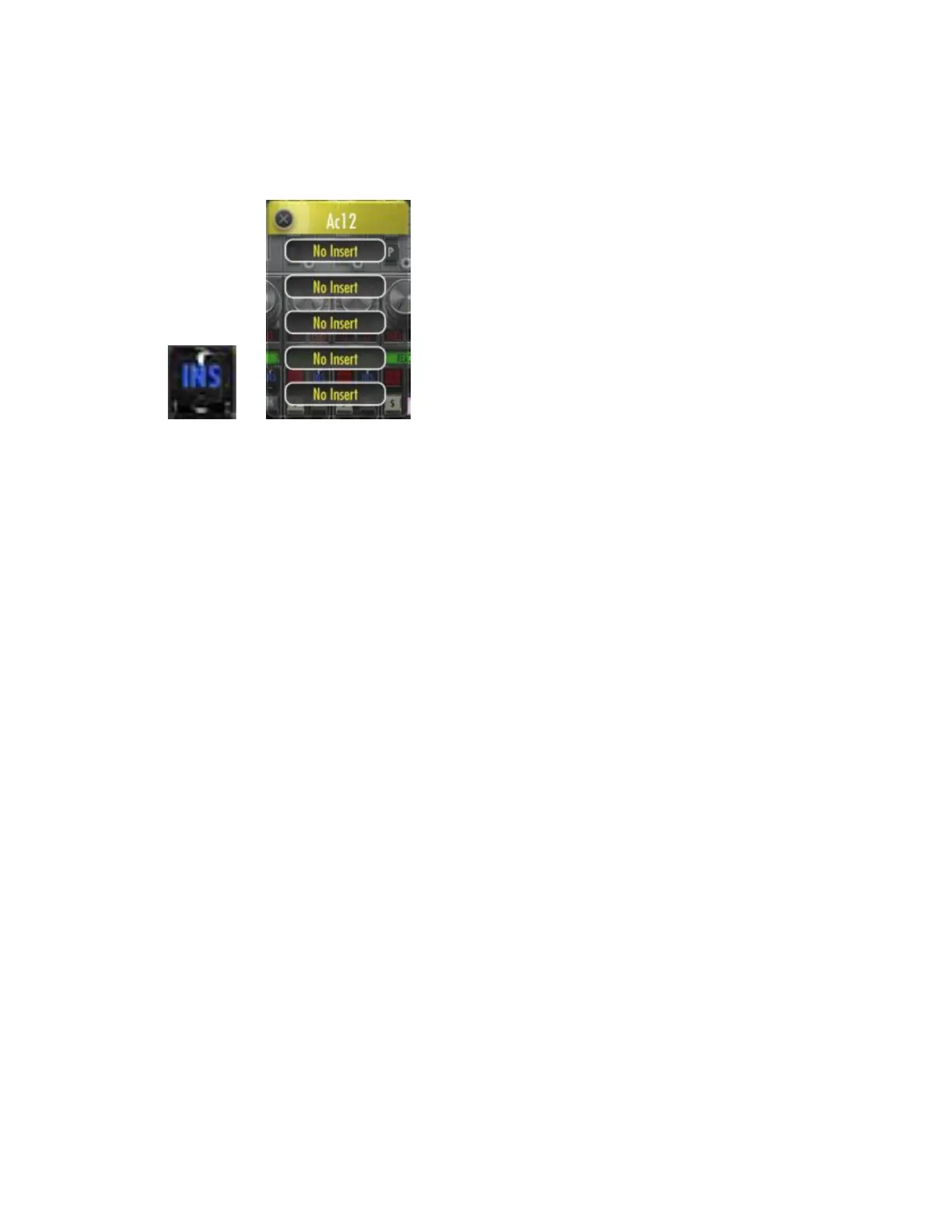
1 Hit the INS button on a given channel. The floating plugin window will
then open.
- The floating plugin window can be moved anywhere on the screen.
2 Select any plugin slot to bring up the plugin drop down list.
3 Touch and hold the “no insert” tab to activate the plugin list. We suggest
dragging your finger down the list to get the most accurate response.
4 Release finger to load selected plugin.
Controlling Plugins:
IMPORTANT:
Since RAVEN is a brand new platform for controlling audio, there has yet to be
development by many 3
rd
party plugin manufacturers for touch. While,
multitouch developments are being worked on, some limitations exist.
It is not recommended to touch controls that are small in size.
Plugins should only be touched when there is a large control that is easy to
activate via touch. Otherwise, a mouse should be used to control the plugin.
Plugin parameters are controlled by a single touch only. Functionality is the
exact same as using a mouse and uses the familiar up/down movements to
control knobs.
Closing a Plugin:
RAVEN is developed with custom ways to open and close plugins.
IMPORTANT
Never try to close a plugin window by touching the small, red “close” circle on
the top left on the window. The button is too small to have accurate results.



 To Next Page