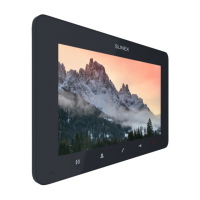
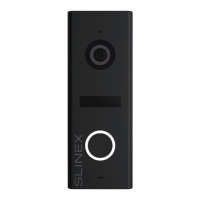
SONIK 7 Cloud
25 26
13. Software
Enter «Google Play» (for Android) or «Apple App Store» (for iOS) and search for «Smart Call» application,
then install this applicationи on your mobile device.
13.1. Creating new account
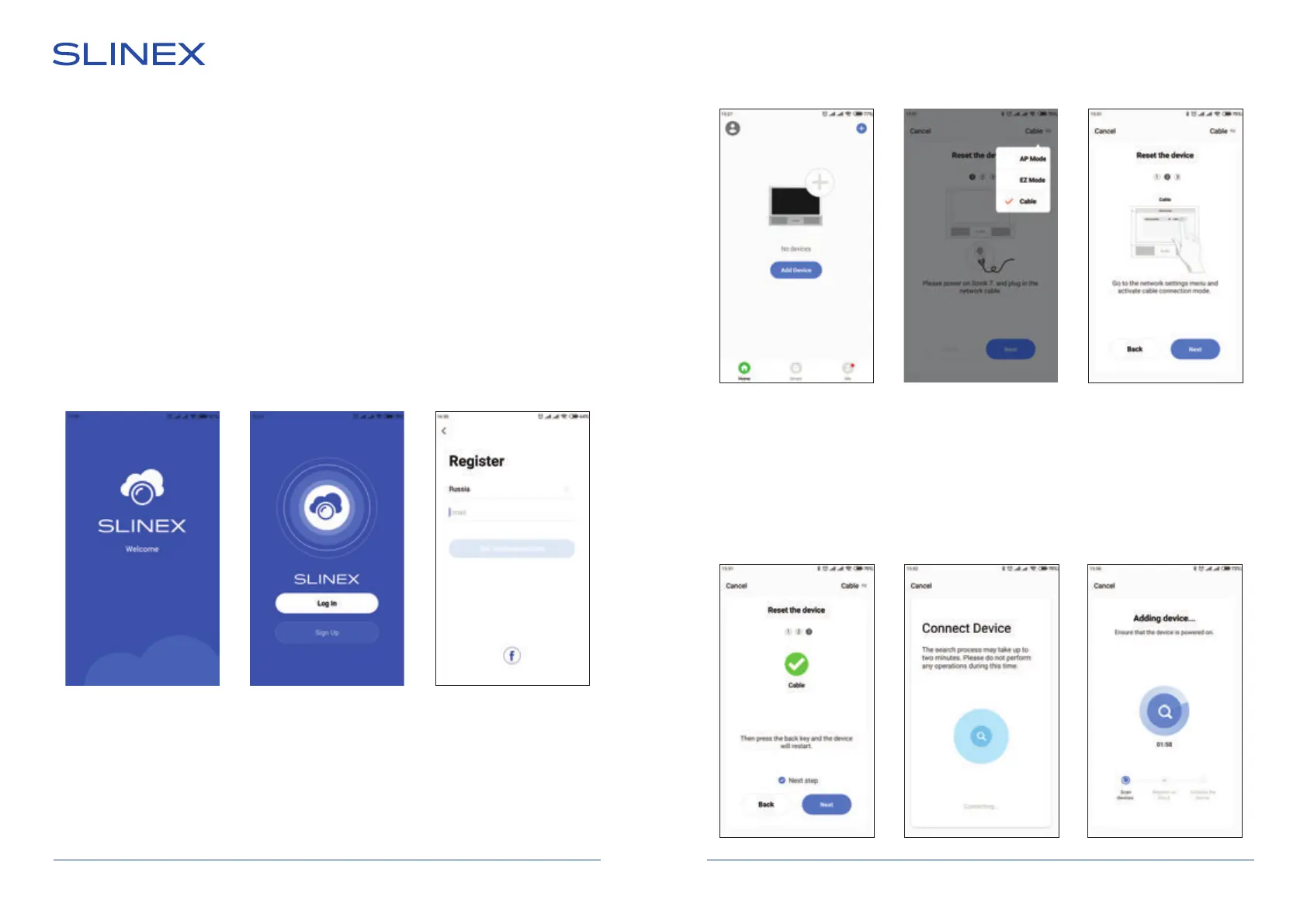
1) Start «Smart Call» application on your mobile device and press «SIgn up» button to create an account;
2) Choose destination country and enter your Email, then press «Get verication code» button to receive
an Email with verification code;
3) Check the Email, specied on the previous step;
4) Enter 6-digit code from the letter to activate your account. Set your password and press «Finish» to
nalize account creation process. Use your Email as a login for
13.2. Wired network connection steps
1) Use twisted pair CAT5 or CAT6 cable to connect device to the router;
2) Connect mobile device into the same local network;
3) Press «Add device» button and choose device model for connection. Then choose «Cable» connection
type in the upper right corner;
4) Turn on the monitor power and press «Next» button in the application;
5) In the monitor main menu press «Settings» → «Network» → «Net pairing mode» set «Cable» type of
connection. Monitor will reboot after exiting «Network» menu. After monitor reboot press «Next»
button in the «Smart Call» application;
6) Enable «Next step» switch then press «Next» button. Network devices search will be started;
7) Choose Sonik7 Cloud device in the list and it will be paired to the current account of the «Smart Call»
application.


 To Next Page