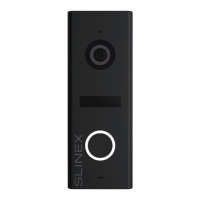
SONIK 7 Cloud
27 28
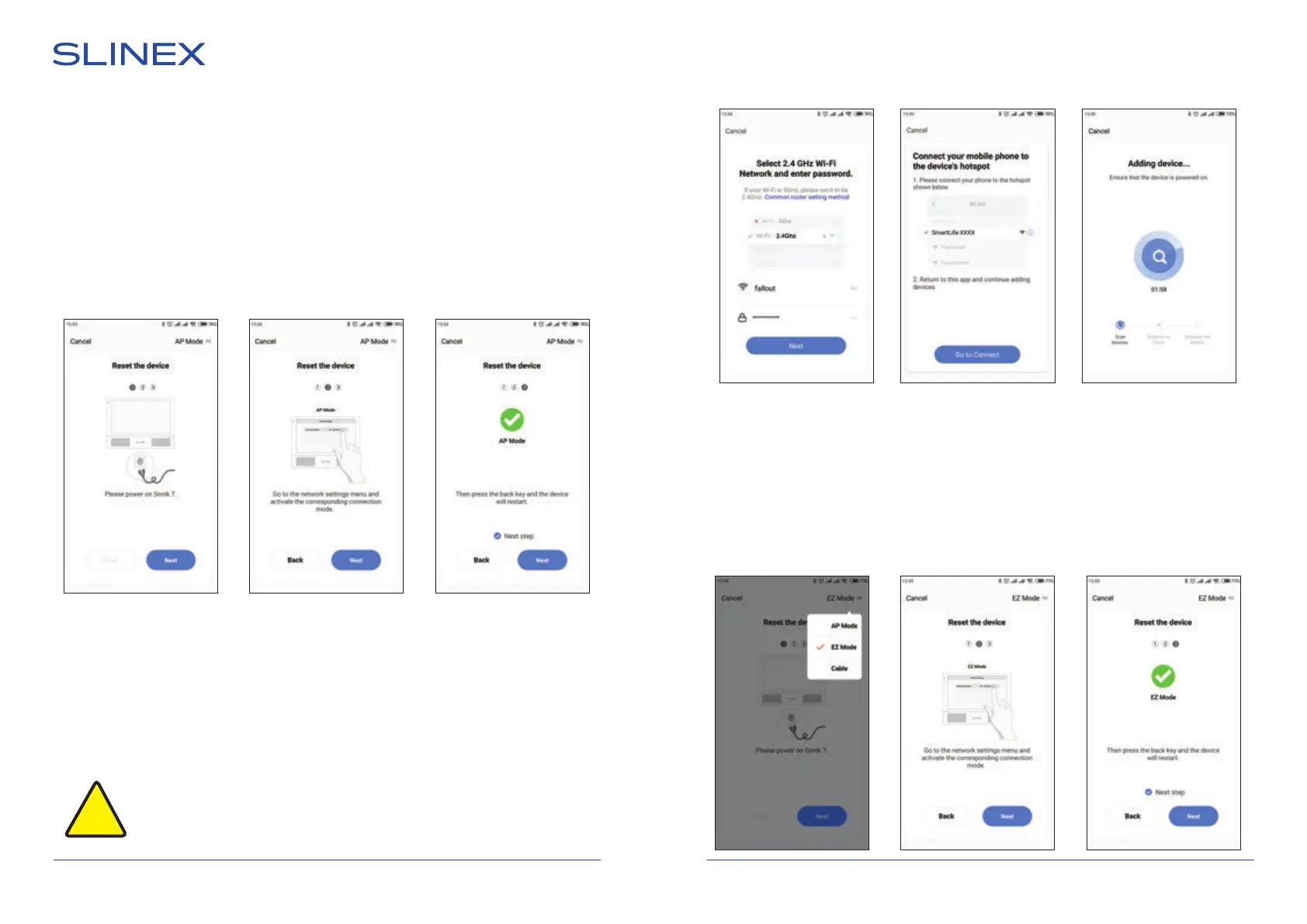
13.3. Wireless Wi-Fi network connection steps in «AP mode»
1) Connect mobile device into the same Wi-Fi network you want to connect the monitor;
2) Disable 3G/4G internet connection on your mobile device;
3) Press «Add device» button and choose device model for connection;
4) Turn on the monitor power and press «Next» button in the application;
5) In the monitor main menu press «Settings» → «Network» → «Net pairing mode» set «AP mode» type of
connection. Monitor will reboot after exiting «Network» menu. After monitor reboot press «Next»
button in the «Smart Call» application;
6) Enable «Next step» switch then press «Next» button;
7) Enter Wi-Fi network name, the monitor will be conected to, and network password. Then press «Next»
button to go to the next step;
8) Press «Go to connect» button and manually conect mobile phone to the Wi-Fi hotspot of the monitor.
Wi-Fi hotspot name is «SmartLife-xxxxxx». Password: 12345678;
9) When mobile phone is connected to the Wi-Fi hotspot, come back to the mobile application. The
monitor will be connected to the Wi-Fi network, specied on the 7-th step and paired to the current
account of the «Smart Call» application.
If current device is already paired to some account in
the «Smart Call» application
, then it
is impossible to add this device to any other account. To add this device to some other
account delete this device in the account, it is currently connected to!
!
13.4. Wireless Wi-Fi network connection steps in EZ mode
1) Connect mobile device into the same Wi-Fi network you want to connect the monitor;
2) Disable 3G/4G internet connection on your mobile device;
3) Press «Add device» button and choose device model for connection. Then choose «EZ mode»
connection type in the upper right corner of the screen;
4) Turn on the monitor power and press «Next» button in the application;
5) In the monitor main menu press «Settings» → «Network» → «Net pairing mode» set «EZ mode» type of
connection. Monitor will reboot after exiting «Network» menu. After monitor reboot press «Next»


 To Next Page