
 Need help?
Do you have a question about the SMART Board 6000S Series and is the answer not in the manual?
This guide explains how to use a SMART Board 6000S or 6000S Pro series interactive display.
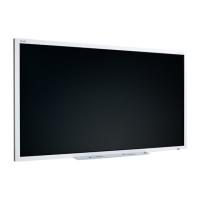
The SMART Board 6000S or 6000S Pro series interactive display with iQ is the hub of your classroom or meeting room.
SMART offers a variety of models of the SMART Board 6000S and 6000S Pro series interactive display.
Accessories for the display include: Pen accessory kit, Tool Explorer-enabled objects, SMART OPS PC module, Stands, USB extenders.
SMART provides a variety of other documents for this display in the Support section of the SMART website.
Learn how to wake the display and put it back into an energy saving mode using its proximity sensor.
Explore using the Home button, convenience panel, and remote control for display operations.
Master touch gestures, pen usage, eraser functions, and volume/microphone operations.
Learn to freeze/unfreeze the screen, use screen shades, and utilize specialized tools like SMART Ink.
Understand how to set up and use your SMART ID card for secure sign-in and personalization.
Explore the Apps Library, SMART Sensors app, and Files Library for enhanced display functionality.
Learn to use SMART Whiteboard, Browser, and Screen Share for collaborative activities and content access.
Discover SMART Mirror for content sharing, Input management, and taking screenshots.
Learn to install third-party apps, clean up the display, and use the kapp Whiteboard.
Learn to install and use essential SMART software, including SMART Notebook and SMART Meeting Pro.
Connect room computers and guest laptops via various ports and view their input.
Understand recommended cables, connect USB drives, peripherals, and OPS PC modules.
Resolve issues related to the display not turning on or having a blank/problematic screen.
Troubleshoot sound issues and problems with touch or pen input on the display.
Address issues with iQ apps, SMART software, and the SMART OPS PC module.
Guidance on contacting your reseller for unresolved issues and finding serial numbers.
FCC, ISED Canada, and EU compliance information for radio frequency and radiation exposure.
Japan VCCI statement and specific regional restrictions for device operation.
 General
| Display Type | LCD |
|---|---|
| Screen Size | 65", 75", 86" |
| Resolution | 4K UHD (3840 x 2160) |
| Aspect Ratio | 16:9 |
| Touch Technology | HyPr Touch with Advanced IR |
| Brightness | 350 cd/m² |
| Contrast Ratio | 4000:1 |
| Response Time | 8 ms |
| RAM | 8 GB |
| Storage | 128 GB SSD |
| Wireless Connectivity | Wi-Fi, Bluetooth |
| Warranty | 3 years |
| Operating System Compatibility | Windows, macOS, Chrome OS |
| Connectivity | HDMI, USB, DisplayPort |
| Microphone | Integrated microphone array |
| Mounting | VESA |
| Touch Points | 20-point multi-touch |
| Weight | Varies by model size |











 To Next Page
