
 Need help?
Do you have a question about the SMART Board GX V2 Series and is the answer not in the manual?
Explains how to use the interactive displays and resources available.
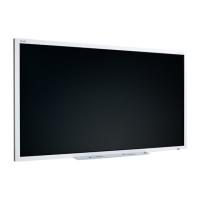
Introduces the features and components of the GX (V2) series interactive display.
Describes the buttons for controlling the display on and off, volume, freezing, and Home screen.
Lists optional accessories for the display, such as OPS PC modules, wall mounts, stands, and USB extenders.
Provides links to additional documents and support resources for the display on the SMART website.
Instructions on how to turn the display on and off or put it into standby mode.
Details the functions of the buttons on the display's front control panel for basic operations.
Explains how to use the remote control for display functions like power, input, volume, and settings.
Describes notification icons, side toolbar buttons, and the main toolbar for navigating the display interface.
Explains how to interact with the display using touch gestures for navigation and application control.
Covers using pens to write or draw in digital ink and how to erase content using gestures or tools.
Details how to create, save, and manage whiteboards using various tools and controls within the app.
Explains how to use the built-in web browser for internet access, similar to a computer or mobile device.
Guides on wirelessly sharing content from devices to the display using various methods like Bytello Share, AirPlay, and Miracast.
Describes the Palette app for painting and drawing on a digital canvas using various tools, colors, and mixing options.
Explains how to connect a camera, view its input, take screen captures, and annotate images for saving or importing.
Covers selecting inputs and adjusting brightness/volume, with advanced options for input configuration.
Explains how to write or draw over displayed content and save the overlay to files or cloud storage.
Details how to use the countdown timer widget, including starting, pausing, resetting, and setting sounds.
Covers using the stopwatch widget to measure elapsed time, with options for pausing, laps, and resetting.
Explains how to use the Spotlight widget to draw attention to specific areas of the screen during presentations.
Lists and describes SMART software like Notebook, Product Drivers, and Ink for connected computers.
Guides on how to connect computers to the display for viewing and interaction.
Details connecting external devices like USB drives, keyboards, and other peripherals to the display.
Provides solutions for common problems like forgotten passcodes, network connectivity, or broken pens.
Offers steps to troubleshoot issues when the display fails to power on or shows incorrect status lights.
Addresses issues like blank screens, distorted images, or poor display quality, suggesting cable and input checks.
Provides troubleshooting steps for unresponsive touch screens, incorrect pointer placement, or intermittent touch input.
Offers solutions for issues where pens don't write, ink is misplaced, or writing disappears during use.
Covers troubleshooting common problems encountered while using the Whiteboard app.
Addresses problems related to the Browser app and audio playback.
Covers troubleshooting issues with screen sharing features, including touchback and connectivity.
Explains how to find regulatory information electronically within the display’s settings menu.
Provides FCC compliance information, including declarations and operational restrictions for radio frequency devices.
Outlines compliance with FCC radiation exposure limits and installation guidelines for safe operation.
 General
| Display Size | 65", 75", 86" |
|---|---|
| Resolution | 4K UHD (3840 x 2160) |
| Aspect Ratio | 16:9 |
| Brightness | 350 cd/m² |
| Response Time | 8 ms |
| RAM | 4 GB |
| Storage | 32 GB |
| Touch Technology | Infrared |
| Viewing Angle | 178° |
| Touch Points | 20-point multi-touch |











 To Next Page
