
 Need help?
Do you have a question about the SMART Board GX Series and is the answer not in the manual?
Essential safety guidelines covering electrical hazards, fire risks, and proper handling of the display.
Details the purpose, scope, and intended audience of this user guide.
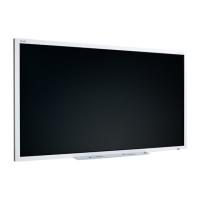
Overview of the display's features, components, physical layout, and model variations.
Lists optional accessories and directs users to additional online support and documentation.
Instructions for waking the display from standby and returning it to standby mode.
Guides users on operating the display via its physical control panel and remote control.
Explains navigation through on-screen menus, controls, and interactive touch gestures.
Procedures for writing with pens, drawing, erasing, and temporarily freezing the display screen.
How to use the built-in Whiteboard for notes and the Browser for web access.
Steps for wirelessly sharing content from devices using EShare and iMirror.
Guides on using WPS Office, creating polls with Vote, and managing files.
Information on which applications are not supported and potential issues.
Instructions for using widgets to manage system resources, time, and perform calculations.
How to use widgets for capturing screen content and highlighting presentation areas.
Using the Lock Screen feature for security and the Vote widget for interactive polling.
Installing SMART software and connecting computers or laptops to the display.
Details on various display connectors, recommended cables, and input selection.
Guidance on installing OPS modules and connecting USB drives and other peripherals.
Guidance on diagnosing and resolving common problems with the display and related products.
Information on how to contact authorized resellers or SMART support for assistance.
FCC statement on device interference and operational compliance.
Canadian statement on radio interference and compliance.
Official EU declaration of conformity for radio equipment types.
Details on hardware compliance standards and environmental considerations for the product.
 General
| Resolution | 4K UHD (3840 x 2160) |
|---|---|
| Screen Sizes | 65", 75", 86" |
| Touch Points | 20 |
| Response Time | 8 ms |
| Brightness | 350 cd/m² |
| Contrast Ratio | 1200:1 |
| Aspect Ratio | 16:9 |
| Viewing Angle | 178° |
| Speakers | 2 x 15W |
| Operating System Compatibility | Windows, macOS, Chrome OS |
| Connectivity | HDMI, USB, VGA, Ethernet |
| Weight | Varies by size |
| Dimensions | Varies by size |
| Power Consumption | Varies by size |













 To Next Page