
 Need help?
Do you have a question about the SMART Board MX Series and is the answer not in the manual?
Explains the purpose of the guide and its intended audience.
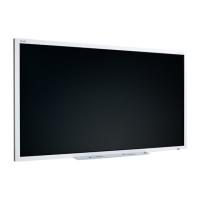
Overview of the SMART Board MX or MX Pro interactive display with iQ as the classroom hub.
Guide to identifying different series and models of SMART Board MX and MX Pro displays.
Lists available accessories for the SMART Board display, including OPS modules and stands.
Links to additional SMART documentation and support resources on the website.
Instructions for powering the display on, off, and putting it into sleep mode.
How to navigate to the Home screen and switch inputs using the Home button.
Explanation of the buttons on the front control panel for display operations.
Details on using the infrared remote control for various display functions.
Guide to interactive gestures for panning, scaling, rotating, and zooming on the display.
How to write, draw, and erase digital ink using pens, palm, or fist.
How to use the SMART Ink toolbar for changing pen properties and accessing tools like screen capture.
Steps to increase, decrease, or mute the display's volume using controls or remote.
How to temporarily freeze the screen display or hide content with a screen shade.
Accessing and managing applications like Browser, SMART Whiteboard, and kapp Whiteboard.
Accessing and viewing files such as SMART Notebook, PDFs, and screenshots from the display or USB.
Opening, viewing, and interacting with SMART Notebook files and whiteboards.
How to browse websites on the display using the built-in web browser.
Wirelessly sharing screens from computers and mobile devices to the display.
Sharing content via the internet from Android, Chrome, OS, iOS, macOS, or Windows devices.
Connecting computers and other input sources to the display for video output.
Capturing, annotating, and saving screenshots to the Files Library.
How to install third-party applications from the Google Play Store using SMART Remote Management.
Signing out of apps and closing applications for the next user.
Using the kapp Whiteboard for writing, erasing notes, and saving them.
Information on installing and utilizing SMART software suites on connected computers.
Steps for connecting computers and laptops to the display's various input ports.
How to view the input from connected computers on the display and switch between sources.
Recommended resolutions and refresh rates for connecting computers via USB-C, HDMI, and other inputs.
Using USB Type A receptacles to connect drives, keyboards, and other devices.
Table showing USB 3.0 and USB 2.0 receptacle compatibility and speeds for different input sources.
Steps to resolve issues when the display's power light is not lit or the screen is blank.
Diagnosing and fixing issues related to a blank, distorted, flickering, or dim display image.
Diagnosing and fixing issues like image cut off, incomplete fill, or incorrect colors.
Steps to resolve problems with no sound, low volume, or distorted audio on the display.
Resolving issues when the display does not respond to touch or touch input is inaccurate.
Steps to fix problems with pen or eraser response, writing accuracy, or disappearance.
Guidance for resolving issues when iQ applications are not functioning correctly.
Steps to resolve problems with SMART Notebook, Lumio, SMART Ink, or Product Drivers.
Referencing user guide for issues with the SMART OPS PC module.
Referencing troubleshooting guide for issues with the Intel Compute Card.
Instructions on how to contact a reseller for persistent or uncovered issues.
FCC compliance information regarding harmful interference and operational conditions.
FCC statement on equipment compliance with radiation exposure limits.
ISED Canada compliance for radio apparatus, including interference and operational rules.
ISED statement on equipment compliance with radiation exposure limits.
EU compliance statement for radio equipment, including frequency bands and maximum transmit power.
Cautionary statement regarding EU radiation exposure limits for the equipment.
 General
| Screen Sizes | 65", 75", 86" |
|---|---|
| Response Time | 8 ms |
| Processor | Quad-Core |
| Display Type | LCD |
| Touch Technology | Infrared |
| Operating System | Android |
| Connectivity | HDMI, VGA, USB, Ethernet, Wi-Fi, Bluetooth |
| Audio | Built-in stereo speakers |
| Brightness | 350 cd/m² |
| Viewing Angle | 178° |
| Touch Points | 20 |
| Warranty | 3 years |












 To Next Page