12 | CHAPTER 3 – CONNECTING YOUR INTERACTIVE WHITEBOARD TO YOUR
COMPUTER
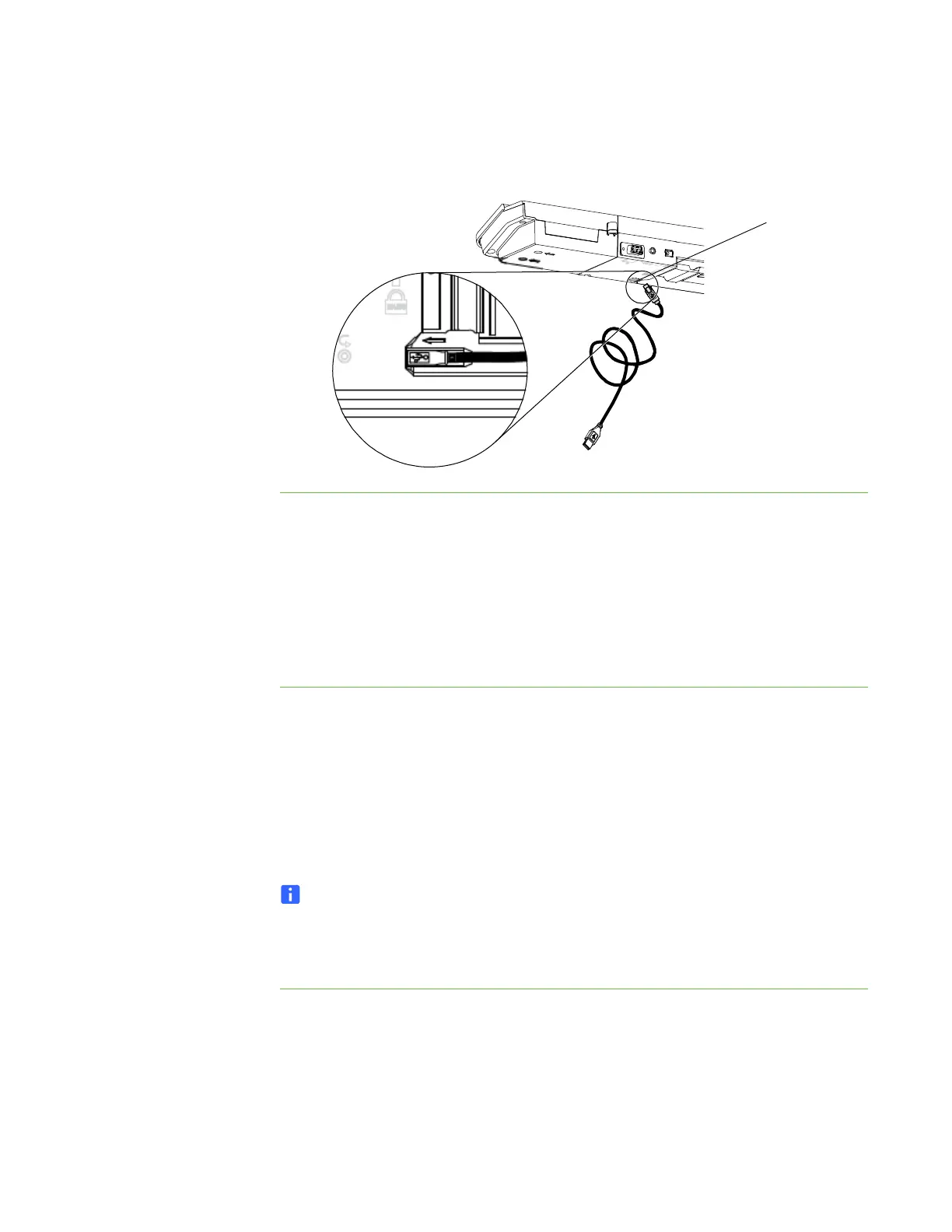
This location provides access to the USB receptacle without having to remove your
interactive whiteboard from the wall.
To connect
the USB cable
1. Connect one end of the included USB cable to a USB A receptacle on your
computer.
2. Connect the other end of the USB cable to your interactive whiteboard’s USB
receptacle.
3. Turn on your computer.
4. Install SMART Product Drivers.
Installing SMART Product Drivers
After you install SMART Product Drivers on your computer, your SMART Board
interactive whiteboard’s surface will respond to the touch of your finger or a pen tray
pen. SMART Product Drivers include the tools you need to control computer
applications with your finger or a pen, and to write over them in digital ink.
NOTE
If you don’t install SMART Product Drivers, interactive whiteboard tools such as
the pens and the eraser don’t work, but you can move the mouse pointer and
perform mouse functions by touching the interactive surface.
To install
SMART Product Drivers
1. If it’s not already on, turn on your projector to see the projected computer image
on your interactive whiteboard.
2. Download SMART Product Drivers from the link on page 3. When you have
downloaded the file to your computer, run the installation program and follow the
on-screen instructions to complete the installation.



 To Next Page