18 | CHAPTER 4 – USING AND MAINTAINING YOUR SMART BOARD INTERACTIVE
WHITEBOARD
If your computer is in standby mode, the Power button on the pen tray is unlit. Press
the Power button or touch the interactive surface to wake up your computer, or return
it to standby mode.
When you turn on or reset your interactive whiteboard, the indicator lights on the
pen tray cycle twice. When the system is running and SMART Product Drivers are
installed, the lights come on only for the ink color you select. The pen tray detects the
removal of the pens and the eraser using infrared sensors.
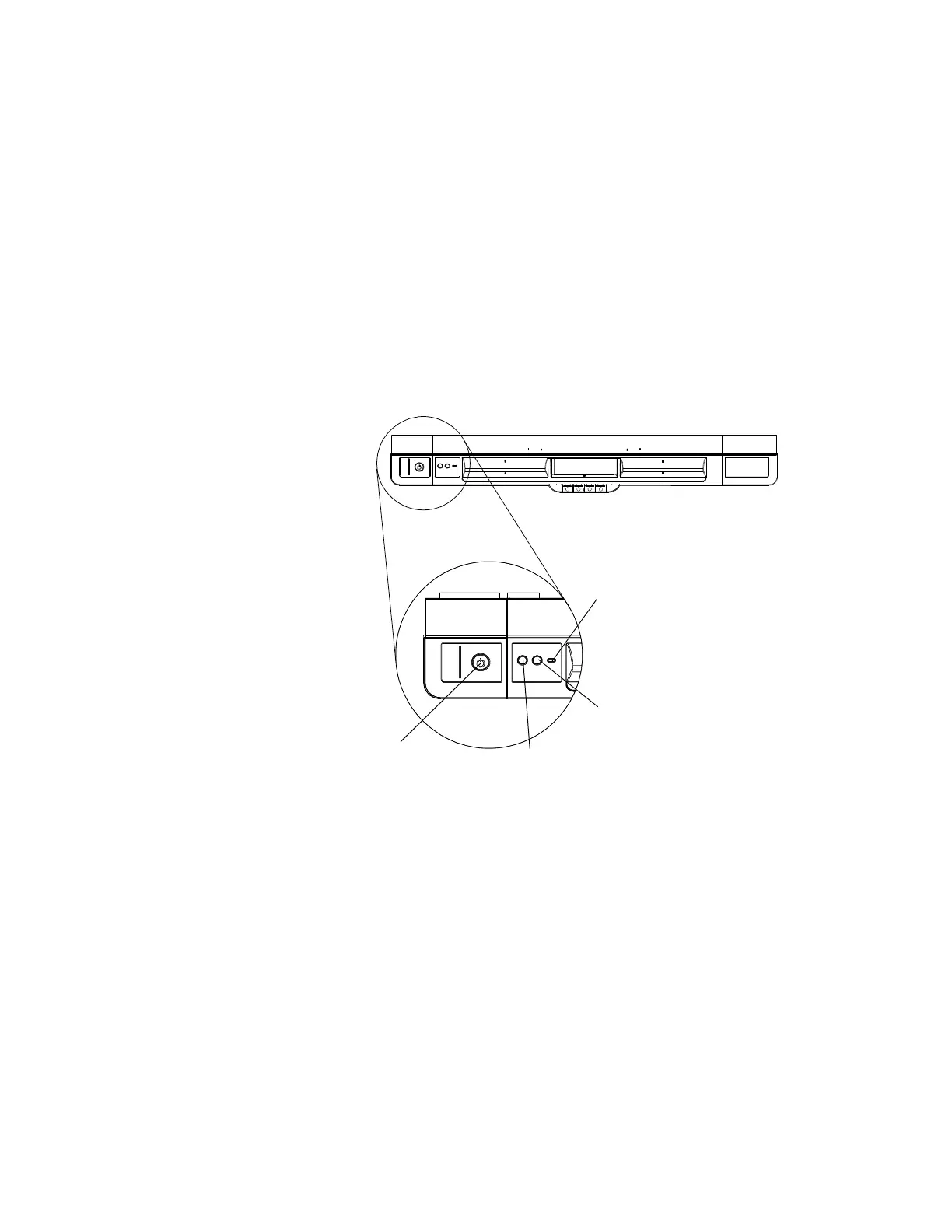
Power panel controls and indicators
Located at the pen tray’s left side, the Power panel has Power, Orientation and Help
buttons, and the interactive whiteboard’s Ready light.
Power button
Use the power button to turn your interactive whiteboard on and off. Ensure that the
interactive whiteboard is connected to your computer and to a wall power outlet.
Orientation button
Press this button to start the orientation process. Orienting your interactive whiteboard
ensures that the mouse pointer or digital ink appears directly below your finger or pen
tray tool when you touch the interactive surface. See page 15 for information on
performing an orientation procedure.
Help button
Press this button to access on-screen Help options, including links to online Help files,
troubleshooting options and contact information for SMART technical support.
Power
button
Orientation
button
Help button
Ready light



 To Next Page